SOURCE-CHECKED · EVERYDAY TECH
iPhone screen still too bright? Adjust Reduce White Point
A concise guide to using Reduce White Point alongside the brightness slider, with a note on how Color Filters can affect images.
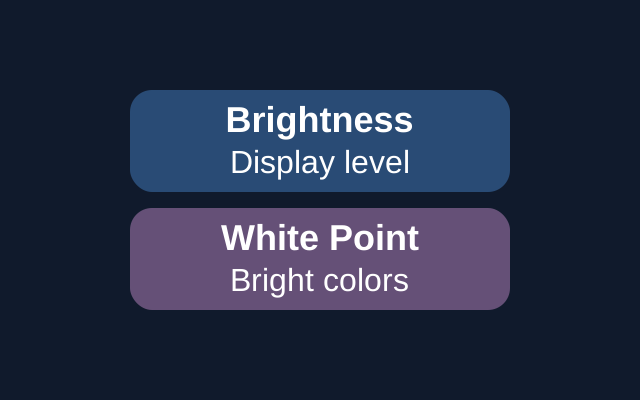
If the brightness slider is at a comfortable level but bright colors still feel intense, try Reduce White Point. Apple says it tones down the intensity of bright colors.
Turn on Reduce White Point
- Open Settings > Accessibility > Display & Text Size.
- Note whether Reduce White Point is on or off.
- Turn it on. To restore your previous setting, return here and set it back to its original position.
The slider in Control Center adjusts brightness. Reduce White Point changes the intensity of bright colors. If pictures or videos look different, also check Color Filters in Display & Text Size. Apple says those filters can change how images and videos appear.
Apple documents these controls in its iPhone User Guide and display accessibility support page. These instructions were not tested on a device.
KEEP GOING
More to explore.
SOURCE-CHECKEDEveryday tech
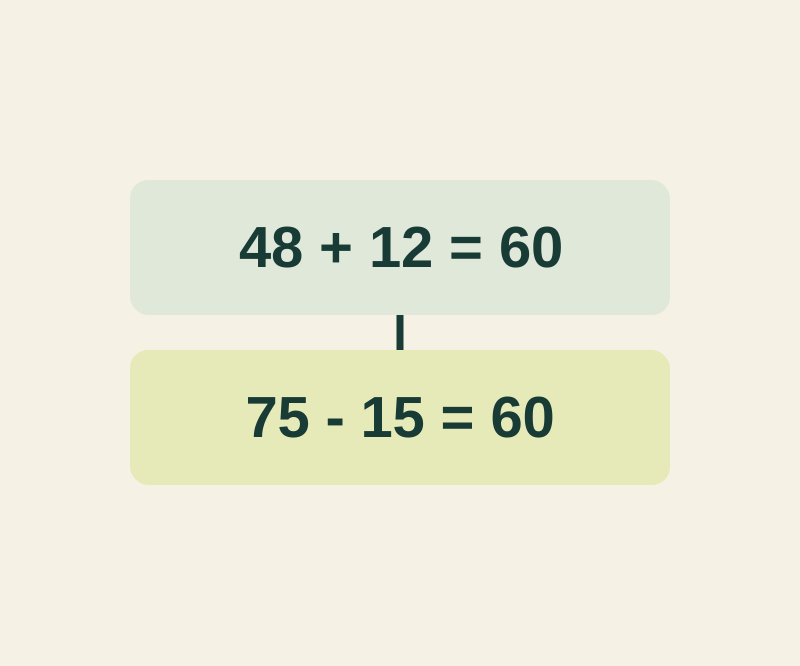
iPhone Calculator history: copy the expression, not just the answer
Two calculations can both equal 60. Keep the expression and a short label when the result alone would lose the context.
SOURCE-CHECKEDEveryday tech
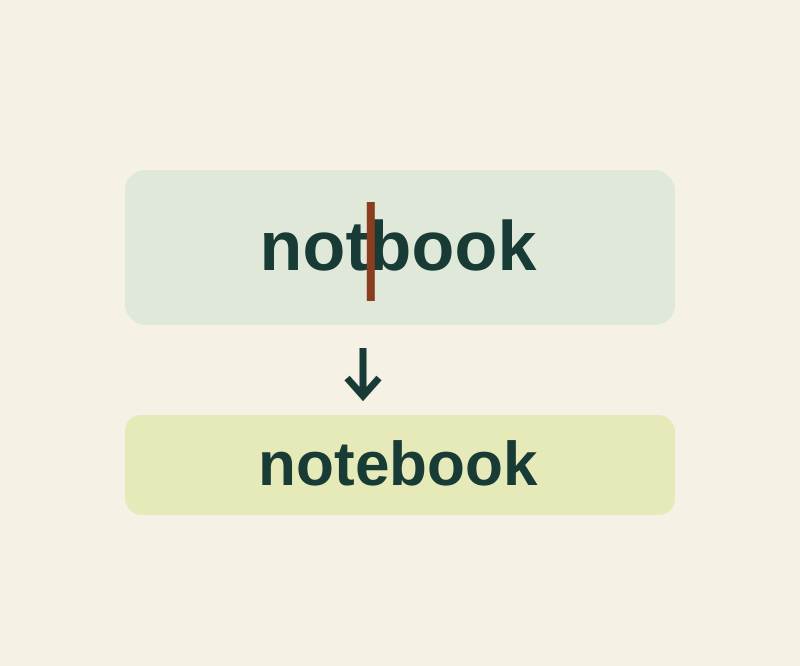
Use the iPhone keyboard as a trackpad to fix one character
Insert a missing letter, remove a repeated word or replace a color while keeping the surrounding text intact.