SOURCE-CHECKED · EVERYDAY TECH
Use iPhone NameDrop without sharing every contact detail
Choose which contact-card fields to share with NameDrop, understand its saved selection, and cancel an exchange before it completes.
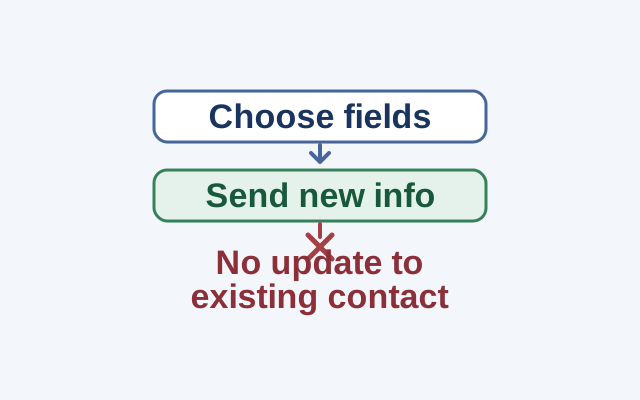
When NameDrop appears, choose Receive Only to get the other person’s contact information without sending yours. Choose Share to send your contact card and receive theirs. If you share, you can choose which fields to include.
Choose fields before sharing
Hold your iPhone’s display a few centimeters from the top of the other person’s iPhone or supported Apple Watch until NameDrop appears on both screens. Choose Share, tap the disclosure triangle, select the fields you want to include, then tap Save.
Apple says the same fields will be selected by default next time. Suppose you shared only a few fields with one person and later meet someone new. Open the field selection and check what is selected before you share again.
NameDrop sends new contact information. It does not update an existing contact, so changing your selected fields will not refresh an entry someone already has for you.
Cancel an exchange
Move the devices apart or lock your iPhone before the transfer completes. Apple’s instructions cover another iPhone or an Apple Watch Ultra, Series 7 or later, or SE 2nd generation or later.
Source: Apple iPhone User Guide.
KEEP GOING
More to explore.
SOURCE-CHECKEDEveryday tech
Copy iPhone photo edits to a batch without treating every shot alike
A window-lit sequence can share a starting edit; night, sunlight and stage shots need separate judgments.
SOURCE-CHECKEDEveryday tech
Fix duplicate iPhone contacts without joining the wrong people
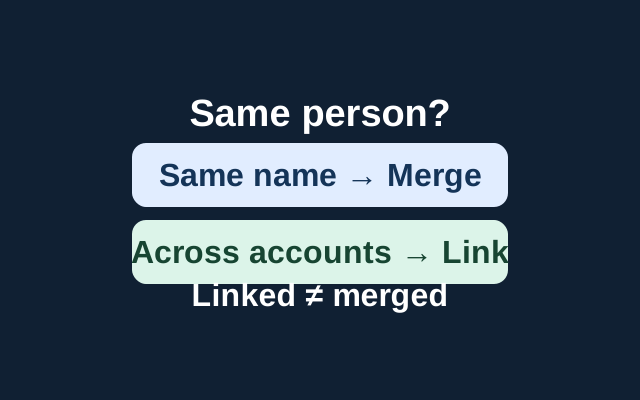
Apple’s Contacts guide describes two actions: merge reviewed cards with the same first and last name, or link cards for one person across accounts. Linked cards appear as one unified contact but remain separate source cards.