SOURCE-CHECKED · EVERYDAY TECH
iPhone Check In: choose arrival or a timer
Choose the Check In condition that matches what you promised a friend, and see what happens if plans change.
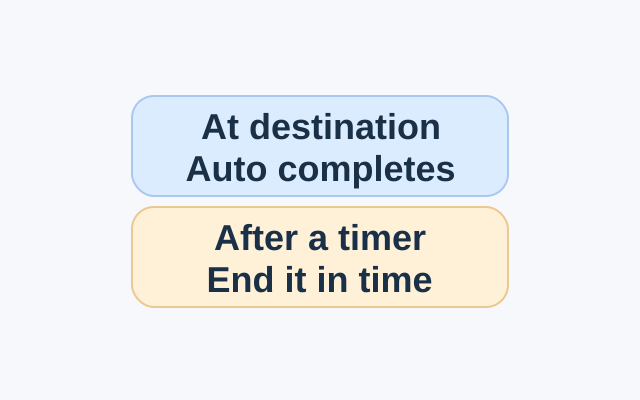
In Messages, choose When I Arrive when you want a friend to know your iPhone has reached a destination. Choose After a timer when you plan to end the Check In within a set period. Both people need iOS 17 or later.
Match the Check In to your plan
Suppose you tell a friend, “I’ll let you know when I reach the station.” Set the station as your destination with When I Arrive. Check In monitors the journey and completes automatically when your iPhone arrives.
If you say, “I’ll check back after my meeting,” choose After a timer and set a period. End the Check In before time runs out; otherwise, your friend is notified. An arrival Check In set to the meeting location would finish when you got there, before the meeting was over.
Send and adjust it
Open or start a conversation in Messages. Tap Apps, More, Check In, then Edit. Choose the condition, enter its details, and tap Send. For When I Arrive, you can set a destination, choose driving, transit, or walking, and add extra time.
If plans change, tap Details on the Check In message, then Add Time. To end the session, tap Details, then Cancel Check In and confirm. Apple says this lets your friend know.
Choose what may be shared
In Settings, go to Apps, Messages, then Check In Data. Limited includes your current location and network signal and battery details for your iPhone and Apple Watch. Full adds your traveled route and the last time you unlocked your iPhone or removed your Apple Watch.
The selected details may be sent if the Check In is not completed as expected and you do not respond to its prompts. If your iPhone loses service or powers off, your friend may receive an early or delayed notification.
Source: Apple iPhone User Guide. These steps are documented by Apple; they were not tested for this article.
KEEP GOING
More to explore.
SOURCE-CHECKEDEveryday tech
Schedule an iPhone text with Send Later, and change it before it sends
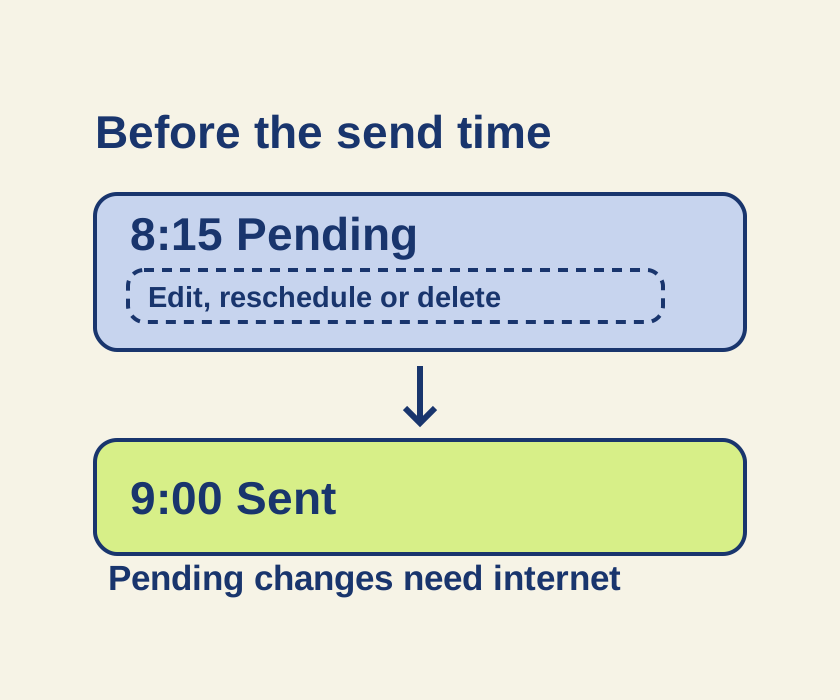
Turn an unsent late-night message into a scheduled iMessage, then use its pending controls if the plan changes.
SOURCE-CHECKEDEveryday tech
Share one saved password through an iPhone Passwords group
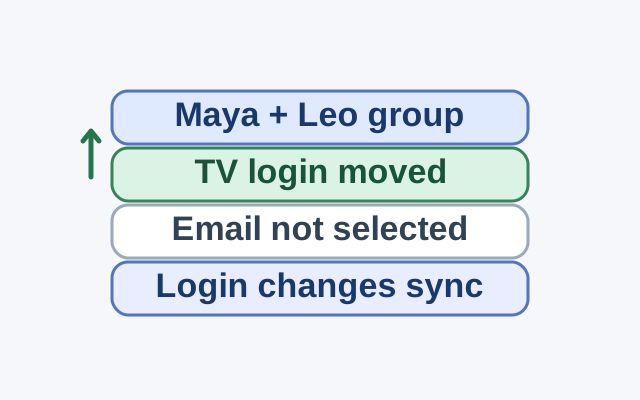
Group membership sets who shares access; selecting a credential and tapping Move sets what enters the group. Changes to a shared credential appear on everyone’s device.