SOURCE-CHECKED · APPS & THE WEB
Filter a shared Google Sheet without changing everyone’s view
Choose between a shared filter and a filter view, then save, reopen, or share your view.
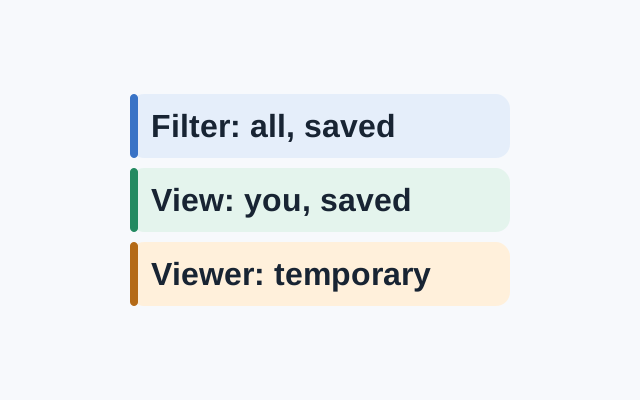
Suppose a shared task sheet has a Status column. If the team wants everyone opening the sheet to see only “Open” tasks, an editor can create a standard filter. Anyone with access can see it, and editors can change it. If you want to see “Open” while a colleague uses a different selection, create a filter view. People can use different filter views at the same time.
Both standard filter settings and saved filter views persist. Choose based on who should see the selection.
Create, reopen, or share a filter view
On a computer, open the sheet and choose Data > Create filter view. Sort or filter the rows you need, then choose Save View > Save. To reopen it later, choose Data > Change view and select your view. You can apply one filter view at a time.
To share the view, apply it and send someone the URL. If you have view-only access, you can create a temporary filter view for yourself, but it will not be saved.
Source: Google’s “Sort & filter your data” computer instructions.
KEEP GOING
More to explore.
SOURCE-CHECKEDApps & the web
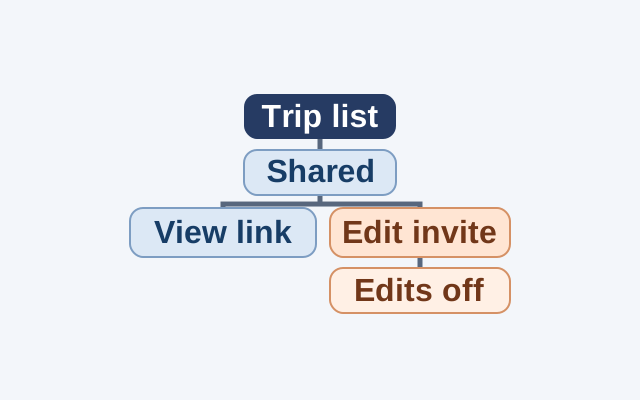
Share a Google Maps places list without inviting edits by accident
Use a hypothetical trip list to decide when to send a viewing link, invite an editor, and end editing access.
SOURCE-CHECKEDApps & the web
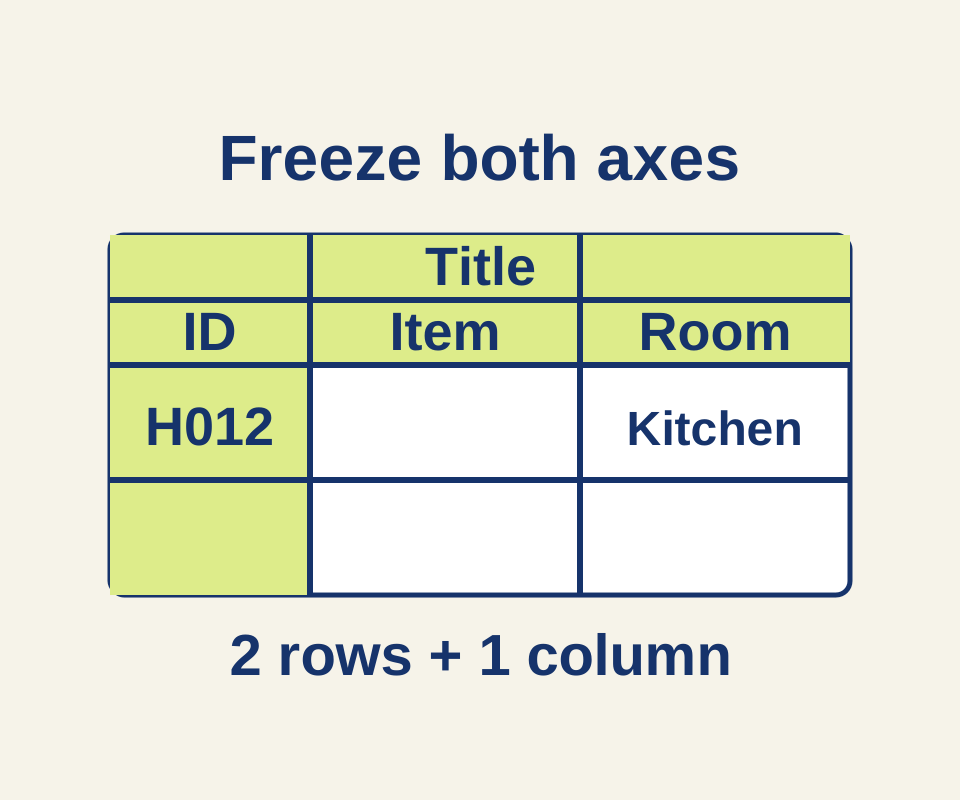
Freeze Google Sheets headers without losing the row labels
Use a 45-item inventory to choose the correct freeze and sorting boundaries, with separate settings for repeating headings in print.