SOURCE-CHECKED · APPS & THE WEB
Share a Google Maps places list without inviting edits by accident
A desktop guide to sharing a places list for viewing while keeping editing separate.
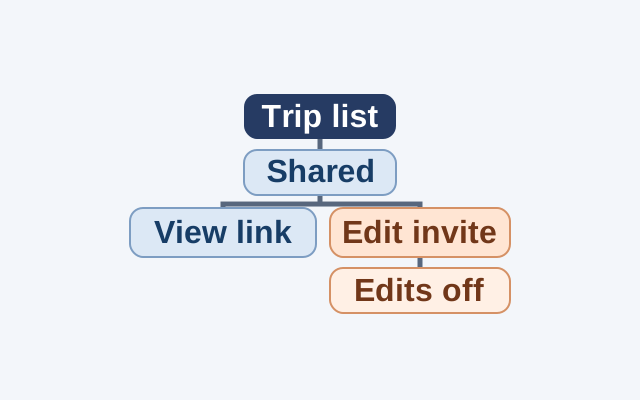
A friend checking possible stops for a weekend trip needs a viewing link. Send an edit invitation only to someone helping plan the list.
Create and share the list
On a computer, open Google Maps and select Saved, then New list. Name the list. If Saved is not visible, check Menu. Search for a place or select one on the map, choose Save, and select your list. Starred places cannot be shared.
Open Menu → Saved and select More beside the list. Under Sharing options, choose Shared. Anyone with the link can find a Shared list. To let your friend see the stops, select More → Send a link to view and send that link.
Control editing
For a co-planner who needs to edit the list, select More → Invite to edit → Get a link → COPY THE LINK and send that separate link. When editing is no longer needed, open More → Sharing options. Under Edit Options, turn off Let others edit your list. Google documents a setting for the whole list; its instructions do not describe removing one named editor.
Source: Google Maps Help, “Create a list of places”, computer instructions in the supplied snapshot checked October 21, 2026. These steps are documented, not independently tested.
KEEP GOING
More to explore.
SOURCE-CHECKEDApps & the web
Filter a shared Google Sheet without changing everyone’s view
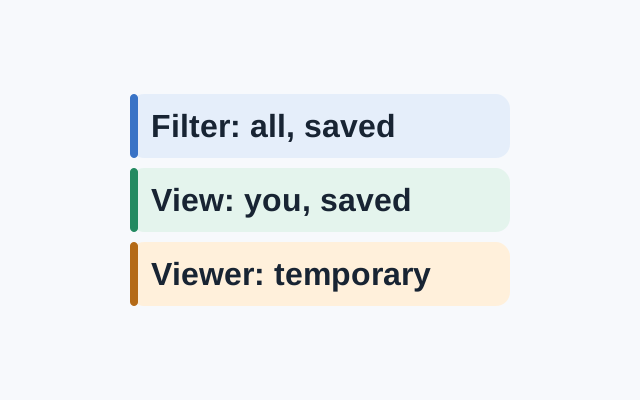
A standard filter is visible to everyone with access and its settings are saved. A saved filter view applies to your view. A viewer can make a temporary filter view, but cannot save it.
SOURCE-CHECKEDApps & the web
Find wheelchair-accessible transit options in Google Maps
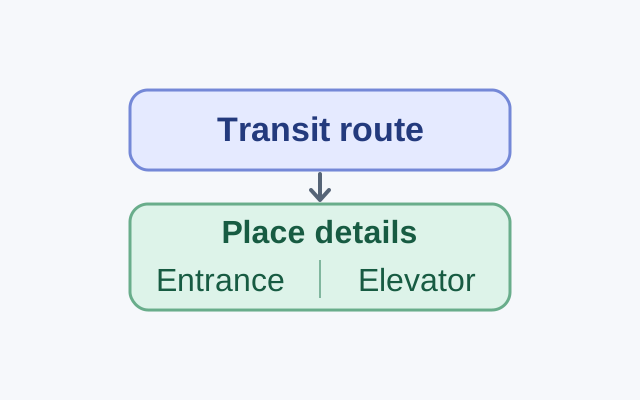
Google documents a transit route option on computers and Android. Its Android guidance also explains place attributes, which are available only in certain countries.