SOURCE-CHECKED · APPS & THE WEB
Find wheelchair-accessible transit options in Google Maps
Choose a wheelchair-accessible transit route, then check separate place accessibility details where available.
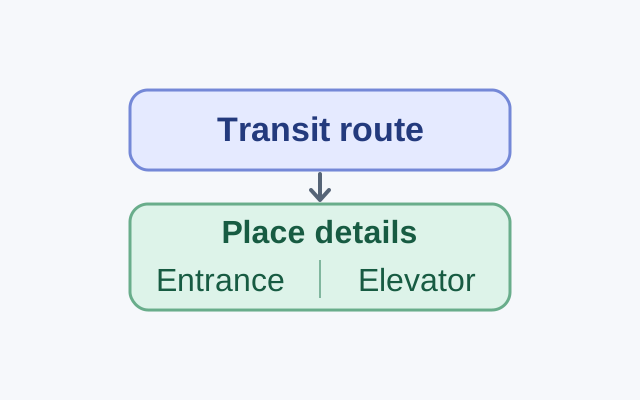
Google Maps has a wheelchair-accessible transit route option. If your destination is a business, check its place details separately for entrance and elevator information.
Choose a transit route
On a computer, search for your destination in Google Maps and select it from the results. Choose Directions, Transit, then Options. Under Routes, select Wheelchair accessible and choose a route. These steps are in Google’s computer instructions.
In the Android app, follow the same sequence, tap Done after selecting Wheelchair accessible, then choose a route. Google’s Android instructions include that extra tap.
Check the destination
Suppose you’re visiting a two-story bookstore. The transit route does not tell you whether you can enter the store or reach its upper floor.
In the Android app, tap your profile picture or initial, then Settings and App & display. Turn on Emphasize accessibility info, search for the business, and open a result with a wheelchair icon. Its accessibility summary may show entrance, restroom, seating, parking, and elevator attributes.
For the bookstore, check the entrance and elevator attributes separately. Google describes an accessible entrance as approximately three feet wide and free of steps, or served by a permanent or movable ramp where there are steps. Its elevator attribute applies to a place with multiple floors and an elevator large enough for a wheelchair. An accessible entrance alone does not answer whether you can reach the upper floor.
Google says wheelchair-accessible place details are available only in certain countries. These are its documented instructions; no route or place was independently tested for this article.
KEEP GOING
More to explore.
SOURCE-CHECKEDApps & the web
Google Maps Measure distance: draw a path and read the total
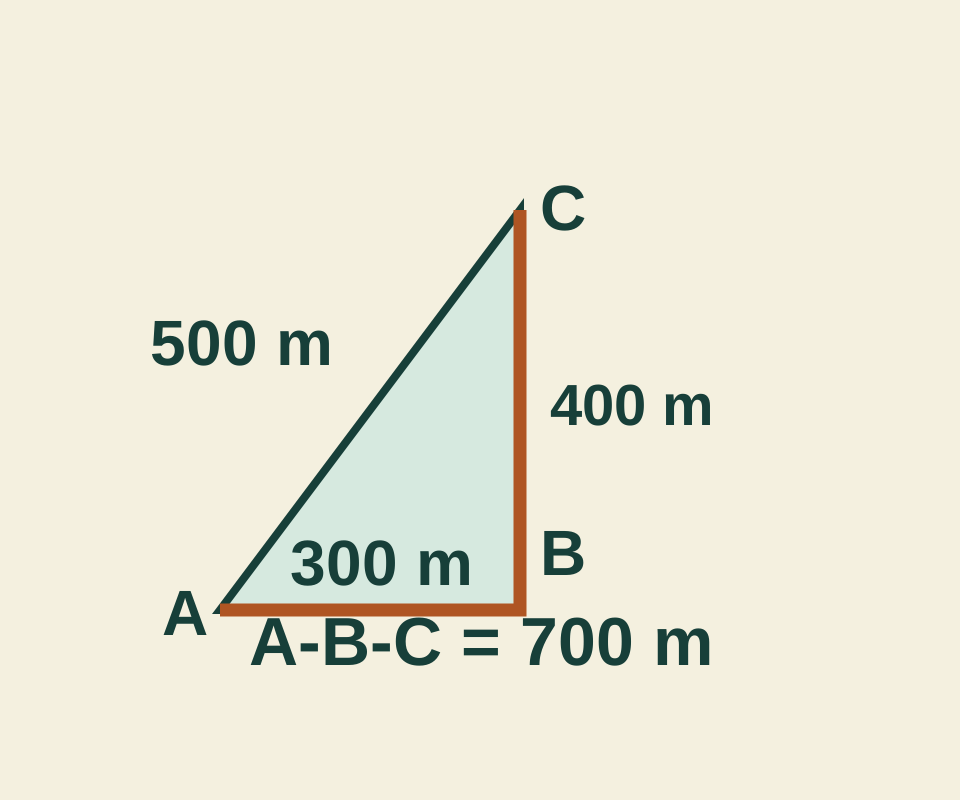
A 300-meter segment plus a 400-meter segment totals 700 meters; the direct line is 500. Try the point list before measuring your own map.
TESTEDApps & the web
How to add multiple stops in Google Maps without losing the visit order
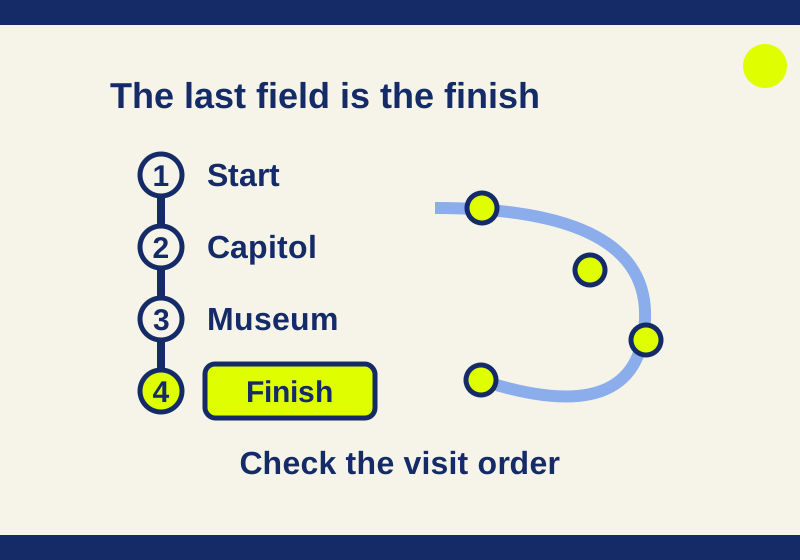
Adding a museum after the finish made it the new final stop. See how Google Maps visit order works, with a real four-place check and reusable route links.