SOURCE-CHECKED · APPS & THE WEB
Make a Google Sheets dropdown that catches inconsistent entries
Set up a Sheets dropdown and decide whether an unlisted entry should be rejected, warned about, or added as a choice.
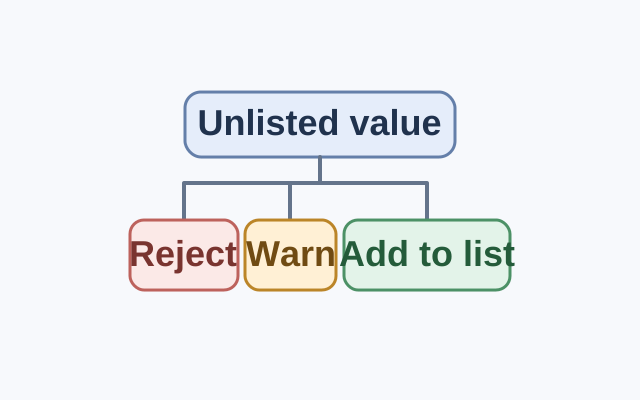
Suppose a tracking sheet has New, In progress, and Done as dropdown choices, but someone needs to enter Waiting. Decide how that entry should be handled:
- Keep the default rejection if every row must use one of the listed statuses. Sheets will reject Waiting.
- Choose Show a warning if Waiting is an occasional exception worth recording. Sheets allows the entry with a warning, but Waiting stays off the dropdown list.
- Add Waiting to the dropdown items if everyone should be able to select it.
Set up the dropdown
On a computer, select the status cells in Google Sheets and go to Data > Data validation > Add rule. Under Criteria, choose Dropdown, enter a status, and use Add another item for the remaining choices.
To allow unlisted entries, open Advanced options and select Show a warning under If the data is invalid:. Otherwise, leave the default rejection setting in place. Click Done.
To change the choices later, select the cells, open Data > Data validation, and edit the items under Criteria.
Source: Google Docs Editors Help. These are documented instructions; no live Sheets test was performed.
KEEP GOING
More to explore.
SOURCE-CHECKEDApps & the web
Make a Google Forms RSVP that closes when replies are due
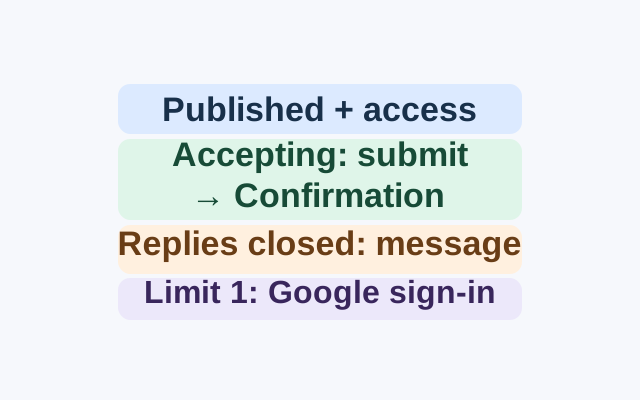
A documented workflow that connects RSVP questions, responder access, the one-response sign-in choice, and the difference between publishing and accepting replies.
SOURCE-CHECKEDApps & the web
Filter a shared Google Sheet without changing everyone’s view
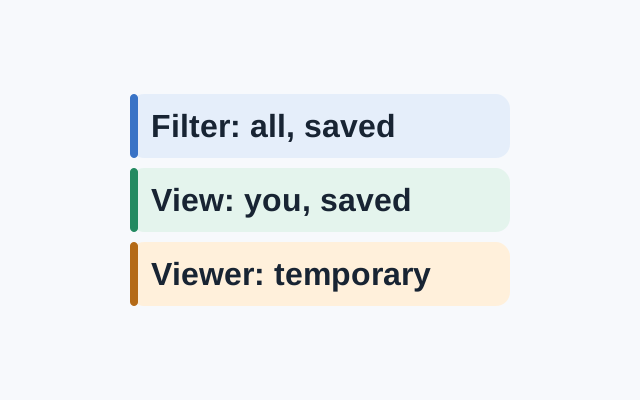
A standard filter is visible to everyone with access and its settings are saved. A saved filter view applies to your view. A viewer can make a temporary filter view, but cannot save it.