SOURCE-CHECKED · APPS & THE WEB
Make a Google Forms RSVP that closes when replies are due
Create a small RSVP, share its responder link, review replies, and set a closing time and message.
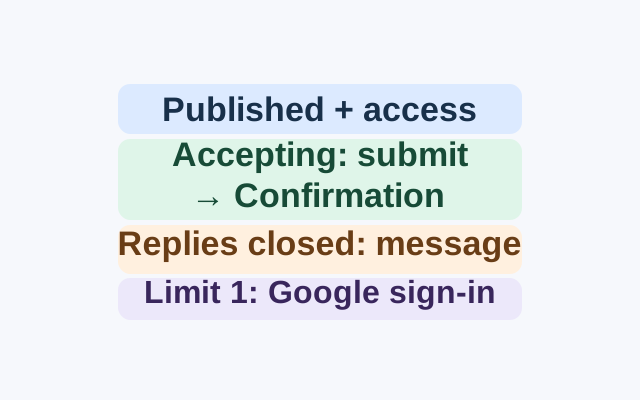
For a club dinner with replies due Thursday at 6 p.m., open Google Forms and choose Blank form. Add a required “Will you attend?” question with Yes and No choices. If you need a guest list, add a required name question. Google’s Forms guide explains how to add questions and require answers.
Before sharing, decide whether to turn on Settings > Responses > Limit to 1 response. Google says guests must sign in to a Google Account to use this setting, though their usernames are not recorded unless you enable email collection. A name field records what a guest types; it cannot enforce the one-response limit.
Click Publish, use Manage to choose who can respond, and finish publishing. If guests are outside your Google Workspace organization, check the organization restriction under Settings > Responses. Then use Published > Copy responder link and send the link to guests. An unpublished form cannot be opened by responders, and a published form still needs the right responder access.
Once someone replies, Responses > Summary shows the responses together; Responses > Individual shows submissions separately. To close replies at the Thursday deadline, open Published > Accepting responses > Set close date or response limit. Under On a date, choose the date and time and click OK. Edit and save the message guests will see when replies close, then save the closing settings. You can also turn Accepting responses off manually. Google’s response-management guide documents these controls.
Guests can still open an accessible, published form after replies close. They see the closing message instead of submitting. This differs from the confirmation message shown after a successful submission.
These steps follow Google support pages checked October 19, 2026. They were not tested on a live form.
KEEP GOING
More to explore.
SOURCE-CHECKEDApps & the web
Make a Google Sheets dropdown that catches inconsistent entries
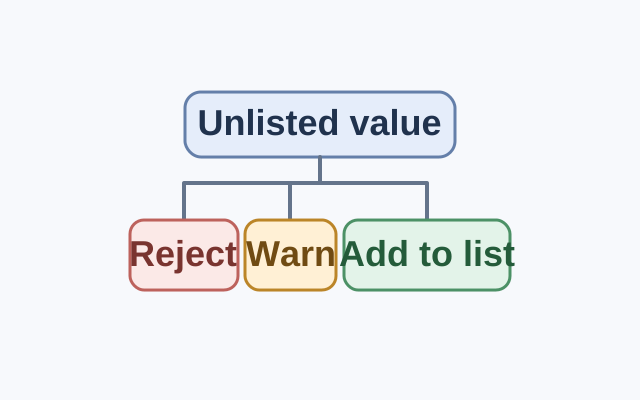
Google Sheets rejects entries outside a dropdown list by default. Show a warning allows them; adding a recurring value to the list makes it a standard choice.
SOURCE-CHECKEDApps & the web
Filter a shared Google Sheet without changing everyone’s view
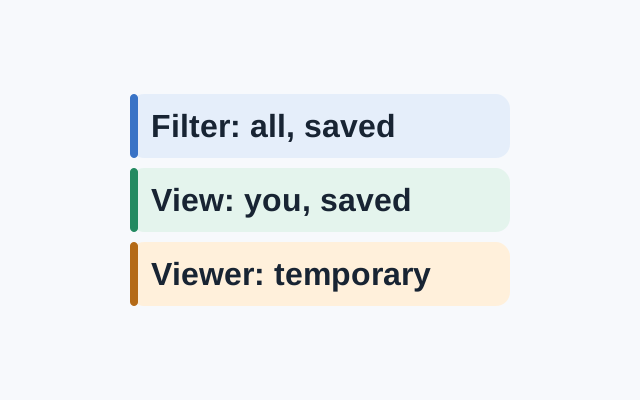
A standard filter is visible to everyone with access and its settings are saved. A saved filter view applies to your view. A viewer can make a temporary filter view, but cannot save it.