SOURCE-CHECKED · APPS & THE WEB
Keep a person or date out of Google Photos memories
Choose the right Google Photos memory control for a person, group photo, or date, and learn how to undo it.
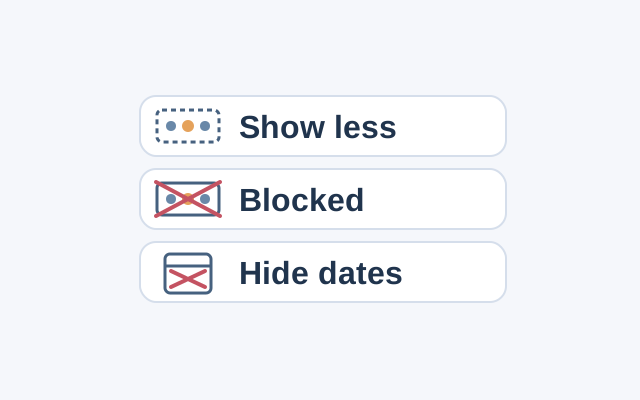
Google Photos lets you hide a face or date from the featured memories carousel above the Photos view. The choice matters if a day has a group photo with someone you want to avoid and other photos you would still like to see.
Show less stops memories about that person, but the group photo may still appear. Blocked excludes them even from group photos. Hide dates excludes every photo taken on that date from the carousel, including the photos you wanted to keep seeing. These settings do not delete library photos or apply to Moments. Google explains the scope in its Android featured memories guide.
On Android, open Google Photos and tap your profile photo or initial, then Photos settings, Preferences, Memories, and Hide faces. Under Show less or Blocked, tap Select faces, choose the face, and tap Done. To hide a day, return to Memories, open Hide dates, and add the date. To undo either choice, open Hide faces or Hide dates and tap Remove beside the face or date.
On a computer, you can unhide a face at photos.google.com under Settings, Memories, Hide faces, and Remove. Google’s Face Groups guide also says a blocked face disappears from People & pets until you unhide it. Face hiding may take time, may miss some photos, and can make some memories containing content stored on your device unavailable.
KEEP GOING
More to explore.
SOURCE-CHECKEDApps & the web
Organize a shared Google Keep note with labels only you see
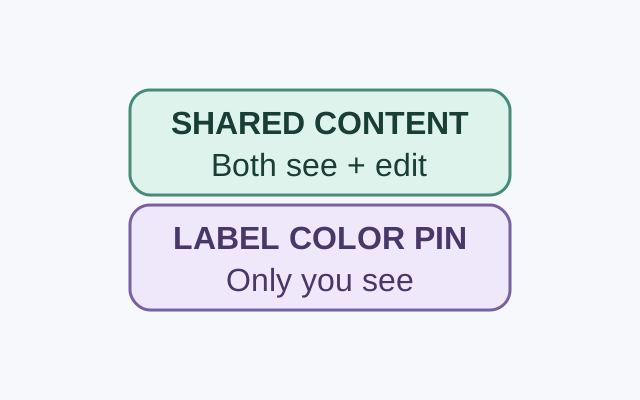
A collaborator can see and edit a shared note’s contents. Google says only you can see the labels, colors, and pins you apply to it.
SOURCE-CHECKEDApps & the web
Share your Google Maps location for a limited time, then stop
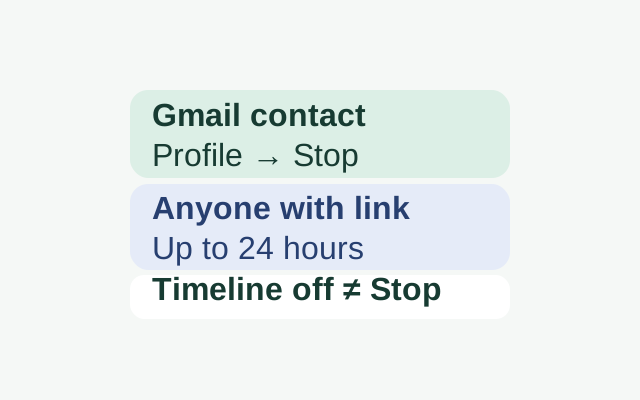
Choose a sharing duration for a Gmail contact, then use Stop when you want to end the share. Turning Timeline off does not end Location Sharing.