SOURCE-CHECKED · APPS & THE WEB
Share your Google Maps location for a limited time, then stop
An Android guide to sharing your location with one selected person and ending access afterward.
If a friend needs to find you at a meetup, you can share your location with them for a chosen duration and stop sharing once you meet.
Share with a Gmail contact
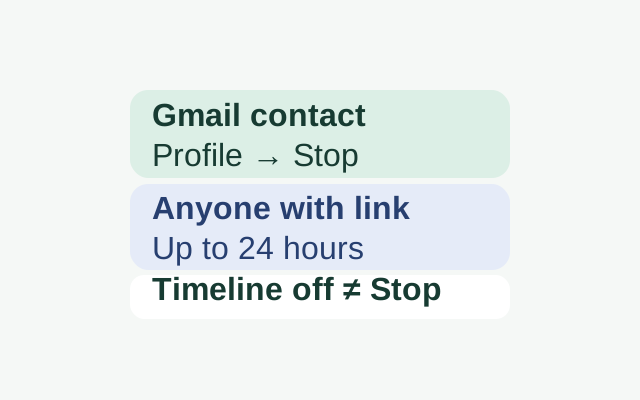
On your Android phone or tablet, open Google Maps and make sure you’re signed in. Add your friend’s Gmail address to Google Contacts. Tap your profile picture or initial, then Location sharing and New share. Choose how long to share, tap your friend’s profile, and tap Share. If Maps asks for access to your contacts, allow it.
When you meet, return to Location sharing, tap your friend’s profile, and tap Stop. That is Google’s documented way to end this person’s share yourself.
What your friend can see
Your friend can see your name and photo, your device’s recent location even when Google apps aren’t being used, and its battery power and charging status. If they add a Location Sharing notification, they can also see arrival and departure times. Turning Timeline off does not end Location Sharing.
Why a copied link is different
Google offers a sharing link for someone without a Google Account. Anyone with the link can view your real-time location for up to 24 hours, even if you send it to one friend. Google’s Android instructions give Stop steps for a person’s profile but do not specify a separate early-stop procedure for a link. If you want to use Stop after your meetup, share with your friend’s profile when that option is available.
Source: Google Maps Help for Android. These are documented instructions; no device trial was performed.
KEEP GOING
More to explore.
SOURCE-CHECKEDApps & the web
Filter a shared Google Sheet without changing everyone’s view
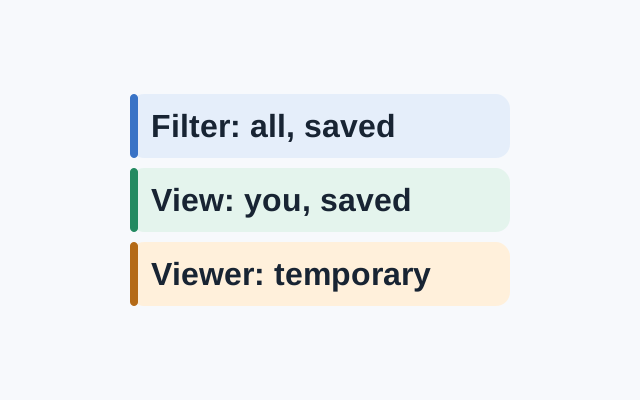
A standard filter is visible to everyone with access and its settings are saved. A saved filter view applies to your view. A viewer can make a temporary filter view, but cannot save it.
SOURCE-CHECKEDApps & the web
Keep a person or date out of Google Photos memories
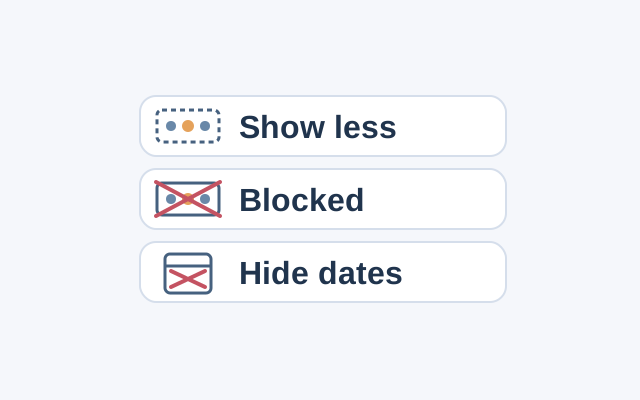
An Android guide to the scope and reversal of Show less, Blocked, and Hide dates in the featured memories carousel.