SOURCE-CHECKED · APPS & THE WEB
Voice type a Google Doc and correct the words it gets wrong
Dictate a short Google Doc, speak punctuation, and correct a misheard word without stopping the microphone.
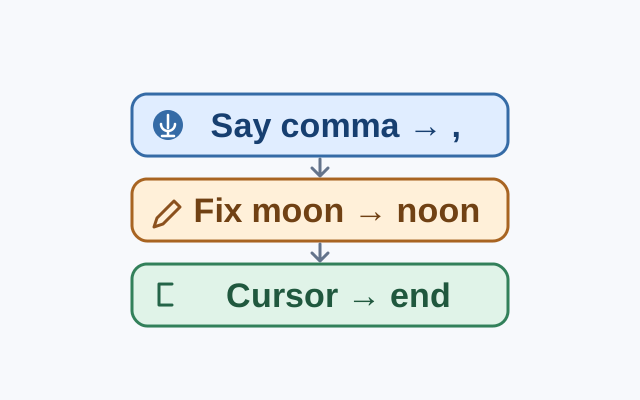
Google Docs lets you fix a misheard word while the microphone stays on. After the correction, move the cursor back to where you want to keep dictating.
Dictate a short sentence
On a computer with a working microphone, open a Google Doc in the latest version of Chrome, Edge, or Safari. Choose Tools > Voice typing, then click the microphone.
Suppose you want to write “Meet at noon, bring the notes.” Dictate the sentence, saying “comma” after “noon” and “period” at the end. If Docs writes “moon” instead of “noon,” move the cursor to “moon” and replace it with “noon” while the microphone is still on. If Docs underlines the word in gray, right-click it to look for suggested alternatives. Move the cursor to the end of the sentence before dictating more. Click the microphone again when you finish.
Saying “comma” adds punctuation as you dictate. Replacing “moon” edits text already in the Doc. Google also lists voice commands such as “Select [word or phrase]” and “Delete [word or phrase],” but those require both your account and document languages to be English. You can make the cursor correction without them. Spoken punctuation may be unavailable in some languages.
Source: Google Docs Help, checked October 20, 2026. These steps are based on documentation and were not tested for this article.
KEEP GOING
More to explore.
SOURCE-CHECKEDApps & the web
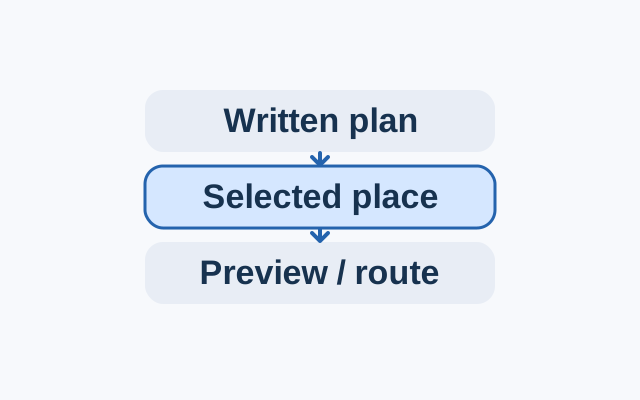
Make a Google Docs itinerary with places readers can open
On a computer, write each stop’s time and purpose in plain text, then add a place chip for the intended location.
TESTEDApps & the web
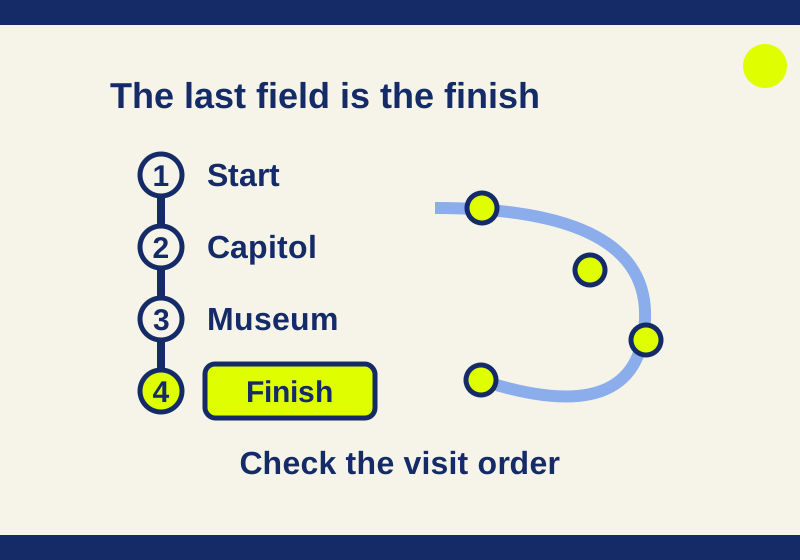
How to add multiple stops in Google Maps without losing the visit order
Adding a museum after the finish made it the new final stop. See how Google Maps visit order works, with a real four-place check and reusable route links.