SOURCE-CHECKED · APPS & THE WEB
Set a Gmail vacation reply for the right dates and audience
Choose the last day your Gmail vacation reply should run and decide whether to limit it to contacts.
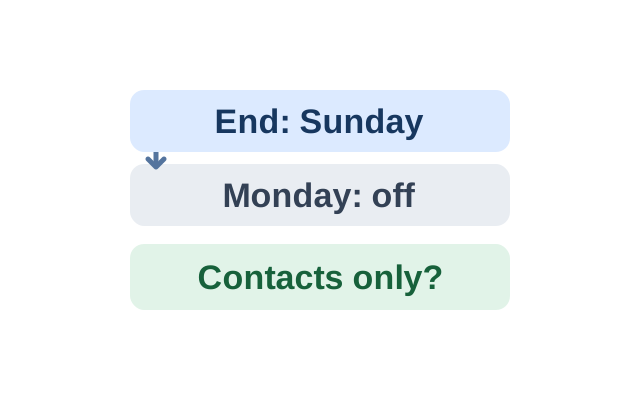
Returning Monday? Set Sunday as the end date if you want the reply to stop before you return. Gmail keeps the responder on until 11:59 PM on the selected end date. Choosing Monday would leave it on through Monday unless you turn it off early.
Set the dates and recipients
On a computer, open Gmail. Click Settings, then See all settings. Under General, find Vacation responder and select Vacation responder on. Enter the date range, subject, and message. The responder starts at 12:00 AM on the start date.
To send replies only to your contacts, check the box below the message. That choice controls who can receive a reply; it does not change the dates. Click Save Changes at the bottom of the page.
When Gmail sends another reply
Gmail usually replies only the first time someone messages you. The same person can receive another reply if they write again after four days while the responder is still on. If you edit the reply, someone who received the earlier version can get the updated one when they email again.
Messages in Spam and messages addressed to mailing lists you subscribe to do not get a vacation reply. To stop the responder early, click End now in the banner at the top of your inbox.
Source: Gmail Help.
KEEP GOING
More to explore.
SOURCE-CHECKEDApps & the web
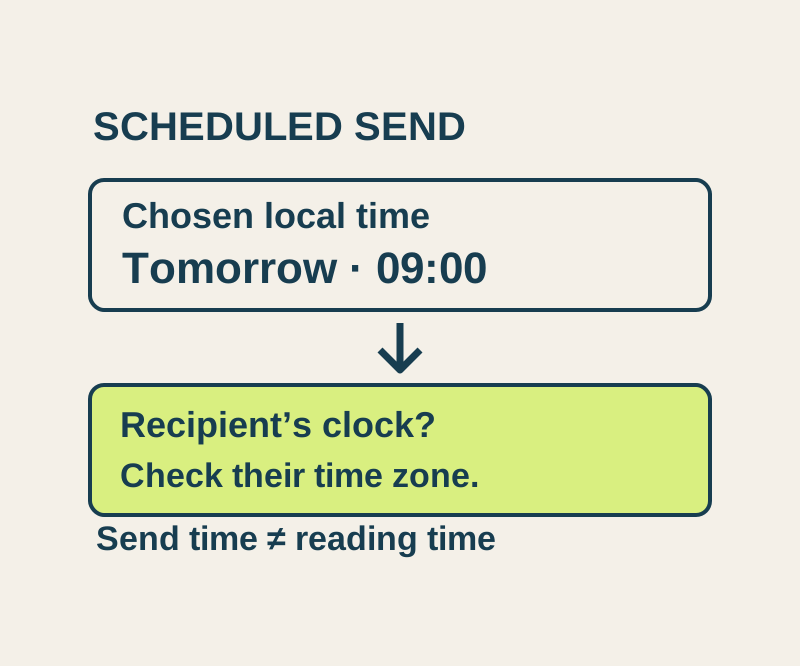
Gmail schedule send: choose Monday morning in the right time zone
Use the actual recipient date and time, understand Scheduled versus Drafts, and check a worked New York, London and Seoul example.
SOURCE-CHECKEDApps & the web
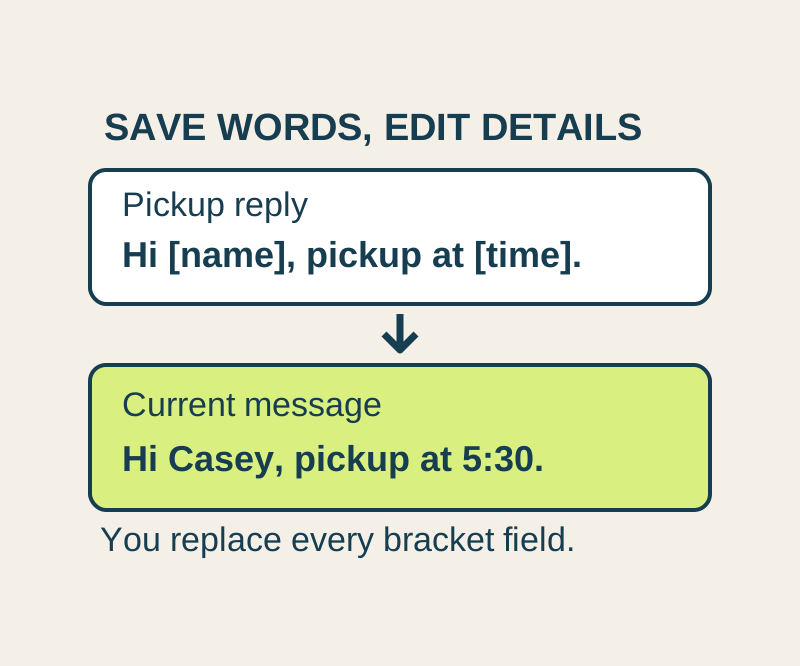
Gmail templates: save reusable replies and keep the details personal
Save the wording you use often, then insert it into a message and update the details. Copy four useful replies or keep the text file.