SOURCE-CHECKED · APPS & THE WEB
Unsubscribe in Gmail when one sender has several lists
Choose the Gmail unsubscribe control with its documented scope in mind when you want to keep some mail from a sender.
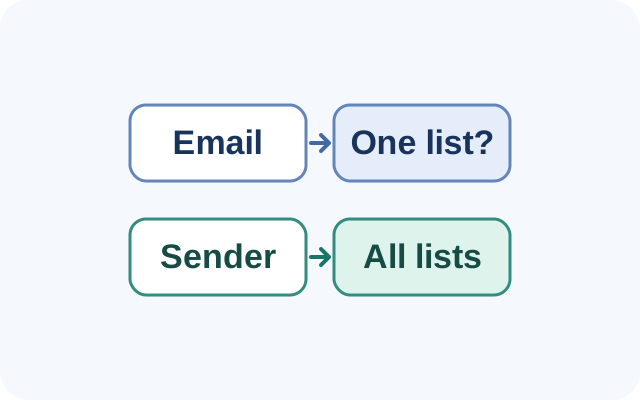
Suppose a sender emails you a weekly digest and product notices, and you want to stop the digest. In Gmail, Unsubscribe on an open email might remove only one mailing list. Google does not guarantee that the notices will continue.
For that potentially narrower action, open a digest email in Gmail on a computer. Click Unsubscribe beside the sender’s name, then choose Unsubscribe or Go to website in the pop-up. Gmail may show a list ID instead of the sender’s name.
If you want to leave every active list related to the sender, open More, then Manage subscriptions. Click the sender’s name or avatar to review their messages before clicking Unsubscribe beside the recent email count. Google says this unsubscribes you from all active mailing lists related to that sender. New emails from that sender then go to Spam.
Manage subscriptions is still rolling out, so it may not appear in your account. Either unsubscribe action can take a few days to stop messages.
KEEP GOING
More to explore.
SOURCE-CHECKEDApps & the web
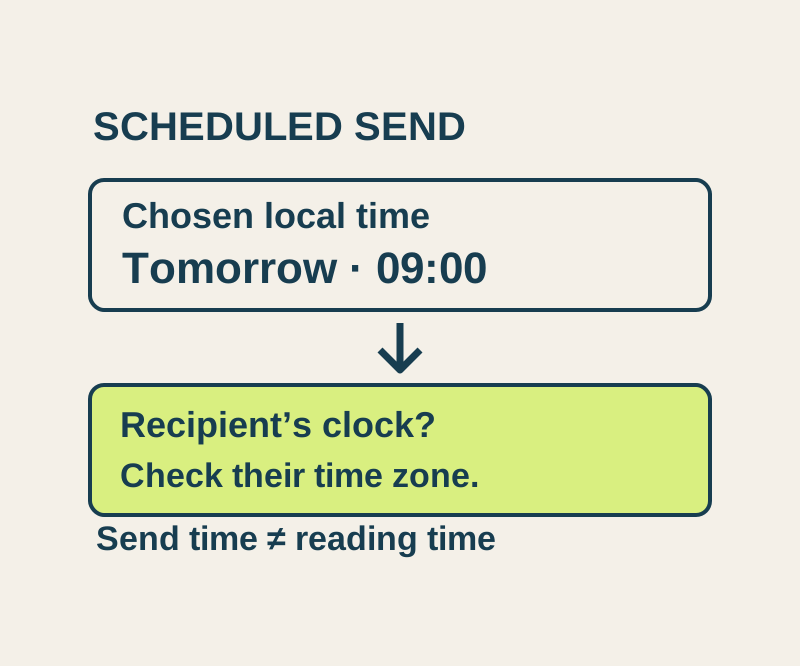
Gmail schedule send: choose Monday morning in the right time zone
Use the actual recipient date and time, understand Scheduled versus Drafts, and check a worked New York, London and Seoul example.
SOURCE-CHECKEDApps & the web
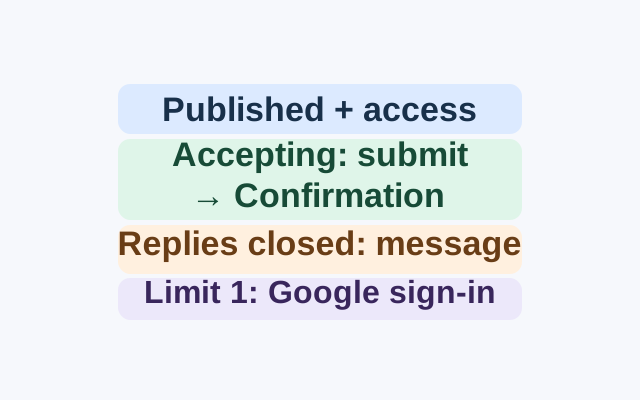
Make a Google Forms RSVP that closes when replies are due
A documented workflow that connects RSVP questions, responder access, the one-response sign-in choice, and the difference between publishing and accepting replies.