SOURCE-CHECKED · BUSINESS DOCUMENTS
Convert Trello JSON to CSV: archived cards, comments and attachments
Turn one Trello board JSON into readable card, comment and attachment CSVs with a local converter, sample files and archive-state columns.
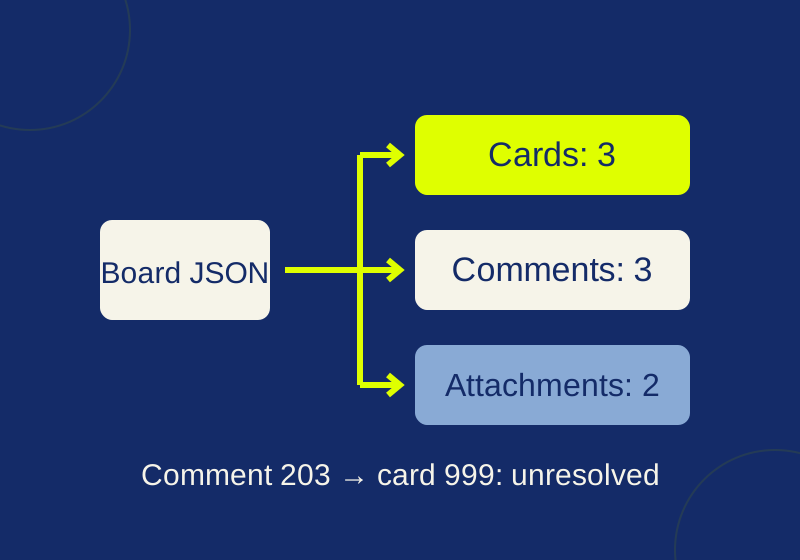
A downloaded Trello JSON file can become a usable spreadsheet even when you don’t have Premium’s CSV export. The local converter below makes separate files for cards, comments and attachment links. It includes every card present in the input, gives card and list archive states separate columns, and keeps comments whose card is missing from the export.
Download the converter and practice board JSON. The practice board is synthetic data, made for this example. It was not exported from a Trello account. Its card CSV, comment CSV, attachment CSV and report are available to inspect before running anything.
Start with the right export
Board members can download raw JSON through the board menu’s Print, Export, and Share option. Trello limits board JSON to its latest 1,000 actions, which include comments. For all comments, Trello directs Premium users to a Workspace export; Workspace admins create and download it.
Normal Premium board CSV excludes archived cards and comments. Trello documents adding .csv to a board URL to include open and archived cards. Inbox cards currently need to be moved to a board before export. A Workspace export’s Include raw attachments option puts original files in a ZIP; otherwise the export contains hosted links. Trello’s export instructions
The converter expects a single JSON object with a cards array. For a Workspace ZIP, extract it and choose one board’s JSON. A ZIP file or a wrapper containing several boards is the wrong input.
Run the converter on your computer
You need Node.js installed. Save the two downloads in the same folder, open Terminal or PowerShell in that folder, and run:
node trello-to-csv.mjs synthetic-board.json practice-outputThe command creates practice-output with four files: cards.csv, comments.csv, attachments.csv and report.json. Open the report first: the practice file should show 3 cards, 3 comments and 2 attachment rows.
For your own export, use its filename and a new destination:
node trello-to-csv.mjs board.json trello-outputPut filenames containing spaces in double quotes. The destination directory must not already exist. This prevents a later conversion from silently replacing an earlier one. The script validates the input before creating the directory and records the input file’s SHA-256 hash in the report. It leaves the source JSON unchanged.
The converter uses Node.js’s built-in libraries. It installs no packages, needs no API key and makes no network requests. You can inspect the downloaded .mjs file in a text editor before running it. It reads the JSON into memory, so a particularly large board can exceed the memory available to Node.js.
Why the output has three spreadsheets
One card can have several comments and attachments. Putting everything in one card row would require flattened text or repeated card rows. Trello’s JSON explanation describes the nested history and checklist information that makes a single CSV difficult.
The converter uses these separate row types:
| File | One row represents | Useful columns |
|---|---|---|
cards.csv |
A card in the input’s cards array |
cardId, listName, cardArchived, listArchived, description |
comments.csv |
A commentCard action |
actionId, cardId, date, text, cardResolved |
attachments.csv |
An attachment record on a card | cardId, attachmentId, attachmentName, url |
Match rows using IDs. Two cards can have the same title, and two files can share a filename. Card fields such as id, idList and closed, and comment fields such as data.card.id and data.text, follow the documented card and action shapes. The converter reads that subset of the data; it is not an official exporter or a complete Trello schema implementation.
Read the practice output
The following numbers are the final three digits of the synthetic IDs. The downloadable files keep each full ID.
Card 100 is called Launch, "October" and sits on the open Ready list. Its description has an embedded line break and the word café. Both survive conversion as one description field. Its two attachments are both called budget.csv, but their IDs end in 301 and 302. Separate attachment rows retain those identities.
Card 101 has cardArchived=true and listArchived=false. Card 102 has the opposite combination. Trello’s object definitions explain that archiving a list or board does not cascade the archive flag to its cards. Filtering only the card column would miss the card on the archived list. For an archive inventory, examine both columns and decide which state you need to report; the converter never combines them into a guessed flag.
The four actions include three comments and one card update. Comments 201 and 202 belong to card 100. The earlier comment records the historical name Launch before rename; its actionCardName column retains that name. currentCardName comes from the current card record, Launch, "October". This makes a rename visible without changing the action’s recorded name.
Comment 203 refers to card 999, which is absent from the cards array. The output keeps the comment, its original card ID and historical name. cardResolved=false and an empty current name show that the join failed. The converter does not create an extra card or attach the comment to a similarly named one.
In the report, cardsArchived=1, cardsInArchivedLists=1 and commentsPresent=3 count the supplied records. These counts cannot establish how many comments exist in the live account.
Import the CSV without changing IDs or text
Import the files as UTF-8, select a comma delimiter and set all columns to Text in your spreadsheet’s import settings. The files have a UTF-8 byte-order mark and quote every field, including commas, quotes and embedded newlines. Avoid replacing the import step with a copy-and-paste split on commas: the practice card’s title contains a comma inside its name.
Spreadsheet software can interpret text beginning with =, +, - or @ as a formula. The converter prefixes formula-looking values, including those after leading whitespace, with an apostrophe. It also prefixes values beginning with a tab or line break. The practice output changes =1+1 to '=1+1 and =SUM(1,2) to '=SUM(1,2); its report counts two prefixed cells.
Programs handle this prefix differently, so keep the Text import setting. Use the original JSON when you need the exact, unprefixed value. The CSV is a browsing copy, and its report explains the transformation.
Missing information and attachment files
An unknown archive state means the input omitted a boolean closed value. It does not mean the card is open. Missing list information leaves the raw list ID in place and produces an empty list name. If the entire actions array is absent, the report uses null for action and comment counts instead of claiming there were zero comments.
The attachment CSV records links; it does not download their content. The practice URLs use example.invalid deliberately. For real attachment files, use the documented raw-attachment ZIP route and inspect the downloaded files separately.
Labels, checklists, custom fields, member assignments, reactions and action types other than commentCard are outside this converter’s output. Keep the original JSON for those fields. A blank author name also stays blank when that name is absent, even if the action has an author ID.
Fix an error without losing records
If you get EEXIST, choose a new destination directory. For a duplicate card, list, action or attachment ID error, examine the original export: changing IDs to force a conversion would break the relationships between records. Duplicate attachment names alone are allowed.
If JSON parsing fails and the file starts with HTML, you downloaded a page instead of JSON. Download the board’s actual export again. If you passed a Workspace ZIP or a multi-board wrapper, extract it and select a single board JSON file.
If an older comment is missing, this tool cannot recover it. Check the export scope and the original JSON before assuming the spreadsheet dropped it.
Can I restore a board from these files?
Trello says native JSON and CSV import cannot recreate a board. These files help you read the exported records. A destination migration requires its own import method and field mapping.
Source and test scope: Official Trello documentation was checked October 7, 2026. The local converter passed 14 native checks, including Python CSV parsing, multiline text, duplicate filenames, unresolved comments, archive states, formula prefixes and unchanged input bytes. No logged-in Trello export, spreadsheet application import or board restoration was performed.
KEEP GOING
More to explore.
SOURCE-CHECKEDBusiness documents
Airtable CSV attachments: save the files before links expire
Save Airtable attachment bytes and check duplicate filenames, missing files and changed contents with the local practice kit.
SOURCE-CHECKEDBusiness documents
Asana CSV subtasks: fix duplicate parent names before import
See exactly how repeated parent names and CSV row order change subtask relationships, then try the local checker.