SOURCE-CHECKED · BUSINESS DOCUMENTS
Airtable CSV attachments: save the files before links expire
Keep Airtable CSV attachments after links expire with a portable folder, record mapping, and a downloadable local file verifier with examples.
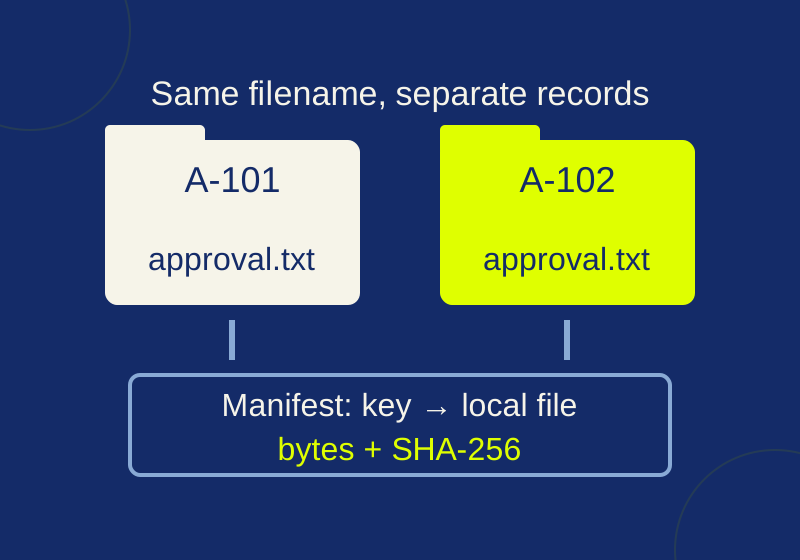
An Airtable CSV can preserve your records while leaving the attached files behind. To keep both, download the file bytes while the links work, save each file under a stable record key, and check the local copies against a manifest. The CSV alone is not a backup of the attachments: it contains links, not the files themselves. Airtable’s attachment field guide describes that distinction.
Start with the right view
Airtable’s Download CSV command is in a view’s dropdown menu. Check the view before exporting: its filters may leave out records you meant to keep. An Enterprise administrator may also restrict CSV downloads. Save the raw CSV separately so you can return to what the view exported while you organize the attachments. Airtable’s base guide covers the export command and those limits.
Do not assume the CSV gives you a permanent attachment archive. Airtable says attachment URLs in CSV exports expire. A download URL is valid for at least two hours after you receive it, though that window may change. Viewer links require collaborator access. Airtable also distinguishes these attachment links from ordinary Drive URLs stored in fields, which are unaffected by this attachment URL behavior. Airtable’s attachment URL guide explains the link types and timing.
Download each attachment as a separate file copy while you can still access it. Airtable documents a manual route: expand a record, hover over the filename, and use its download control. Base collaborators can download attachments. Airtable’s attachment field guide describes those controls.
Keep the record attached to the file
Pick a stable business key that you can match to each source record, such as an existing order or case number. The key in this workflow is your mapping choice; it is not a claim that Airtable’s native CSV includes record IDs.
The practice ZIP contains records keyed A-101, A-102, and A-103. The first two each have an attachment named approval.txt; the third has notes but no attachment. Store the downloads as files/A-101/approval.txt and files/A-102/approval.txt. The folders keep two files with the same original name from overwriting each other. Keep A-103 in the raw record export even though it needs no row in an attachment manifest.
Use one manifest row for each attachment occurrence. Give it these columns: record_key, original_filename, relative_path, bytes, and sha256. The path identifies the local copy; the byte count and SHA-256 value record what you expect that copy to contain. If a record has several attachments, it gets several rows with the same record_key.
Create the record-to-file mapping from information you can support in the source. Do not split an Airtable attachment cell on commas or assume an undocumented cell format. The verifier below reads a separate manifest with those five explicit columns; it does not parse native Airtable attachment cells.
Record the expected bytes
After downloading a file, check its local length and hash. In PowerShell, these commands inspect the A-101 example:
(Get-Item -LiteralPath '.\files\A-101\approval.txt').Length
Get-FileHash -LiteralPath '.\files\A-101\approval.txt' -Algorithm SHA256
On macOS, shasum -a256 files/A-101/approval.txt supplies the SHA-256 value. Put the measured byte count and hash in that file’s manifest row. Repeat for each downloaded attachment, using its own path.
Keep the expected manifest with the files it describes, but protect its provenance. A hash recorded from a corrupted file will faithfully describe that corrupted file. If you later generate a new expected hash from a changed copy, a comparison against that new value cannot reveal the earlier change. The useful check is against an expected manifest you trust from the time you assembled the archive.
Try the local verifier
Download the practice ZIP and unzip it. It contains records.csv, a clean attachments.csv, a deliberately faulty attachments-with-errors.csv, verify-attachments.py, and two local text attachments. The sample records are synthetic: A-101 and A-102 each have an approval.txt with different contents and hashes, while A-103 has notes and no attachment. One CSV title is Cover, first proof, showing why a quoted CSV field must be read as CSV rather than split on commas.
From the extracted folder, run:
python verify-attachments.py attachments.csv
python verify-attachments.py attachments-with-errors.csv
On Windows, py -3 can replace python. The script uses Python 3.9 or later and needs no added dependencies.
Running the clean manifest checks two files successfully and exits with code 0. The four-row error manifest reports one matching file, followed by hash_mismatch, missing_file, and outside_root; it exits with code 1. Those are results from the supplied synthetic local files, not from a live Airtable export.
The verifier reads the files’ bytes and compares their lengths and SHA-256 hashes with the manifest. It resolves paths and symlinks, and rejects a path outside the extracted root before accessing that file. It also validates blank record keys and duplicate paths. It prints JSON so you can inspect the result for each row.
Treat each error according to what it establishes. For hash_mismatch, compare the file with the intended source copy before changing either the file or the expected hash. For missing_file, check the manifest path and whether you downloaded that attachment. For outside_root, correct the path or location so the manifest points to a file within the archive. Then rerun the verifier against the corrected local set.
An ok result means the listed local file matches its trusted manifest entry. It cannot tell you whether the source view omitted records, whether a key was paired with the wrong Airtable record, whether a file contains malware, or whether you have rights to retain it. Those questions require source records and decisions beyond a byte comparison.
Source and test scope: Airtable instructions and link behavior above come from the three official help pages linked in this article, read October 7, 2026. The verifier results come only from the synthetic local materials in the practice ZIP; no live Airtable product test was performed.
KEEP GOING
More to explore.
SOURCE-CHECKEDBusiness documents
Where Teams files live: chat attachments, channel files, and broken links
Trace a Teams attachment to its storage location and fix the intended handoff link.
TESTEDWeb research
Save a webpage in Chrome for offline reading: what survives the download
Download real before-and-after page copies: both preserve the image offline, but only the copy saved after loading the station note contains its text.