TESTED · BUSINESS DOCUMENTS
Keep leading zeros and long IDs when importing CSV into Excel
Keep CSV leading zeros and long identifiers in Excel with Text column types, then use exact string, length, type, and quantity checks to find conversion errors.
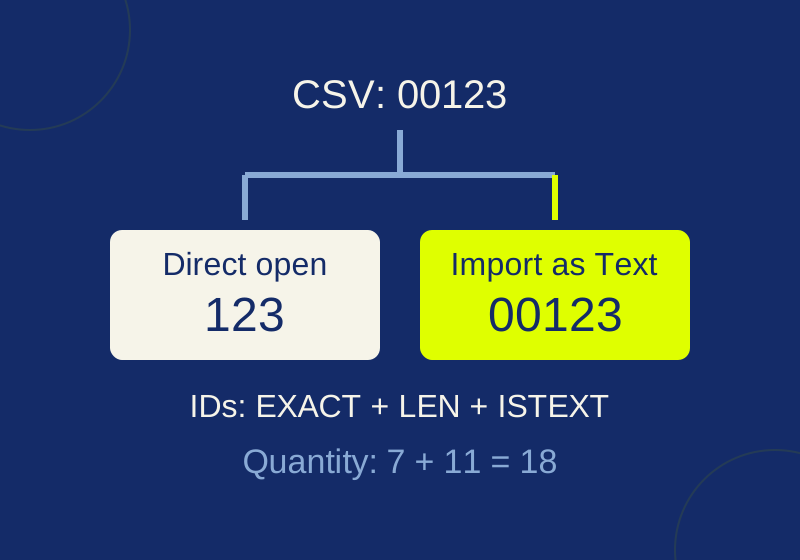
Import identifier columns as Text before Excel converts them. A SKU such as 00123 or a record ID such as 12345678901234567890 needs every character intact. Keep quantities numeric so you can still add them. Opening a CSV directly can apply Excel’s default conversions before you choose those types.
Try the steps with this two-row practice CSV. Its sku values are 00123 and 00007, each five characters long. Its record_id values are 12345678901234567890 and 98765432109876543210, each 20 characters long. The numeric quantity values are 7 and 11, for a total of 18. Keep the CSV untouched as your reference, and save your Excel work in a separate .xlsx file.
sku,record_id,quantity
00123,12345678901234567890,7
00007,98765432109876543210,11
These codes identify rows; adding the codes together would serve no purpose. The quantity column represents something you can count. Assigning types from that purpose avoids treating every digits-only field as a number.
What opening the same CSV changed
An October 1, 2026 controlled test used Windows Excel 16.0 build 20430. Direct opening and a separate import with explicit text-column types produced different first-row values:
| Field | Untouched CSV | Direct open | Text-column import |
|---|---|---|---|
| sku | 00123 |
Numeric 123 |
Text 00123 |
| record_id | 12345678901234567890 |
Numeric 1.23456789012345E+19 |
Text 12345678901234567890 |
| quantity | 7 |
Numeric 7 |
Numeric 7 |
The typed import used Excel’s native QueryTables text-column import through COM automation, then saved an XLSX copy. The recorded native result covers the first row only; the two-row download provides a practice exercise with known expected strings. The Power Query and legacy wizard routes below follow current Microsoft instructions and were not tried in that record.
Set the column types before loading
Use Data > From Text/CSV and select the untouched file. The preview should separate sku, record_id, and quantity into three columns. Choose Transform Data, then set sku and record_id to Text in Power Query. Leave quantity numeric. If changing a column’s type prompts you to replace an existing type-change step, choose Replace Current. Load the data with Close & Load, then save the workbook copy.
Use Microsoft’s leading-zero and large-number instructions for the supported import route. Apply the Text choice to the whole identifier column.
The legacy Text Import Wizard offers another route. Where available, enable From Text (Legacy) under File > Options > Data. If the menu does not appear, Microsoft’s Data options instructions suggest closing and reopening the workbook. Use Data > Get Data > Legacy Wizards > From Text (Legacy), choose Delimited, and select comma. At step 3, select each identifier column in the preview and assign Text before finishing. Use File origin to match the file’s encoding.
Check strings against the untouched CSV
The practice file gives you exact targets. After import, row 2 should contain 00123, 12345678901234567890, and numeric 7. Row 3 should contain 00007, 98765432109876543210, and numeric 11. The header must remain a header, leaving two data records.
In empty cells starting at column D, you can check the first record without replacing imported values:
=EXACT(A2,"00123")and=EXACT(B2,"12345678901234567890")should returnTRUE. Keep the expected ID inside quotation marks so the formula treats it as text.=LEN(A2)should return5, and=LEN(B2)should return20.=ISTEXT(A2)and=ISTEXT(B2)should returnTRUE;=ISNUMBER(C2)should returnTRUEif you imported quantity as a number.=SUM(C2:C3)should return18.
EXACT compares text, LEN counts characters, and ISTEXT and ISNUMBER check the resulting value types. The formulas shown use English function names and a comma separator; those details may differ in a localized Excel installation. Check row 3 against its own source strings as well. A total of 18 can still be correct when both IDs are damaged, and duplicate IDs are not necessarily errors unless your own schema requires uniqueness.
If the zeros or digits are already gone
Excel’s numeric precision is limited to 15 significant digits. Formatting a converted cell as Text afterward cannot restore a lost zero or the original 20-digit string. A custom number format can change what a cell displays without making its value the original identifier. Likewise, padding 123 to five characters is justified only when an authoritative five-character schema tells you what the string should be; it cannot recover an unknown original width or lost digits.
If Power Query’s applied steps show an earlier Changed Type operation that made an ID numeric, remove or correct that conversion before loading. An additional Text step after the damaging conversion would turn the changed number into text. If you cannot trace where the change happened, start a new import from the untouched CSV and assign types there.
Compare the result with the CSV itself. Using a workbook that already contains converted values as the reference could make two damaged copies appear to agree. Scientific notation can also be a display choice for a short number, so inspect the full value in the formula bar and compare it with the raw source before diagnosing digit loss.
Excel also documents Automatic Data Conversion options under File > Options > Data. If your installation offers them, controls cover leading zeros, long numbers, scientific-notation-like codes, and some date-like letter-and-number combinations. Those settings affect subsequent input and do not repair converted cells. Assigning types for this particular import also lets quantity remain numeric.
Avoid changing the source to work around Excel
Putting quotes around 00123 in a CSV protects its field boundaries; it does not declare a Text column. An apostrophe or a formula such as ="00123" changes what the file contains or how a spreadsheet interprets it. Keep the original ID in the CSV and choose its type at import.
If all fields appear in one column, inspect the actual delimiter and choose it in the import preview before checking identifiers. A correctly preserved 00123 inside a whole line of unsplit data is not a successful three-column import. The companion guide provides CSV export examples with quoted fields, Unicode, and separator checks.
Microsoft’s linked instructions were checked October 7, 2026. The recorded Excel comparison is the October 1 native COM trial described above, with synthetic data and dialogs suppressed. The current downloadable CSV has UTF-8 encoding with a byte order mark; an October 7 PowerShell CSV parser read its two rows and quantity total of 18. No new Excel UI, Mac, or web trial was run, and the suggested verification formulas were not exercised in the recorded COM test.
KEEP GOING
More to explore.
SOURCE-CHECKEDBusiness documents
Asana CSV subtasks: fix duplicate parent names before import
See exactly how repeated parent names and CSV row order change subtask relationships, then try the local checker.
TESTEDBusiness documents
Export the right Excel sheet to CSV without losing your workbook
The sheet you select controls the export. Check its actual rows, delimiters, and values before sending it.