TESTED · BUSINESS DOCUMENTS
Export the right Excel sheet to CSV without losing your workbook
Export one Excel worksheet to CSV, keep your workbook master, and troubleshoot separators, quoted fields, Unicode, totals, and the receiving import.
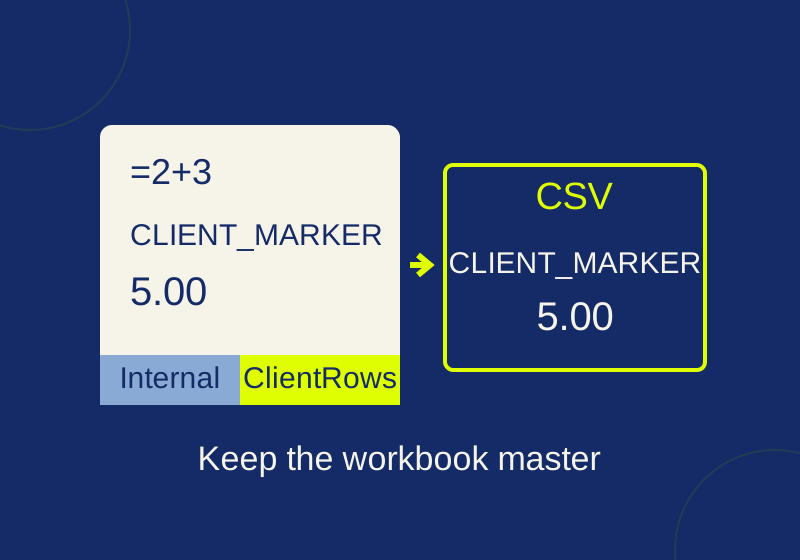
Save your Excel workbook in its original format, select the worksheet you want to share, and export a separately named CSV. Excel’s text export uses the active worksheet only. Keep the workbook as your master copy. Microsoft’s export guide describes that selected-sheet behavior.
Save the workbook first
Save the master in its existing workbook format. An ordinary .xlsx file and a macro-enabled .xlsm file serve different purposes: XLSX cannot store VBA or Excel 4.0 macros. If your original uses another workbook format, retain it while making the CSV. The supported-format reference explains what each format keeps.
Give the export a sheet-specific name, such as client-rows.csv, separate from orders-master.xlsx. After exporting, return to the workbook master for further changes. A CSV cannot hold its other worksheets, charts, or workbook formatting.
Prepare the sheet you intend to export with only the columns and rows the recipient should receive. Selecting a sheet is not a privacy check: do not assume hidden rows or columns have been excluded. Review the output sheet itself before saving it as CSV.
Select the intended worksheet tab, use File > Save As > Browse, and choose the required CSV format. Confirm the sheet name immediately before saving. If you need CSVs from other sheets, activate and export each sheet separately. A filename containing the sheet name makes it easier to tell those files apart.
Check which sheet and values were exported
A controlled Excel export shows why both the selected sheet and the resulting file matter. The test workbook had an Internal sheet containing INTERNAL_MARKER and a ClientRows sheet with headers item,total. On ClientRows, CLIENT_MARKER sat beside a formula, =2+3, displayed with two decimal places.
With ClientRows active, the original exported CSV contained:
item,total
CLIENT_MARKER,5.00
The file used CRLF line endings and did not contain INTERNAL_MARKER. Reopening it in Excel produced one worksheet; B2 held the constant 5, not =2+3. The raw file retained the characters 5.00, while Excel interpreted that field as a number. If the recipient expects the literal two decimal places, inspect its import result as well as the text file.
For your own export, inspect the CSV as plain text and check the receiving program’s import preview. Compare header names and order, expected data-record count, known first and last entries, and a meaningful total. In the original example, acceptance means two fields, one data record, CLIENT_MARKER, and the raw total 5.00. A file containing internal_only or INTERNAL_MARKER would be the wrong export.
Use the receiving program’s preview to check field interpretation. Double-clicking the CSV in Excel adds another conversion step; resaving that result can change the delivery file. For an Excel receiver, Data > From Text/CSV lets you review the import settings before loading.
Keep commas, quotes, and line breaks intact
A CSV field can contain a comma or a line break when the field is quoted. An embedded double quote is represented by two double quotes inside a quoted field. These details make a raw comma count unreliable as a column count, and a count of physical lines unreliable as a record count.
The quoted CSV practice file has three fields and four data records. Its last description contains an actual line break:
item,description,total
CLIENT_A,"Notebook, blue",5.00
CLIENT_B,"Size ""large""",7.50
CLIENT_C,"Café label",2.25
CLIENT_D,"Line one
Line two",1.25
Notebook, blue should occupy one description cell. The doubled quotes in the second record represent the text Size "large". The final record should have one description containing Line one, a line break, and Line two.
An October 7 parser check read four records and a total of 16.00, preserving those exact descriptions and Café. Use the file to compare your receiver’s output. If it splits Notebook, blue across columns or treats Line two as a new record, its import has misread the field boundaries. Replacing every comma or line break would alter legitimate descriptions.
Reconcile the total separately from the descriptions. 5.00 + 7.50 + 2.25 + 1.25 is 16.00; a receiver could reach that sum while mangling a description. Conversely, four intact descriptions do not prove it treated total as a usable number. Check the fields according to what the next operation needs.
Match the separator and encoding
A CSV may use a separator other than a comma. Excel’s export delimiter can depend on the regional list separator. In an import preview, select the separator the file actually uses. If the receiver requires commas but the file uses semicolons, request an export in the required format; replacing every punctuation mark could damage quoted descriptions. Changing Windows regional settings affects other applications too. Microsoft explains delimiter selection during import.
The semicolon practice file starts with item;description;total and has two data records. An explicit semicolon parse produced three fields per record and a total of 12.50. Use this separate fixture to compare delimiter settings. It was made as practice data, not exported by Excel in a different locale.
The practice files use UTF-8 with a byte order mark. Check that the receiver displays Café correctly, and confirm its encoding requirements before sending a file. The parser check establishes what these sample files contain, not that every receiving program accepts a UTF-8 byte order mark. If an import shows garbled text, compare the plain-text file with the receiver’s encoding or file-origin setting. Microsoft’s Text Import Wizard guidance describes a file-origin control.
Treat identifiers as text on import
CSV carries no native Excel column type. Quoting a field protects delimiters inside it, but it does not instruct Excel to keep an identifier as Text. A SKU such as 00123 can become 123 when opened as a number; Excel also limits numeric precision to 15 significant digits. Formatting an already converted number as Text cannot recover the original identifier. Microsoft explains these conversion limits.
If your exported file contains identifiers, ask the receiver to assign those columns Text before loading the untouched CSV. The identifier practice file contains two five-character SKUs, two 20-character record IDs, and quantities totaling 18. A correct quantity total can coexist with damaged IDs. The companion guide walks through Text imports and exact identifier checks.
The recorded Excel results came from separate synthetic Windows Excel 16.0 build 20430 tests on October 1, 2026. COM automation suppressed warning dialogs, so the record does not establish what dialogs a manual export displays. On October 7, a native PowerShell CSV parser checked the downloadable examples; no new Excel import or locale test was run. The menu instructions above follow the linked Microsoft guidance.
KEEP GOING
More to explore.
TESTEDBusiness documents
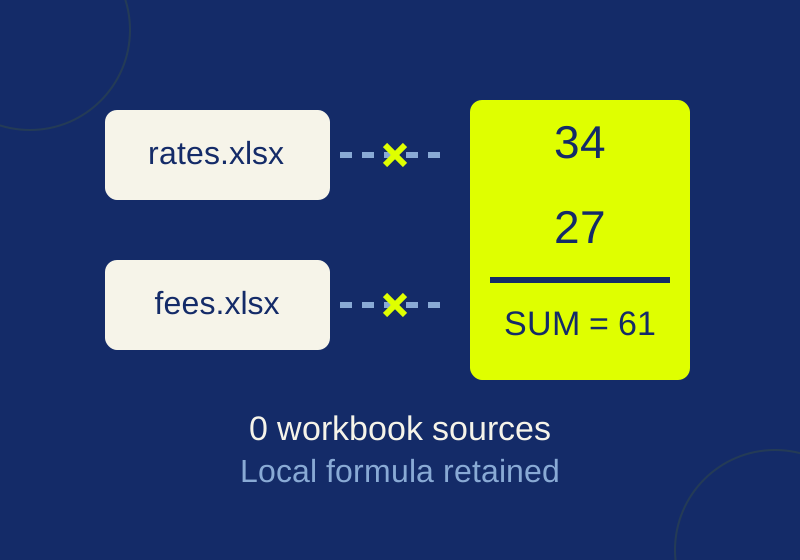
Remove external links in Excel while keeping local formulas
A two-source Excel example shows which formulas become values, which totals still calculate, and how to inspect the saved copy.
TESTEDBusiness documents
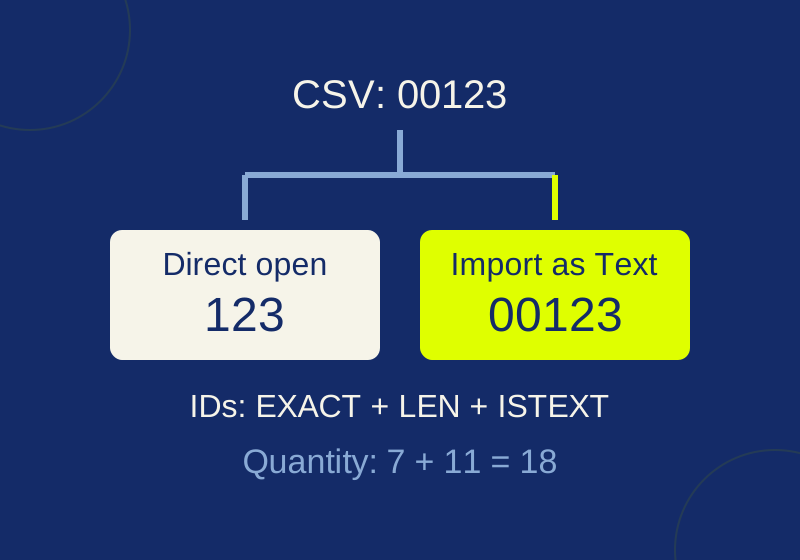
Keep leading zeros and long IDs when importing CSV into Excel
An intact CSV can turn into damaged IDs in Excel. Import as Text before conversion and check the full strings.