TESTED · BUSINESS DOCUMENTS
Remove external links in Excel while keeping local formulas
Break reviewed Excel workbook links in a snapshot. Follow a real two-source example, preserve a local SUM, and check what still depends on another file.
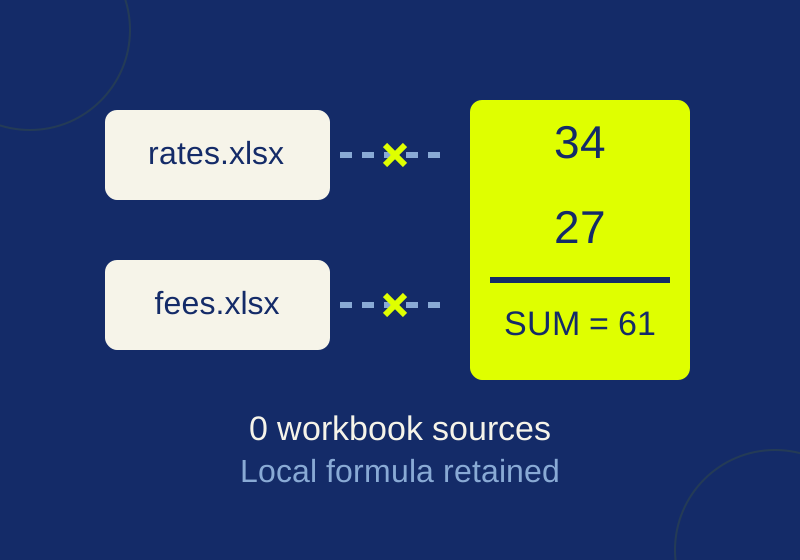
You can email a copy of an Excel report with its external workbook links broken while keeping a local total formula. Start with a separate copy, review each source before breaking it, then check the formulas and values in the saved copy.
The report in our synthetic Excel trial showed 61 throughout the job. Behind that unchanged total, its source count fell from two to one to zero. A local SUM formula survived. The worked example below gives you separate things to check: the displayed amounts, the remaining source references, and the calculation you want the recipient to keep.
Decide which source to freeze
Before changing your report, decide whether the recipient needs a live connection or a snapshot of the amounts currently shown. Write down the approved displayed amounts for the cells you plan to check. Save a separate copy of the workbook so you can return to the original if a value changes unexpectedly.
In the test report, one line used rates.xlsx, another used fees.xlsx, and a local SUM added the two lines. Breaking only the rates link froze that line at 34, but the fees line still referred to its source workbook. Excel reported one remaining workbook link. A recipient of that partial snapshot would still need access to the fees source to refresh that line. For a snapshot independent of both sources, the remaining fees link also needs attention.
Break the reviewed link in Excel
In Windows desktop Excel, open Data > Queries and Connections > Workbook Links. For the source you have reviewed, open More Commands (…) > Break links. Microsoft says this replaces formulas dependent on that source with their current values, and the operation cannot be undone. Work in the saved copy. If the connection should stay live, Change source maintains a link; Don’t refresh stops refresh but leaves the link in place. Microsoft’s Workbook Links guide describes these controls.
Break one source at a time when the workbook has more than one. After each break, compare the affected cells with your scratch note, inspect their formula bars, and check the remaining source list. If a displayed amount differs from the approved amount, return to the separate original copy and review the source before proceeding.
What the two-source test showed
A synthetic desktop Excel report started with rates.xlsx cell Data!A1 set to 17 and fees.xlsx cell Data!A1 set to 9. The report multiplied those source cells in B2 and B3, then used a local formula in B4. Excel listed two workbook sources.
| Report stage | B2: rate line | B3: fee line | B4: total | Workbook sources |
|---|---|---|---|---|
| Before | =[rates.xlsx]Data!A1*2: 34 |
=[fees.xlsx]Data!A1*3: 27 |
=SUM(B2:B3): 61 |
2 |
| Rates link broken | Constant 34 |
=[fees.xlsx]Data!A1*3: 27 |
=SUM(B2:B3): 61 |
1 |
| Both links broken | Constant 34 |
Constant 27 |
=SUM(B2:B3): 61 |
0 |
| Saved and reopened without refresh | Constant 34 |
Constant 27 |
=SUM(B2:B3): 61 |
0 |
After the rates link was broken, the test changed its still-open source cell from 17 to 23 and recalculated. B2 remained 34; B3 remained 27; the total remained 61. The source change made it possible to check whether the broken rate line still responded to its old input. Both source files remained on disk.
The table shows why checking only B4 would miss a remaining dependency. After the first break, B3 still had an external formula and Excel still listed one source. It also shows what was retained: after both breaks, B2 and B3 were numbers, while B4 still calculated =SUM(B2:B3). Replacing the entire sheet with values would replace that local SUM too. Keep a local calculation only if the recipient should be able to change the frozen inputs and have the total recalculate.
Download the practice recipe to recreate the synthetic workbooks locally. The recorded results CSV contains the four recorded stages, line amounts, total, and workbook-source count. The recipe is a plain text setup sheet, and the CSV contains numeric results. Create the practice workbooks locally; neither download is an XLSX.
Check the saved copy
Save the report copy, close it, and reopen that saved file. Compare the same line items and total with your scratch note, inspect the formula bar where a local calculation should remain, and review the remaining workbook sources. In the recorded test, all workbooks were closed before reopening the saved report with link updating disabled. It still showed 34, 27, and 61, retained B4’s SUM, and listed zero Excel workbook sources.
A report with frozen inputs can still contain visible or hidden information you did not intend to share. Microsoft says Document Inspector can detect certain external references in cells, names, objects, and chart titles and series, but it cannot remove them automatically. On a copy, use File > Info > Check for Issues > Inspect Document to review its findings, remove or break reviewed links, then inspect again. Review comments, hidden content, and personal information separately; an inspection result is not a promise that every sensitive item was found. Microsoft also notes that names of linked source worksheets can be saved in the destination file without being visible there. External links found; Inspect documents, presentations, or workbooks.
If Excel still reports a link, search formulas with Ctrl+F > Options, set Within to Workbook and Look in to Formulas, then search for .xl as a lead. Check the reported source and Inspector findings rather than assuming a search of visible cells covers names, objects, charts, or query parameters. Microsoft’s Workbook Links guide notes that there is no automatic way to find every link.
Source and test note: The expanded results above come from an October 7, 2026 native Excel 16.0 build 20430 test using synthetic workbooks and Excel-type links. Excel’s BreakLink method was used on the named sources; the Workbook Links and Inspector UI were not tested. Names, shapes, charts, queries, and connections were not part of that trial. An October 1 trial used source link-source.xlsx, with Data!A1 holding 17 and destination formula ='[link-source.xlsx]Data'!A1*2 returning 34. Breaking the source made that cell constant 34; it reopened without refresh at 34 with no reported Excel link source. The retained local SUM is an observed result for this simple report, not a guarantee for every workbook.
KEEP GOING
More to explore.
TESTEDBusiness documents
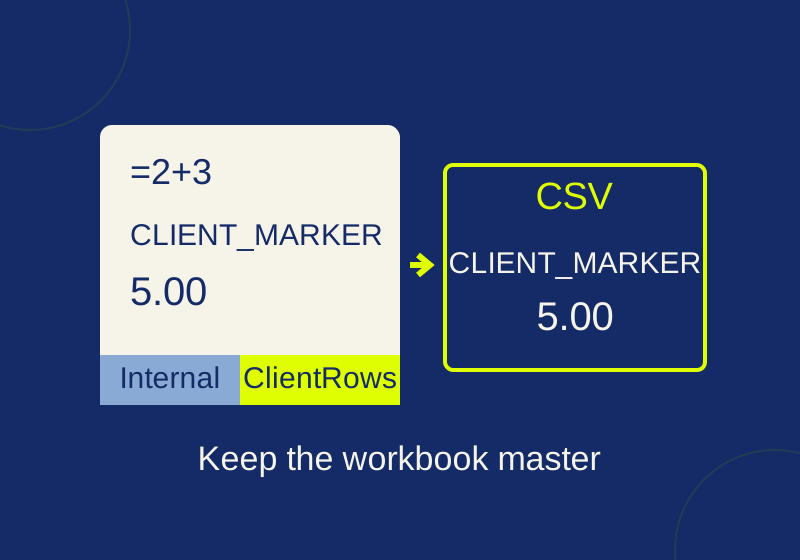
Export the right Excel sheet to CSV without losing your workbook
The sheet you select controls the export. Check its actual rows, delimiters, and values before sending it.
SOURCE-CHECKEDSharing workflows
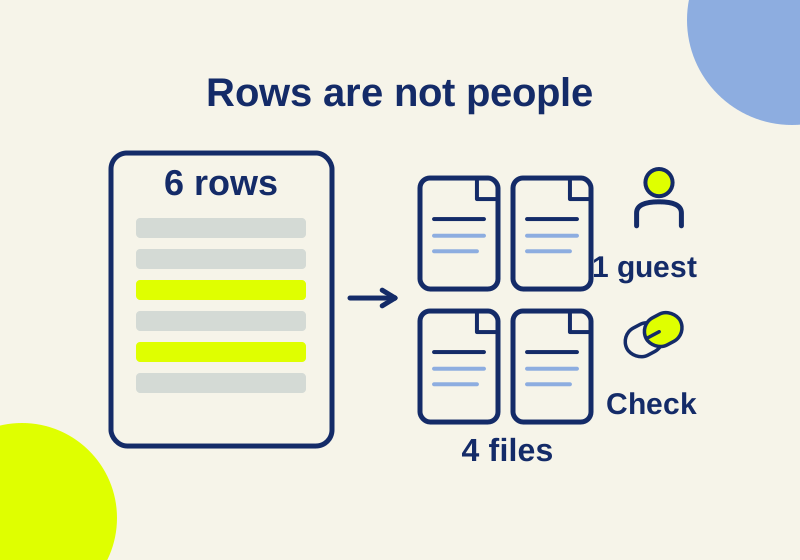
Box vs SharePoint sharing reports: find the access a CSV misses
Read Box and SharePoint sharing CSVs without mistaking rows for people or missing links for no access. Download and reproduce a six-row worked audit.