SOURCE-CHECKED · BUSINESS DOCUMENTS
SharePoint verification code not arriving? Troubleshoot guest sign-in
Find why a SharePoint email code is missing, expired or followed by access denied, including wrong accounts and the 2026 guest-access transition.
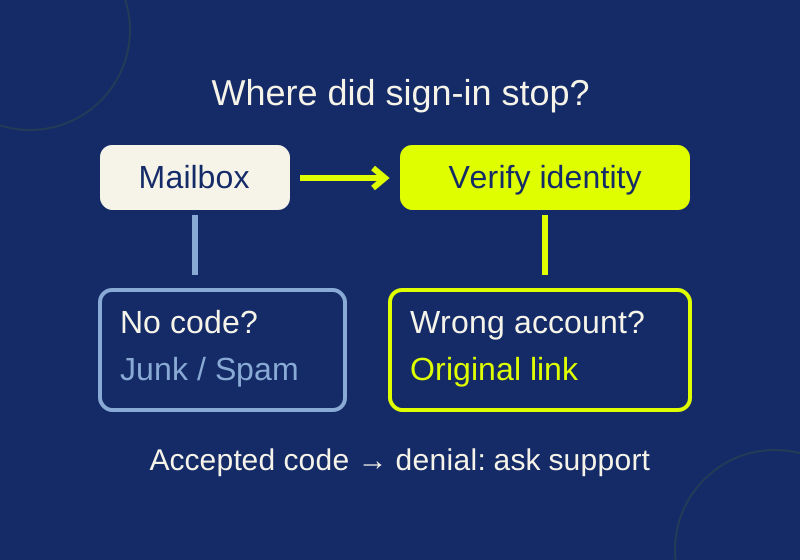
If SharePoint asks for a code but the email never arrives, check the invited mailbox, including Junk or Spam. If the page names a different account or rejects access after verification, investigate that identity or the later denial. Repeatedly requesting another code won’t correct an invitation addressed to someone else.
| Where sign-in stops | First useful check |
|---|---|
| The code prompt appears, but no email arrives | Check the invited mailbox, including Junk or Spam. |
| An Entra B2B code arrived, but it no longer works | Check when it was requested; request a fresh code if more than 30 minutes have passed. |
| The page names an unexpected account or tenant | Try the original file link in a private window with the intended identity. |
| An older link shows a guest access settings error | Ask the owner to check whether the invited person has a B2B guest account in the host organization. |
| The code is accepted, then access is denied | Send the exact denial to the owner or support contact for an access and policy check. |
| The file opens on the web but not in an app | Tell the owner which app failed and which web controls are available. |
Check the invited mailbox
For a secure-link code that never arrives, Microsoft recommends checking Junk or Spam. Search the invited mailbox. If the prompt displays an address, compare it with the address the file owner intended to invite. The troubleshooting guidance gives no guaranteed delivery time.
If the message is still absent, give the owner or support contact the time and time zone of the request, the invited address, and what the prompt showed. Say whether a message reached Junk or Spam. This gives them a specific failed step to investigate without sending anyone a password or verification code.
An initial invitation and a sign-in code are different emails. Microsoft lists Invites@microsoft.com as the default B2B invitation sender in its guest troubleshooting guide. That address is not a universal sender rule for verification codes. Receiving the invitation earlier does not establish that a later code reached the mailbox.
Check the code’s clock
For Entra B2B email one-time passcode, a code lasts 30 minutes and the authenticated session expires after 24 hours. Microsoft describes these limits in its passcode guide.
The method is a fallback when the guest has no other available authentication route, such as an Entra account, Microsoft account or configured federation, and email passcodes are enabled. Guests who already redeemed an invitation can retain their earlier method. Not seeing a code prompt is therefore not automatically a fault.
In a hypothetical example, a code requested at 12:00 p.m. is past its 30-minute window at 12:31 p.m. Request a fresh code. That expired code does not establish that file access was revoked. Being asked to authenticate the next day can reflect session expiration; it does not, by itself, prove the sharing link expired. Confirm the authentication method with the host before applying these Entra B2B durations to an older SharePoint code screen.
Use the account that received access
A code from the right mailbox cannot fix a browser session using the wrong account. Microsoft documents “This link is not available to you.” as one possible SharePoint message when the current account is not on a secured link’s access list. Access can also fail because of permissions or a mismatch in the site’s user identity record, including when an account is recreated with the same user principal name but a new ID. Give the owner the exact message and the identity being used; a guest should not try to repair site user records. Microsoft’s SharePoint access-denied guide describes these causes and an administrator diagnostic that includes guest access.
For AADSTS50020, Microsoft describes an account or identity provider that does not exist in the resource tenant. A browser already signed in with a personal account instead of the intended work account is one possible cause; an absent guest account or application configuration can also matter. Compare the account, identity provider, and tenant values shown on the error page. Then sign out or use a private window or different browser, open the original shared file URL, and select the intended identity. That check helps isolate account selection. It does not bypass tenant policy or grant file access. If the error persists, pass along the displayed values and any request or correlation ID actually shown. Microsoft’s AADSTS50020 troubleshooting page lists the possible causes.
Check older links against the 2026 guest change
Microsoft announced that, starting in May 2026, SharePoint and OneDrive integration with Entra B2B would be enabled for all tenants regardless of the former EnableAzureB2BIntegration setting. After the rollout reaches a tenant, that setting has no effect and the disable option is removed. The announcement does not establish when a particular organization completed rollout. Integration also leaves existing external-sharing restrictions in place, and B2B supports email passcodes for people without a work, school or Microsoft account. Microsoft’s integration page describes the change.
Microsoft’s May 9 transition FAQ says all old links do not need replacement. Recipients with a B2B guest account in the host directory retain access through previous links. Recipients without that account begin seeing access denied in July 2026. Sharing or resharing at least one file, folder or site creates the guest account; an existing or manually created guest account also counts. Existing guests are not duplicated. Anonymous Anyone links are unaffected. The older SharePoint email passcode implementation is retiring, while email passcode authentication continues through Entra B2B.
If an old shared link displays “This organization updated its guest access settings,” tell the owner both the exact message and the invited identity. Microsoft’s integration guidance advises resharing when previously shared SharePoint passcode links produce that error. The owner can check the guest account and the affected link before deciding what must be shared again.
Separate a code failure from a later denial
A code that was accepted completes only that authentication step. The host organization can evaluate Conditional Access afterward, including multifactor, device, or cross-tenant controls. Ask support to investigate the post-code message rather than repeatedly requesting codes. An email passcode does not guarantee that every policy or file permission requirement has been met. Microsoft’s guest Conditional Access guidance describes the later checks.
The message “This invitation is blocked by cross-tenant access settings.” identifies a separate invitation problem. The organizations’ settings can restrict B2B collaboration, and an inviter needs the appropriate authorization. A missing people-picker suggestion alone does not prove that a guest account is absent: searching for existing guests there is disabled by default. Microsoft’s guest troubleshooting guide covers both cases.
The recipient’s domain can also be restricted by external-sharing settings. If the sender cannot issue the invitation, ask the organization’s support contact to check the permitted domain and inviter. Checking Spam on the recipient’s side cannot change that policy. The file owner can confirm the intended address and affected item; guest-directory and Conditional Access checks need the organization’s authorized support team.
If the file opens in a web browser but fails in a desktop or mobile app, report that difference. For supported work or school files, a view-only link with Block download can restrict access to the web and disable download, print, and copy controls. That is a possible link restriction, not a diagnosis of a particular organization’s settings. Tell the owner which app failed and what controls appeared in the web view. Microsoft’s Block download guidance describes the restriction.
A first email to the file owner or support contact
Subject: SharePoint guest sign-in stops at [stage or exact error]
I’m trying to open this shared file: [original file URL]. The invited email address is [address], and I’m currently signing in with [account address and personal/work/school account type].
The failure occurs [before the code arrives / when I enter the code / after the code is accepted / when I open it in an app]. I requested the code at [time and time zone, if applicable]. A code email [arrived / did not arrive, including Junk or Spam].
The exact message is: [copy the displayed text]. The page shows [account, identity provider, tenant, request ID, or correlation ID; include only fields actually displayed]. I last opened the file successfully [date, if known].
Could you check the invited identity, whether its B2B guest account exists in your organization, and whether the affected link, cross-tenant settings, or a post-sign-in policy explains this stage of the failure? Please let me know if you need the error text or a screenshot with unrelated details removed.
Send that message to the person who shared the file or the organization’s support contact. Keep passwords, verification codes, session cookies, and sign-in tokens out of it.
Microsoft documentation checked October 7, 2026. The clock example is hypothetical; no live tenant, mailbox or recipient sign-in was tested.
KEEP GOING
More to explore.
SOURCE-CHECKEDSharing workflows
How to limit access to a Google Drive folder without changing its parent
Map each route into a restricted subfolder and check the Manager, group, and General access exceptions.
TESTEDBusiness documents
Keep leading zeros and long IDs when importing CSV into Excel
An intact CSV can turn into damaged IDs in Excel. Import as Text before conversion and check the full strings.