SOURCE-CHECKED · BUSINESS DOCUMENTS
Docusign SSO and Enhanced plans: map accounts, domains and admin rights
Understand Docusign SSO add-ons, organization and account roles, provisioning defaults and recovery, with a downloadable account scope worksheet.
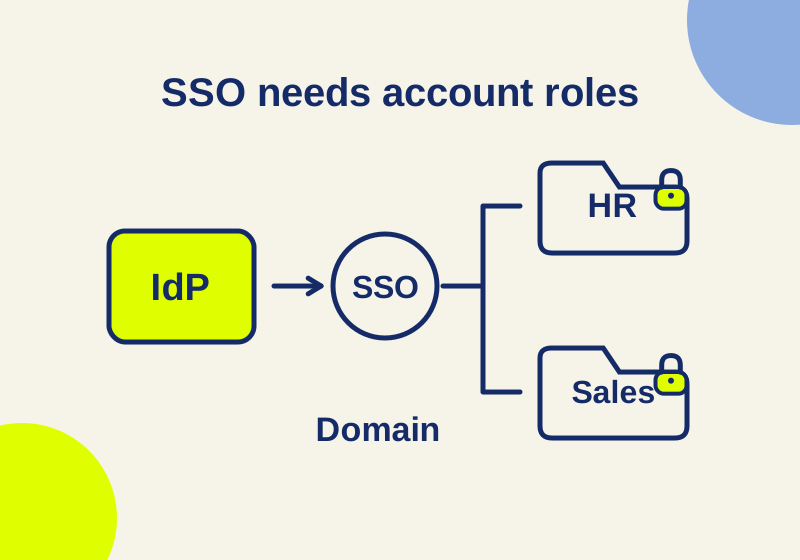
To plan company SSO in Docusign, identify the administration add-on your agreement covers, then map its domains and eSignature accounts. An organization administrator role, a claimed email domain and an account administrator profile control different parts of access. Someone who signs in through SSO can still lack membership in the intended sending account or permission to send an agreement.
The US eSignature comparison lists Standard and Business Pro for up to 50 users, with user and group permissions. Neither includes Access Management with SSO or Organization Management. Upgrading from Standard to Business Pro for an intake feature therefore leaves the SSO requirement unresolved. Enhanced arrangements go through sales; the agreement should identify the required administration packages and the accounts they cover.
Access Management with SSO or Organization Management?
Docusign names Access Management with SSO and Organization Management as separate add-ons. Access Management with SSO is a prerequisite for Organization Management. Basic Access Management supports a single identity provider (IdP); Organization Management expands the SSO options. The current feature matrix places domain management, just-in-time provisioning (JIT) and SSO in both packages. It lists SCIM, bulk actions, delegated administrator, account-settings comparison, aggregated reporting, envelope transfer and custody management, and closing external users under Organization Management. The FAQ also describes configurable tiered admin rights for both packages, so the specific task and permission profile still need to match the enabled account features.
For a company that needs employees to use its existing IdP, start with the Access Management requirement. If IT also needs to provision people through SCIM or compare departmental account settings, include those Organization Management capabilities in the purchase scope. A quote saying “SSO” alone does not establish SCIM entitlement.
An included feature can also be unactivated. Docusign’s plan-change guidance directs enterprise customers to Support for features their contract includes, and to the Account Team for features outside it. Check the agreement before buying another plan to make a missing menu appear.
A domain population is different from an account membership list
The organization Users page distinguishes two populations: account users belong to accounts linked to the organization; domain users fall under a reserved company email domain. The employee who uses a company email address and the member of the HR sending account are different records to inspect.
Keep the domain string and the sending account’s ID in separate columns when recording access. Add the person’s membership and permission profile for that account. Using “HR” as a convenient label is fine during planning; the live account ID resolves which HR account a permission change affects.
Organization administration has its own assignment. The official organization-administrator instructions, in Japanese, describe an Administrator-profile organization admin inviting someone through Users > Administrators > Add Administrator. The invitee needs a Docusign account, which need not already be linked to the organization. That invitation does not establish membership or sending rights in each departmental account.
Account administration and permission to send
The account permission-profile reference, in Spanish, describes DS Admin’s Allow All access to account settings, users, groups, signing, sending and integrations. Allow some grants selected administrative abilities when the account supports them. The option Allow users to send envelopes controls sending separately.
If a colleague needs to send sales agreements, assigning broad account administration adds authority beyond that task. If someone needs to maintain users and integrations for HR, a sending profile alone leaves the administrative task unresolved. Check the exact permission in the account where the work happens. Neither job title nor organization-admin status proves access to every agreement.
A scope map you can adapt
The downloadable admin scope worksheet uses synthetic job labels. It separates the intended action from the organization role and account membership.
| Job label | Organization role | Known account and profile | Intended action |
|---|---|---|---|
| Central identity owner | Administrator | Account unassigned; memberships unknown | Manage domains and IdPs |
| HR sender | None | HR: DS Sender | Send HR agreements |
| Sales sender | None | Sales: DS Sender | Send sales agreements |
| HR account administrator | None | HR: DS Admin | Manage HR settings and users |
| Cross-department sender | None | HR and Sales: DS Sender in each | Send in both accounts |
There are five known account memberships across four people: three in HR and two in Sales. The central identity owner’s underlying account membership remains unknown. It cannot be counted as zero. The local CSV count result keeps that unresolved record separate.
For the cross-department sender, check HR membership and its sending permission, then inspect Sales independently. For the identity owner, check the organization role and domain task, then establish the underlying account and whether sending access is also required. Replace these job labels privately with actual account IDs and approved personnel records. Credentials do not belong in the worksheet.
The Docusign seat FAQ distinguishes a seat for access to a specific account from a license describing contractual capabilities. One person can have memberships in several accounts. This worksheet calculates membership counts, not a subscription bill; the Enhanced contract determines billing.
Check where newly provisioned users land
The same seat FAQ explains that permission defaults depend on how someone is added. An administrator chooses the profile when adding a person in the UI. JIT uses the organization’s default permission set. SCIM uses the mappings configured between the IdP and Docusign.
For a new employee intended to send in HR, inspect the target account and profile resulting from the chosen provisioning method. Do not stop after the employee successfully signs in. The useful test is whether that user reaches the intended account and can perform the intended action there. For someone assigned to both HR and Sales, inspect both memberships.
Use Admin > Users to investigate users and Admin > Plan and Billing to inspect seats. If a person cannot see Admin, Docusign’s current guidance says they lack the account-administrator role; ask the administrator to investigate the account rather than diagnosing that person’s screen as a missing feature entitlement.
Establish recovery before requiring SSO
Login Settings says to claim the domain and, for multiple IdPs, specify the domain-to-IdP mapping before enforcement. Test the IdP configuration before selecting Require all users to log in with SSO only. Require login when opening envelopes is a separate domain setting; it does not substitute for the SSO login policy.
Agree on an approved recovery exception with the identity team before enforcing SSO. Identify who can use it, which account and organization tasks they can perform, and how that exception will be controlled. A planned exception needs validation in the actual configuration; it is not an automatic recovery guarantee.
For the authorized test user, record the account reached after sign-in and the action they successfully performed. That gives the administrator something more useful than “SSO works” when an employee later reports a missing send control.
Trace the problem to its scope
A logged-in user with no send control needs an account and sending-permission check. Someone who administers HR but cannot find Domains needs an organization-role and add-on check. A JIT user with an unexpected profile needs a default-permission and account-assignment check; a SCIM user needs the IdP mapping checked too. These are diagnostic routes, not recorded incidents from a configured tenant.
Likewise, disabling an HR membership is not evidence that the person’s Sales membership changed. Inspect each membership before declaring the offboarding complete.
For certificate errors, distinguish the Docusign service-provider certificate from the IdP certificate uploaded into Docusign. The expiry warning can refer to a different certificate from the one being inspected in the IdP. Give the identity team the exact error, time, domain and certificate context in a secure incident record. These instructions and the worksheet do not represent a purchased-plan trial or a live SSO configuration test.
KEEP GOING
More to explore.
SOURCE-CHECKEDBusiness documents
Docusign Standard vs Business Pro: forms, uploads and payments
A worked booking form shows which steps require Business Pro.
SOURCE-CHECKEDEveryday tech
Remove an old Windows passkey without losing account access
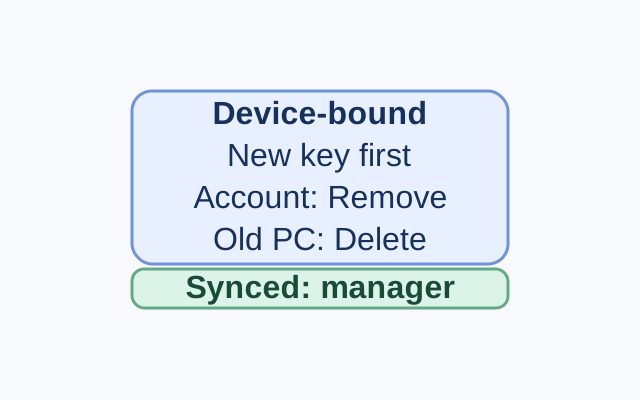
An old Windows device may hold a passkey locally, while a synced credential manager can make its passkey available on a new device. A Microsoft account may also list the passkey as a sign-in method. Each location has a different management control.