TESTED · APPS & THE WEB
Stellarium Web: find the Moon and understand the sky you see
Use Stellarium Web to explore the Moon, compare a place and time, and interpret altitude, azimuth, and clock settings without mistaking the simulation for a live view.
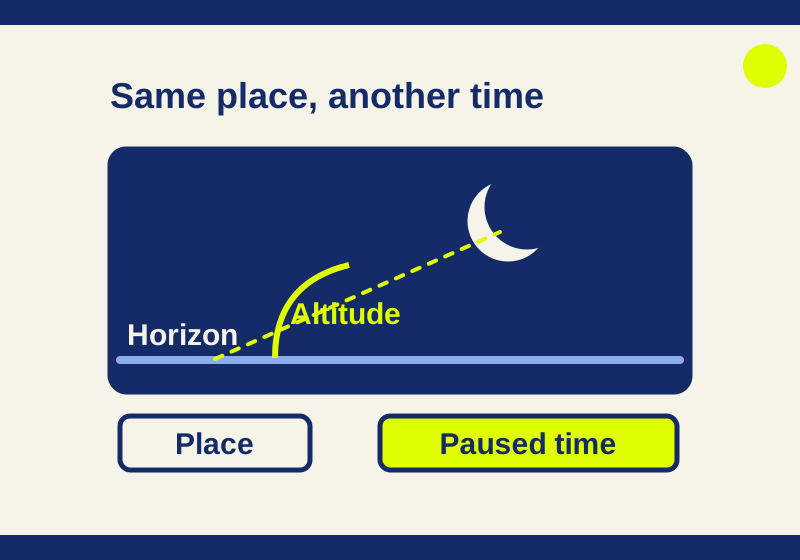
Stellarium Web lets you choose a place and time, find the Moon, and read its simulated direction and height. Hold the place steady while changing the time to explore how the sky differs. Stellarium Labs describes the browser planetarium as a beta. The view is a simulation; it does not check clouds or obstacles outside.
The Moon makes a useful first target because its information panel gives you something concrete to compare. When it stays in the center of the picture as the time changes, the coordinates can explain what happened.
Apply your viewing place
Select the location control at the lower left. Search for a place, choose the intended result, then select Use this location. Check the location shown afterward. The University of Iowa’s Stellarium Web guide documents this sequence.
Keep the place and clock separate in your notes. The place identifies the simulated viewer’s position. The clock sets the time for that view. A place name on screen does not by itself explain the clock’s time zone or whether an unmarked reading uses a 12-hour convention.
In the recorded browser trial, selecting Greenwich coordinates 51.48208, -0.00454 produced a Greater London location label. A broader label alone was therefore insufficient to conclude that the selection had failed. Check the selected coordinates when the result’s label differs from the town or landmark you entered.
Pause before taking the first reading
Click the lower-right clock to open the time controls and pause the simulation. Set your first date and time, then write down the displayed clock text. The reset control returns to the current time. Use it when you want to return to the present, after finishing a comparison.
The trial browser used the Asia/Seoul time zone while Greenwich was selected. The clock readings lacked an AM/PM marker. Their interpretation as local Greenwich times was not confirmed. If your own display leaves the same question unresolved, keep the exact clock text and browser time zone in the record. Resolve that convention before using a reading as an appointment for outdoor observing.
You can still examine the difference between two displayed simulation states. Keep that exercise separate from a claim that the Moon will be visible from a specific outdoor spot at a particular local time.
Search for the Moon
Search for Moon and choose Moon Natural Satellite. Check the object name in the information panel. A similarly named object would give you a different comparison even if the sky looked plausible.
Searching centers the target. If you selected an object by clicking the sky, its panel’s crosshair can center it. You can also pan and zoom to change the framing. These controls help you find the object; they do not replace the viewing location or date you selected.
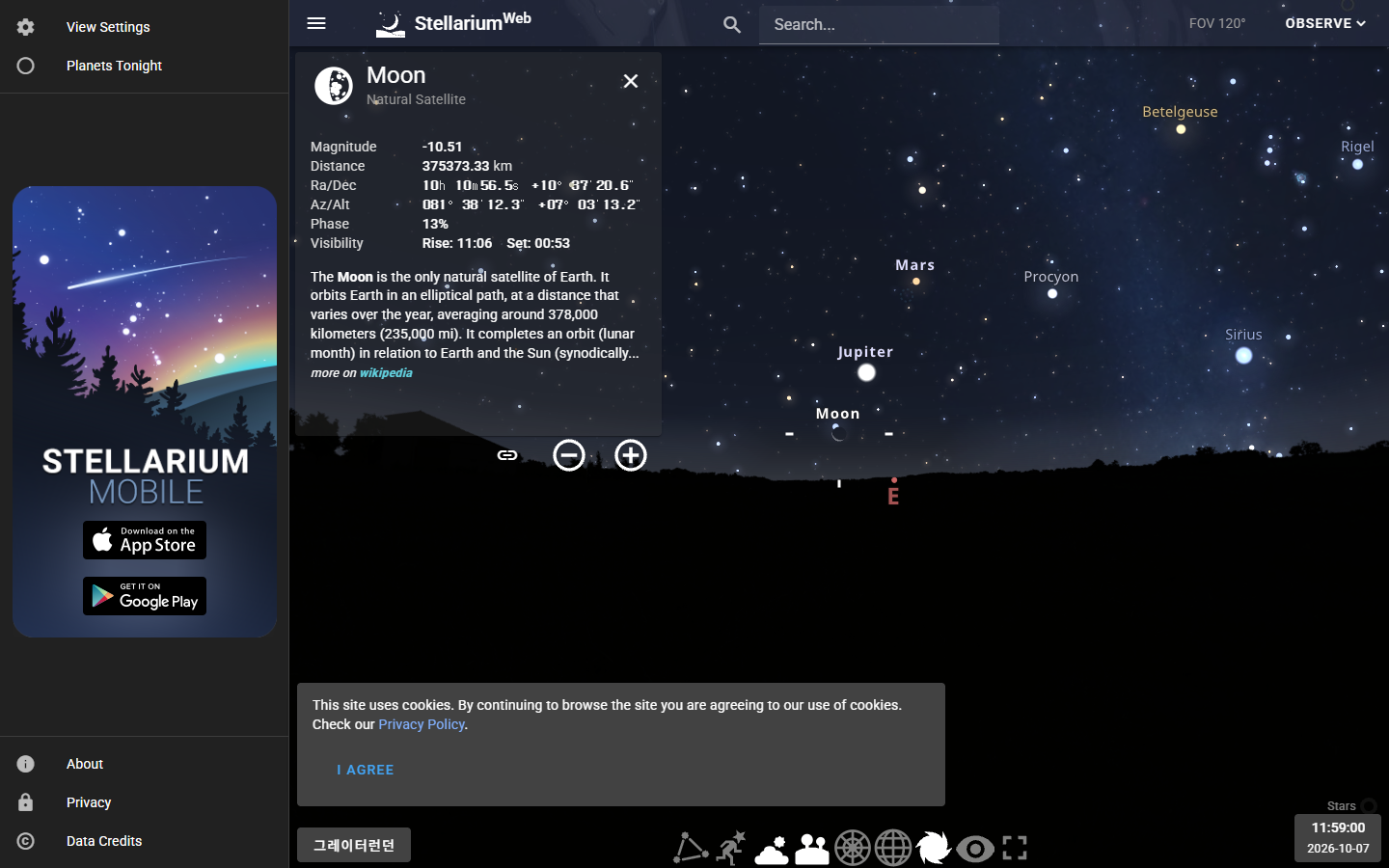
This is the recorded browser view, including the clock whose local-time convention remained unconfirmed. The panel values are displayed simulation readings, not independently verified astronomical predictions.
Read Az/Alt as direction and height
The panel’s Az/Alt values are two angles. The US Naval Observatory’s explanation defines azimuth clockwise around the horizon, usually starting at true north, and altitude above or below the horizon. On that compass, 0 degrees is north, 90 east, 180 south, and 270 west.
For a hypothetical angle-reading example, an object at azimuth 90 degrees and altitude 30 degrees would be east and 30 degrees above the horizon. At azimuth 270 degrees and altitude -5 degrees, it would be west and 5 degrees below it. These examples explain the coordinates; they are not Moon readings for a particular date.
Azimuth wraps around at north. In another hypothetical comparison, a change from 359 degrees to 1 degree crosses that boundary by 2 degrees along the shorter arc. Subtracting the displayed numbers and describing a 358-degree swing would misread the circle. Record the original values before interpreting the difference.
Watch the coordinates even when the Moon stays near the center of the picture. Centering the selected target can hold it in the frame as you progress time. Its position relative to the horizon can change without a dramatic journey across the middle of your screen.
Compare two times at one place
Keep the location fixed for this exercise:
- Apply your chosen location and pause the clock. Set the first displayed date and time.
- Select Moon Natural Satellite. Record the location, coordinates, clock text, browser time zone, azimuth and altitude. Include Rise/Set labels if you intend to revisit them.
- Change only the time. Check that the location and object are still the same, then record the second panel.
Compare the indicated compass directions and heights. An altitude difference describes a change in the simulated angle relative to the horizon. It does not establish whether a roofline or cloud would block the corresponding outdoor view.
The blank comparison CSV provides fields for your settings and readings. Its rows are empty so you can enter your own observations, including whether the clock convention has been confirmed. Keeping the settings next to the readings makes it possible to repeat the comparison later.
To explore a place away from home, use a separate comparison. Hold one confirmed displayed time steady, record the Moon panel for the first location, apply a second location, then record again. Changing both place and time together would leave you unable to attribute a difference to either input.
Correct a confusing comparison
If the intended place was never applied, return to the location search and select Use this location. If the readings drift while you write, pause the clock. If the Moon disappears after panning or zooming, use the crosshair to find it again without changing your location or time. A panel bearing another object’s name needs a new Moon selection.
The October 7 browser trial selected Greenwich and Moon Natural Satellite and observed different Moon panels after paused time changes. It did not compare those readings against an independent ephemeris or test outdoor visibility.
KEEP GOING
More to explore.
TESTEDApps & the web
Google Earth Timelapse: see a place change, then compare two years
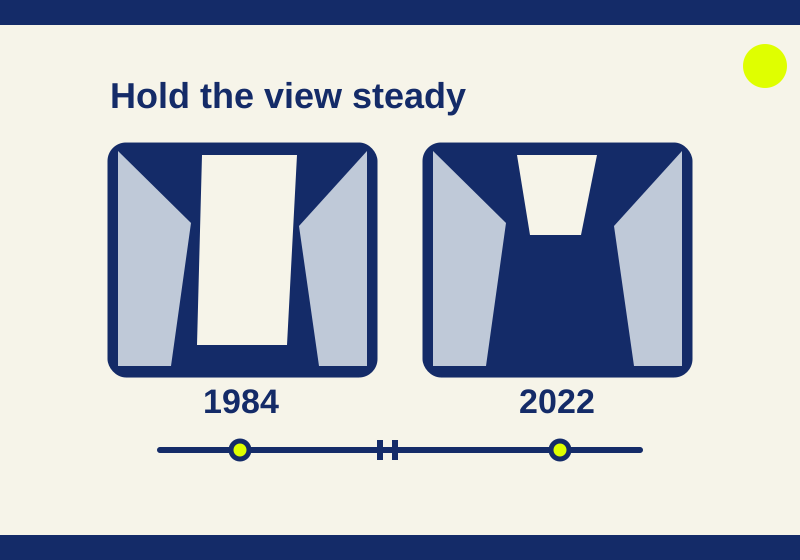
A glacier and the water in front of it look different across two years. Pause on the same location to see what changed and keep the comparison precise.
SOURCE-CHECKEDEveryday tech
Get a Find My alert when you leave a device behind
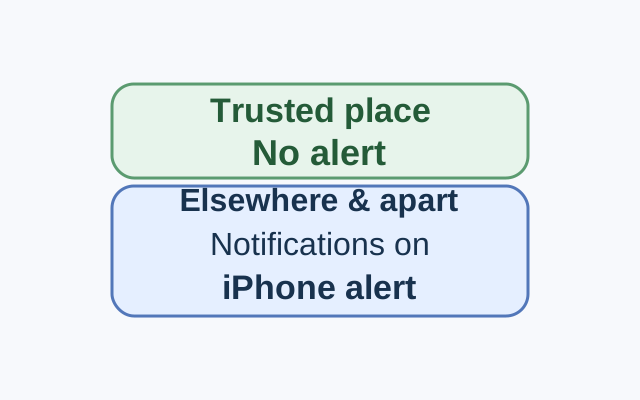
Set the alert from the device sharing your location. In a worked example, an iPhone receives the alert for a selected Mac left elsewhere, while leaving that Mac at a Trusted Location stays quiet.