TESTED · APPS & THE WEB
Send a link and a note between browsers with PairDrop
Send plain text with PairDrop, identify the correct browser, inspect a real receiving dialog, and understand room codes and persistent pairing.
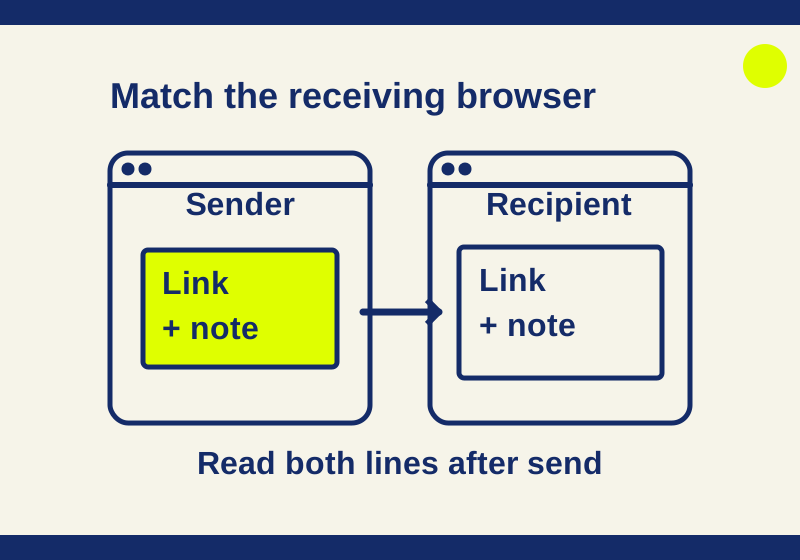
Open PairDrop in both browsers, find the intended recipient’s icon, and right-click the icon on a desktop browser to open a text message. Type or paste your note, then select Send. A normal click opens the file picker; if that happens, close it and right-click the icon instead.
In an October 7 trial using two tabs on one Windows PC, a tab named Chocolate Anteater sent this two-line message to a tab named Tan Donkey:
Cafe map: https://example.com/
Meet at 10:30. Bring the blue notebook.
The receiving dialog showed both lines, and the URL was clickable. example.com is a placeholder, not a real cafe map.
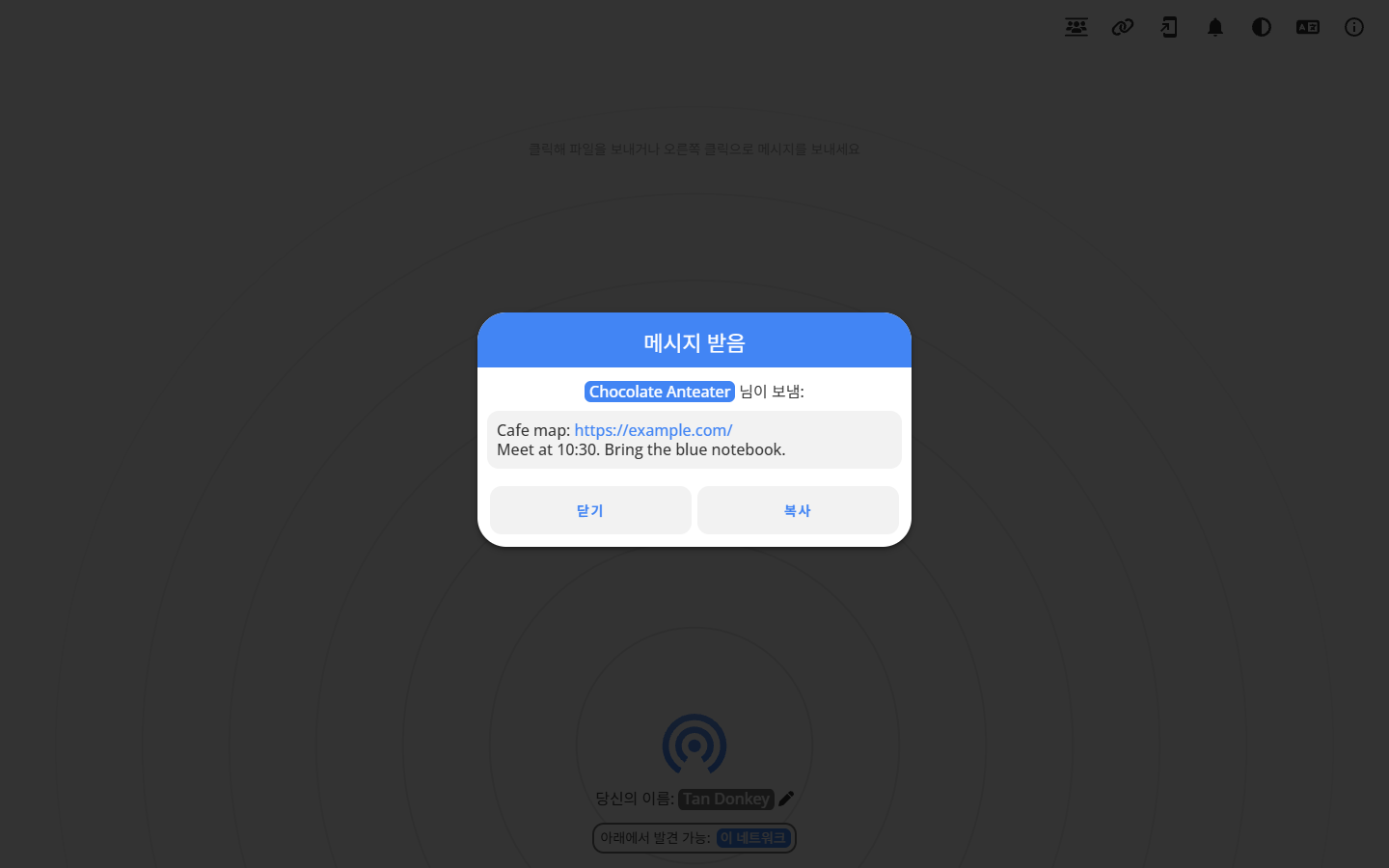
The received message in the two-tab trial. The PairDrop interface was in Korean; the message was in English.
You can download the two-line practice message to try the same input.
Check the recipient name first
Each browser shows its own generated name in the footer. Before sending, check the name shown on the other browser and match it to the peer icon you intend to use. In the recorded trial, Chocolate Anteater was the sender and Tan Donkey was the recipient.
A name helps you select a browser, but it does not prove who owns it. If several peers appear or a name is unfamiliar, ask the recipient what their footer says. PairDrop’s README says display names can be edited; “Kitchen laptop” and “Desk browser” are possible names you might choose, not devices used in the trial. Check the current name each time rather than assuming a generated animal name will stay fixed.
Read the two names in the receiving dialog
The receiving screenshot shows “Tan Donkey” in the footer and “Chocolate Anteater” above the message. The footer identifies the browser you are looking at; the name above the received text identifies its sender. Those labels describe different ends of the exchange.
For the practice message, the sending browser must choose the peer named Tan Donkey. After sending, the receiving browser should show the note from Chocolate Anteater. If you are checking your own two tabs, compare those locations before changing any names. Otherwise, a sender name above the message can look like evidence that you opened the wrong tab.
Your generated names will differ. Ask the intended recipient for their current footer name, then look for that name among your peers. The screenshot’s animal names are examples from one exchange, not names that need to appear for PairDrop to work.
Put context below the link
A first line containing the URL makes the link easy to spot. A second line can tell the recipient what to do with it. For example, a note you might write is:
Document: https://example.com/
Use this draft for Tuesday’s discussion.
The address is a placeholder. Replace it with the link you intend to send, then check that both lines and that URL arrive in the receiving browser.
The receiving dialog in the trial showed a copy control, but it was not clicked, and clipboard pasting was not tested. PairDrop’s FAQ documents Ctrl/Cmd+C for copying a received message, Ctrl+Enter for sending, and Esc for closing Send and Pair dialogs. If you need the note later, copy it into its intended destination and check the pasted text before closing the message.
If the other browser is missing
First check that PairDrop is open in both browsers and that you are looking for the recipient’s current name. The README documents discovery on the same local network and use across modern browsers and platforms.
For browsers that do not appear together, the README describes temporary rooms joined with a five-letter code or QR code. Everyone in a room can see the other members, and closing PairDrop leaves all rooms. Use the code displayed for your actual room rather than a code from someone else’s example.
For devices you use regularly, the README describes persistent pairing with a six-digit code or QR code. Pairing survives reopening PairDrop, and the pairing can be edited or removed. On a shared computer, remove a pairing you no longer want to keep. The README also notes that paired connections across NAT may use a TURN relay; neither room access nor pairing guarantees that every network will connect.
Treat a received note as the result to check
If the wrong peer name is shown, stop and match the footer names before sending. If the recipient has left, have them open PairDrop again and check their current name. If a message arrives, read both lines and verify the URL before copying it elsewhere. Do not count on an “unsend” action after choosing the wrong peer.
PairDrop’s FAQ describes WebRTC encryption in transit while noting that establishing a connection needs signaling and that you still have to trust the server. Keep passwords and account-reset links in a communication channel you already trust. A visible peer name alone cannot verify the recipient.
Source note: The October 7 hands-on record covers the two-line message between two tabs on one Windows PC. Separate devices, operating systems, networks, file transfers, and clipboard pasting were not tested. The linked PairDrop README and FAQ document the other features and shortcuts described here.
KEEP GOING
More to explore.
SOURCE-CHECKEDEveryday tech
Gboard: paste only the address or link from a copied message
A copied invitation may contain five different things. Paste the intended field and check that the rest of the message stayed behind.
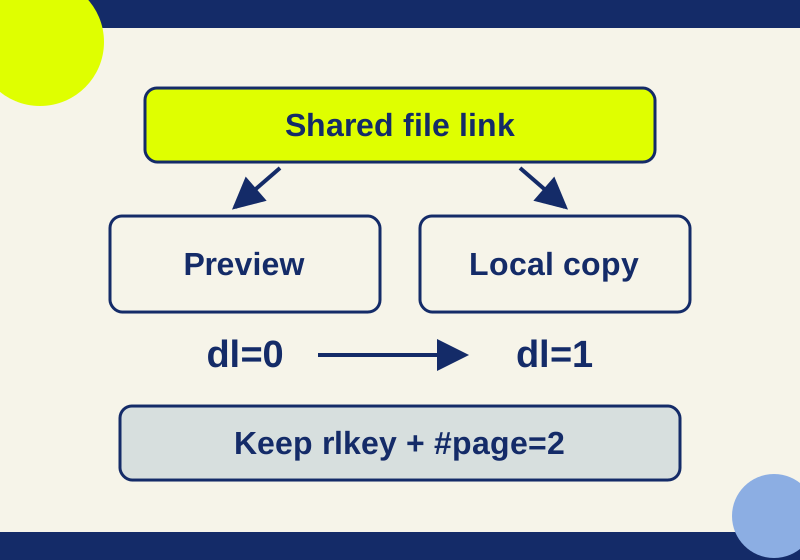
SOURCE-CHECKEDSharing workflows
Open and download Dropbox files without an account
Use a shared link for reading or downloading, diagnose account and permission prompts, and keep the access key when changing URL mode.