SOURCE-CHECKED · APPS & THE WEB
Netflix says your TV isn't part of the Household: fix the right connection
Trace your TV and phone to the right home internet connection, distinguish TV verification from a Household update, and handle travel codes without moving your home.
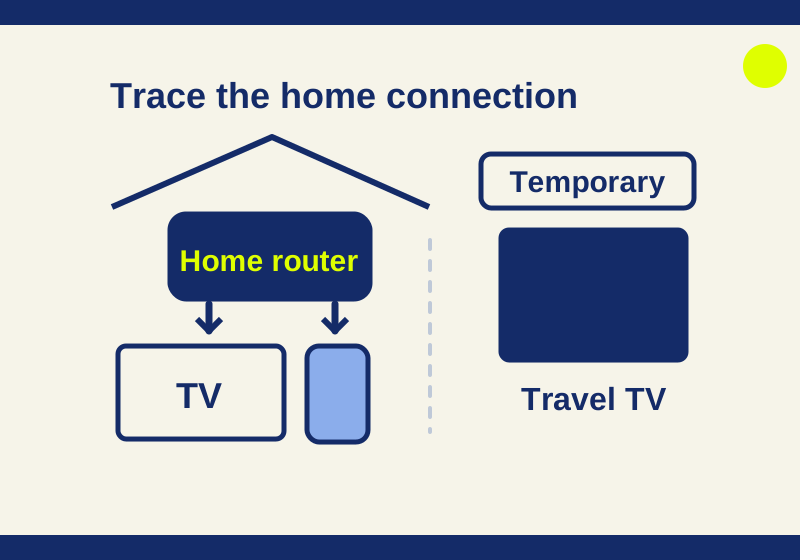
If Netflix says your own TV is not part of your Netflix Household, start with the connection the TV is using. A phone that streams Netflix on the couch does not prove the TV is connected through the same home internet service. Check both connections before choosing Update Netflix Household, especially if you also use a backup router, a second internet provider, or a phone hotspot.
Netflix describes the Household as tied to the internet connection at the main place you watch. A TV or device that cannot be associated with it may show a Household error and offer steps on screen. Identify which router and internet service carry the TV’s current connection. Netflix Household guidance · Device error guidance
Compare the TV and phone connections
On the TV, note whether it uses Wi-Fi or an Ethernet cable. If it uses Wi-Fi, write down the network name shown in its settings. If it is wired, identify the router its cable reaches. Then check the phone’s Wi-Fi name and whether the phone has switched to mobile data or a hotspot. If your home has more than one router or provider, identify which one backs each connection.
Netflix says homes with multiple internet providers or external IP addresses may need verification. A Wi-Fi name by itself does not identify which internet subscription is behind it. Follow the connection to its router before deciding that two differently named networks use different services. Netflix Household guidance
Record the exact error and options displayed on the TV before changing anything. If the TV is on an unintended hotspot or backup connection, reconnect it to your usual main-home internet, then return to Netflix and check the TV screen again.
Change one connection, then read the TV again
Consider this hypothetical home setup: the living-room TV uses an Ethernet cable to the main router, but the phone connects to a separate backup provider. The phone plays Netflix and the TV shows a Household message. Your first comparison should keep the account and TV unchanged while moving the phone to the main router’s Wi-Fi. Follow the TV’s home verification option only after checking that arrangement.
If the message persists, the result is “both devices now use the intended home connection; TV still blocked.” It does not prove that your router is faulty or that the account needs a new subscription. If verification succeeds, write down which connection you changed and what the TV showed afterward. That gives you a repeatable starting point if the backup connection becomes involved again.
For a TV itself connected through the wrong router, change the TV’s connection first, then check its message before modifying the account. Avoid simultaneously reinstalling Netflix, requesting a code and switching both networks. If playback returns after several changes at once, you cannot tell which action addressed the original block. This is an observation method you can use at home; it is not a subscriber test result.
If this is your main home
A newly signed-in device should be signed in while connected to the internet at your main home. Netflix says devices signed in on the same connection can be associated with the Household automatically. For a new TV, or one that has been using another connection, establish that connection first and follow the options the TV then displays. Netflix guidance for new devices · Netflix Household guidance
If the TV remains blocked and offers Troubleshoot This TV, Netflix’s procedure uses a phone or tablet connected to the actual home Wi-Fi. Use its camera to scan the QR code on the TV and follow the displayed prompts. The browser may need camera permission. This is a home-connection check, so use a phone on the same home internet connection, instead of mobile data or a separate provider. Apple TV does not offer Troubleshoot This TV; follow the options it does show. If your phone cannot join the home Wi-Fi, Netflix says another TV already in the Household may be usable for verification. Netflix device error guidance
These paths serve different purposes. Signing in on the main-home connection associates a device; Troubleshoot This TV checks a blocked TV using a device on home Wi-Fi. A travel code grants temporary access away from home. Choose the path that matches where the TV is and what its screen offers.
Update the Household after a genuine home change
If you moved or changed the router or internet connection at the main place you watch, an update may be appropriate. Do it from a TV at that main home, connected through the internet service you intend to use there. Before requesting the link, check that you can access the account’s confirmation contact: its email address, or its phone number if no email is on file.
On most TVs, Netflix lists this route: Back or the profile’s Get Help or Settings area, then Manage Netflix Household > Update Netflix Household. Choose Send Email when the account has email. If there is no email address on the account, Netflix offers Send Text to its phone number. Open the verification link within 15 minutes and follow the confirmation steps; the email route includes Yes, This Was Me and Confirm Update. Menu placement varies; use the official Household instructions alongside the options on your TV. If Manage Netflix Household is missing, Netflix says to use another TV.
Afterward, return to the original TV and check what it actually displays. Do not treat the email confirmation alone as proof that the TV error is gone. If you never watch Netflix on a TV, Netflix says you do not need to establish a Household through one. Netflix Household guidance
A hotel TV is a different case. Updating your Household there would identify the wrong place as your main viewing location. Use the travel option offered on that TV instead.
If the TV is away from home
For legitimate travel, a non-Kids profile may offer I’m Traveling or Watch Temporarily. Follow the TV’s prompts to request a four-digit code, then enter it on the device within 15 minutes. Netflix offers Send Text if there is no email address on the account. Temporary requests are limited, but the cited guidance does not publish a fixed number to plan around. Repeated incorrect code attempts can block further attempts for 24 hours, so check the code and destination screen rather than guessing. Netflix device error guidance
If you regularly watch at a second home, Netflix gives a separate monthly routine: connect a mobile device or computer to the main-home internet and stream for a few seconds, then repeat at the second location. That routine is distinct from changing the Household or requesting a temporary TV code. Netflix also notes that the available catalog can differ when you travel to another country. Netflix second-home guidance
Keep a short before-and-after record
If the error persists, a small record will make the next step easier to identify. Keep it factual and omit passwords, codes, and screenshots containing account details. For example:
- TV: model; Wi-Fi network name or wired connection; router and internet provider.
- Phone used for checking: Wi-Fi network and router, or mobile data or hotspot.
- Starting state: exact TV error and the options it offered.
- Action: reconnected the TV, signed in at home, used Troubleshoot This TV, or updated the Household.
- Result: exact message on the TV afterward and whether playback worked.
If the phone streams while the TV remains blocked, report both observations. They show that the phone has access and the TV still has an association problem; one does not resolve the other. Include the connection and the action you tried so support can distinguish general internet access from the blocked TV’s Household status.
Source note: Netflix’s linked help pages were checked October 7, 2026. Subscriber Household verification was not independently tested.
KEEP GOING
More to explore.
SOURCE-CHECKEDApps & the web
Gmail Undo Send: give yourself 30 seconds to fix an email
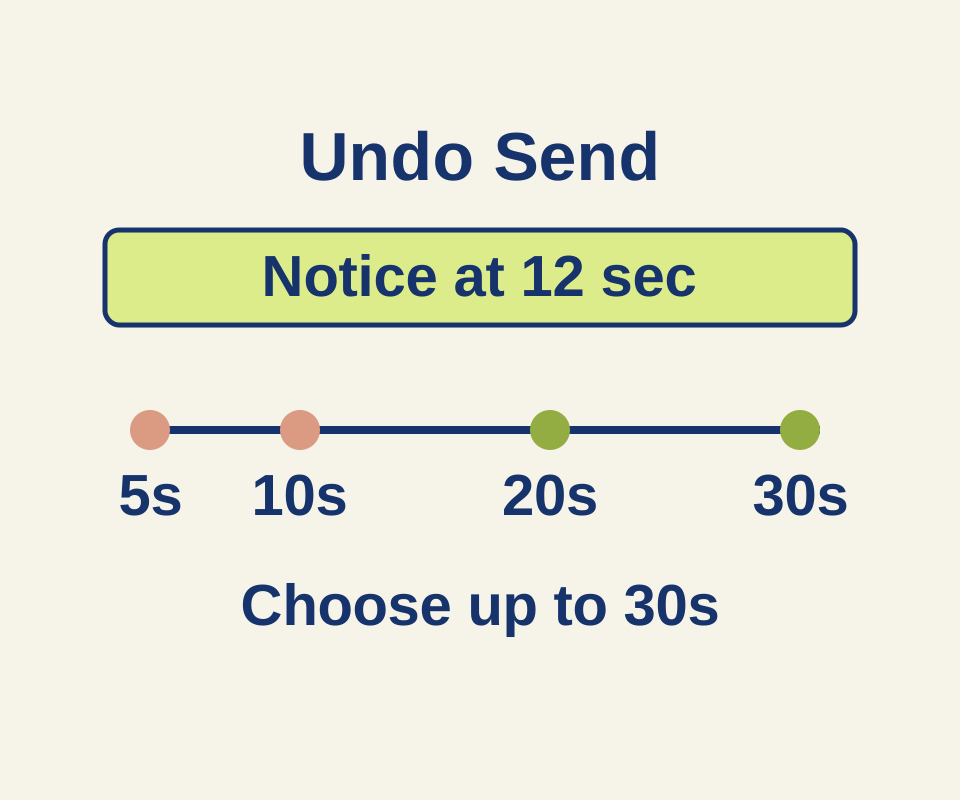
See what a 12-second delay means for each Undo Send setting, then use two correction examples for a wrong time or missing attachment.
SOURCE-CHECKEDEveryday tech
Android app updates and system updates: find the right screen when one says up to date
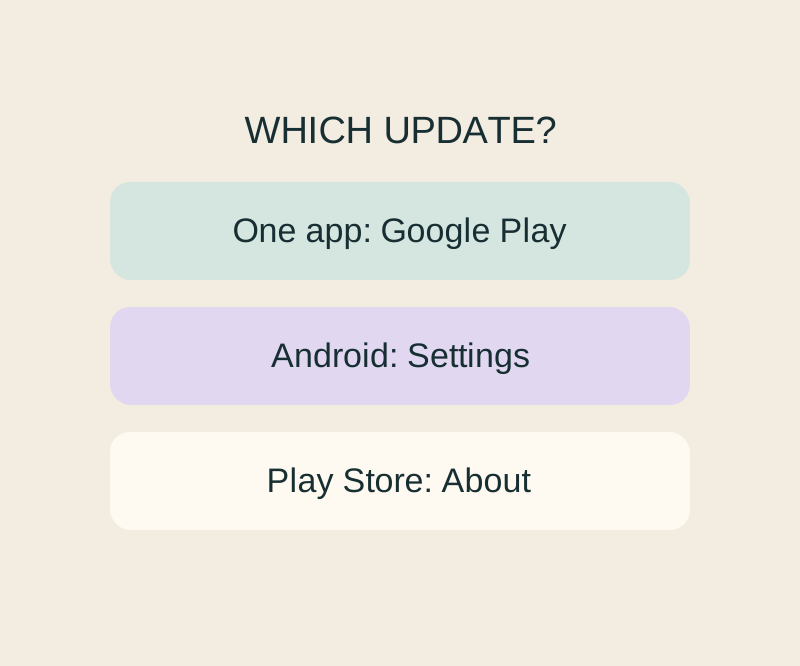
Update, Open and a stuck download lead to different next checks; an Android up-to-date message cannot settle all three.