SOURCE-CHECKED · APPS & THE WEB
Free WhatsApp storage without deleting an entire conversation
Use Android WhatsApp Manage storage to remove selected large media, understand duplicate deletion, and keep needed attachments and chat messages.
On Android, WhatsApp’s Manage storage screen lets you find and delete selected attachments while keeping the conversation. From the Chats tab, tap the three dots, then Settings > Storage and data > Manage storage. You can also open a chat, tap its name, and choose Manage storage to review that chat’s media. WhatsApp’s Android Help Center documents both paths; Meta’s March 2026 update also describes the route through a chat’s name.
Find the files worth reviewing
In Manage storage, select a chat or channel. You can search for one, or sort its media by Largest, Newest, or Oldest. Starting with Largest can bring a few big videos into view before you decide whether to touch smaller photos. WhatsApp shows each item’s file size in a corner.
Tap an item to expand it. If you need to know why it was sent, use the three dots and Show in chat to see its conversation and date. That context matters for something like a ticket PDF: its size alone does not tell you whether you still need it. Two files showing the same size are not necessarily copies of the same file. WhatsApp explains the sorting and review controls here.
Before removing an important chat attachment, keep a separate copy if you need one and open that copy outside WhatsApp to check it. WhatsApp suggests backing up chats before deleting content, but a backup should not be treated as a guarantee that you can recover a particular deleted attachment.
Delete only what you choose
In Manage storage, open the relevant chat or channel, then press and hold an item to select it. Tap other items if you want to remove several. Tap the trash icon, review the Delete any copies option, and tap Delete. That option is for duplicates in WhatsApp. It does not establish that copies saved separately in your phone’s gallery or downloads will be removed. These are the steps shown in WhatsApp’s Android instructions.
Choose Delete any copies only if you want every WhatsApp copy of that item removed. Deletion through Manage storage is permanent: you cannot download the item again from its original chat. It removes the item for you; other participants retain their copies.
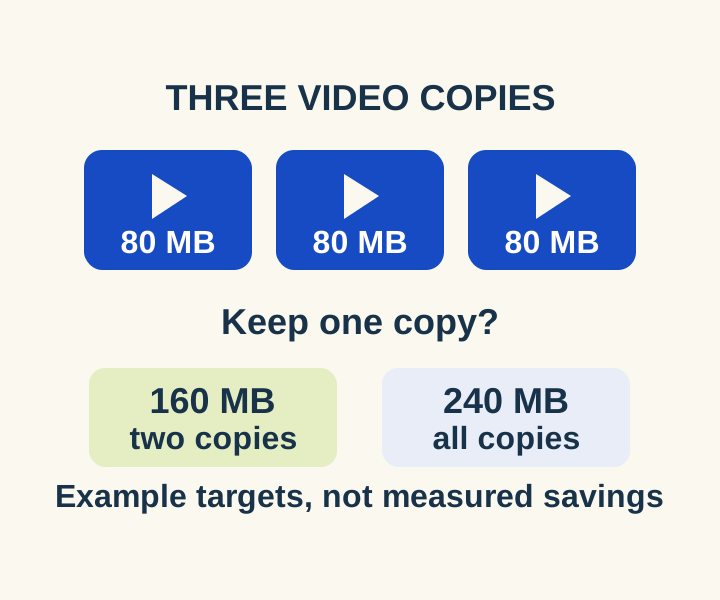
For a hypothetical family chat, suppose there are three copies of an 80 MB forwarded video, 20 distinct photos of 2 MB each, and a 4 MB ticket PDF. The videos account for 240 MB, the photos for 40 MB, and the ticket for 4 MB. Together, that is 284 MB of candidate media, not the chat’s total size or the app’s total storage use. Selecting two unwanted video copies would target 160 MB while leaving one WhatsApp copy. Selecting Delete any copies would target all 240 MB of that video instead. The figures illustrate the choice; they are not a measured cleanup result.
Check what remains
After deleting, compare the Manage storage figure with the one you saw before, and check that any ticket, photo, or video you meant to keep still appears in the conversation. Then check your phone’s storage reading separately. WhatsApp says its storage figure and Android’s can differ because they calculate usage differently. An OS reading that does not fall by the example’s exact 160 MB or 240 MB is not, by itself, a reason to delete more.
Manage storage is for reviewing WhatsApp media on your device. It is distinct from Clear chat, which can remove conversation contents, and it does not tell you how much cloud backup quota you have. For iPhone instructions, use the iOS selector on the same WhatsApp Help Center article.
Source and scope: WhatsApp’s Android Help screen and Meta’s March 2026 announcement were reviewed October 8, 2026. No deletion was tested on a phone.
KEEP GOING
More to explore.
TESTEDEveryday tech
How to clear Chrome cache without deleting saved passwords
Select cache alone without deleting saved passwords or deliberately clearing cookies.
SOURCE-CHECKEDEveryday tech
Trim an iPhone voice memo without deleting the part you meant to keep
Keep the selected passage or remove it, then preserve the original with Save as New Recording.