SOURCE-CHECKED · APPS & THE WEB
How to show multiple time zones in Google Calendar, including DST weeks
Show three Google Calendar time zones and compare dated New York, London and Tokyo meetings with downloadable practice events for daylight-saving weeks.
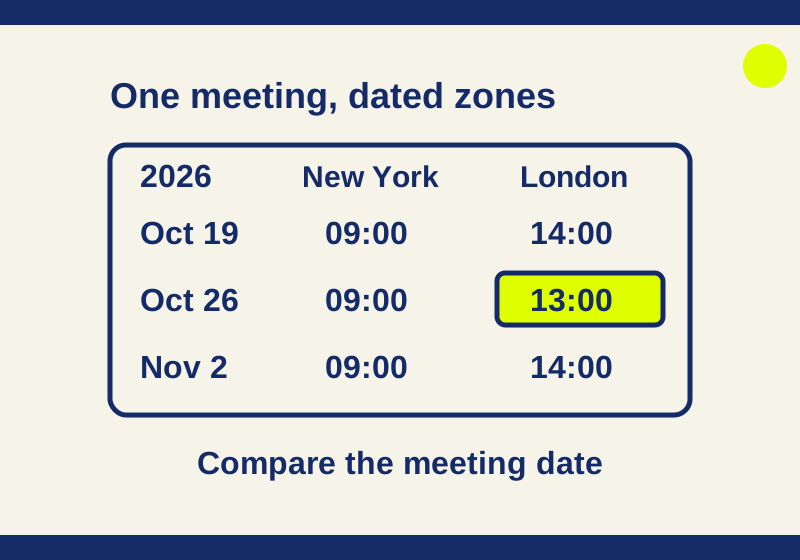
Google Calendar can show three time zones beside its schedule: your primary zone and two additional zones. On a computer, open Settings > General > Time zone, enable Show additional time zones, and choose a secondary and optional tertiary zone. For a New York, London, and Tokyo meeting, those labels let you read one appointment across all three cities.
The date needs as much attention as the hour. A 9 AM New York meeting corresponds to 2 PM London on October 19, 2026, 1 PM London on October 26, and 2 PM London again on November 2. Below are downloadable calendar events with those exact instants, plus a next-day Tokyo example.
Set up the grid and the world clock
Use your home city as the primary zone and your frequent contacts’ cities as the other two. The extra labels appear on the left of the calendar grid. If the grid already shows two zones, add the third through Tertiary time zone.
For current times, use Settings > World clock > Show world clock > Add time zone. Google’s time-zone instructions cover both controls.
The world clock is useful before making an unscheduled call. When booking a dated appointment, look at that appointment in the grid. Today’s New York-to-London difference can be wrong for a meeting several weeks away.
Adding a city to the grid is a display change. It does not reschedule a saved event. If an invitation was entered for the wrong instant, showing more city labels will reveal the mismatch but leave the appointment where it was.
Why a 9 AM meeting moves in London
These are calculated start times for six dated, 30-minute appointments. New York stays at 09:00 throughout; the corresponding London and Tokyo hours change. All times use a 24-hour clock.
| Date in 2026 | New York | London | Tokyo | UTC |
|---|---|---|---|---|
| March 2 | 09:00 | 14:00 | 23:00 | 14:00 |
| March 9 | 09:00 | 13:00 | 22:00 | 13:00 |
| March 30 | 09:00 | 14:00 | 22:00 | 13:00 |
| October 19 | 09:00 | 14:00 | 22:00 | 13:00 |
| October 26 | 09:00 | 13:00 | 22:00 | 13:00 |
| November 2 | 09:00 | 14:00 | 23:00 | 14:00 |
Suppose you normally reserve 2 PM in London for a colleague’s 9 AM New York call. On October 26, the New York appointment starts at 1 PM London. Joining at the remembered 2 PM would put you an hour late. On November 2, the London start returns to 2 PM.
Tokyo shows a different pattern. Its corresponding hour stays at 22:00 across the two October examples, then becomes 23:00 on November 2. A correction appropriate for the London attendee would be wrong for the Tokyo attendee during that October interval.
For a repeating meeting, agree which city’s wall-clock time should stay fixed. “Every Monday at 9 AM New York” is more precise than “at our usual time.” A London organizer who needs a fixed 2 PM appointment is asking for a different schedule during the mismatch weeks.
Use the dates in the table to inspect individual occurrences around the seasonal changes. The practice download contains separate appointments with fixed timestamps. It does not create or demonstrate either recurring schedule.
Set the city on the event itself
When creating an appointment, open Create > Create event > More options and select Time zone beside its time. Search for the intended city or country. Calendar also has a Use separate start and end time zones option.
That separate-zone control is useful for an event whose endpoints belong to different cities. An arrival’s local hour can look earlier than a departure’s local hour, so compare the dates and instants before calculating a duration. The times below are one instant viewed in four places, with no travel time added:
- New York: October 19, 2026, at 17:00.
- London: October 19 at 22:00.
- Tokyo: October 20 at 06:00.
- UTC: October 19 at 21:00.
A Tokyo attendee searching only October 19 would miss this appointment even though its New York organizer calls it an October 19 meeting. Include the city and full date when sending a manual reminder. “October 20 at 6 AM Tokyo” removes an ambiguity that “Monday at 5” preserves.
Download seven practice events
The practice calendar (.ics) contains the six 9 AM examples and the 5 PM date-rollover example. Every appointment lasts 30 minutes and has a fixed UTC start and end. The file has no invitees, alarms, or meeting links and marks the time as free.
Download the expected times (.json) alongside it. Open that file with a text editor to see each event’s UTC timestamp and full New York, London, and Tokyo display. Its date format is day/month/year, followed by the hour and minute.
For example, the last event’s Tokyo entry reads 20/10/2026, 06:00. If your calendar uses month/day/year, compare it with October 20 rather than treating the different date order as a scheduling error.
On a computer, use Settings > Import & Export, select the ICS file from your computer, choose the destination calendar, and import it. Google’s import help documents this path. The primary calendar is the default destination; explicitly choose a separate practice calendar to keep these synthetic examples away from regular appointments.
After importing, navigate to the named dates. The March entries are deliberately historical, so looking only at this week will show none of those examples. Compare the October 19 and October 26 events in a London display first, then compare November 2. The titles include the New York hour to make each example recognizable.
These are a static collection of seven one-time events. Editing a practice copy does not update the download or another imported copy. They have no guests or conference data; Google’s import procedure also excludes those items when importing other calendars.
Find a one-hour error without moving the wrong meeting
Read the event’s actual date before changing anything. If a New York 9 AM event shows 13:00 in London on October 26, that matches the calculated example. The world clock’s current offset is insufficient evidence that the saved event is wrong.
If the title says 9 AM but the event appears elsewhere, open the event details and compare its entered time zone with the intended city. A title such as “New York 9 AM” is ordinary text; it cannot enforce the appointment’s timestamp.
If two people disagree about the date, check the next-day case before assuming the invitation is broken. New York’s October 19 evening becomes Tokyo’s October 20 morning. Changing the event back to October 19 in Tokyo would move it to a different instant.
Google says created events are converted to UTC and shown in each invitee’s local zone. It also cautions that distant past or future events can display incorrectly after time-zone rules change. For a far-future booking, confirm the actual event again closer to the date.
Source and verification note: Product instructions were checked against the linked Google help on October 7, 2026. The displayed examples were calculated locally with Node’s Intl time-zone database. The download was accepted by an iCalendar parser as seven fixed UTC events with matching 30-minute durations. No Google Calendar account import, rendered event display, or recurring-series behavior was tested.
KEEP GOING
More to explore.
TESTEDApps & the web
How to add multiple stops in Google Maps without losing the visit order
Adding a museum after the finish made it the new final stop. See how Google Maps visit order works, with a real four-place check and reusable route links.
SOURCE-CHECKEDApps & the web
Gmail schedule send: choose Monday morning in the right time zone
Use the actual recipient date and time, understand Scheduled versus Drafts, and check a worked New York, London and Seoul example.