SOURCE-CHECKED · APPS & THE WEB
Google Calendar's free booking page: fit appointments into your week
Create one Google Calendar booking page with a personal account, choose useful weekly hours, and find why a slot is missing. Understand the secondary-calendar limit.
A personal Google Account can create one booking page for appointments without a separate booking app. You set the length of each appointment, choose the hours people can book, and share a link. The page is public to anyone with that link, so check the name and profile photo it displays before sharing it.
Set your weekly hours
On a computer, open Google Calendar and choose Create > Appointment schedule. Add a title and duration, then set your general weekly availability and time zone.
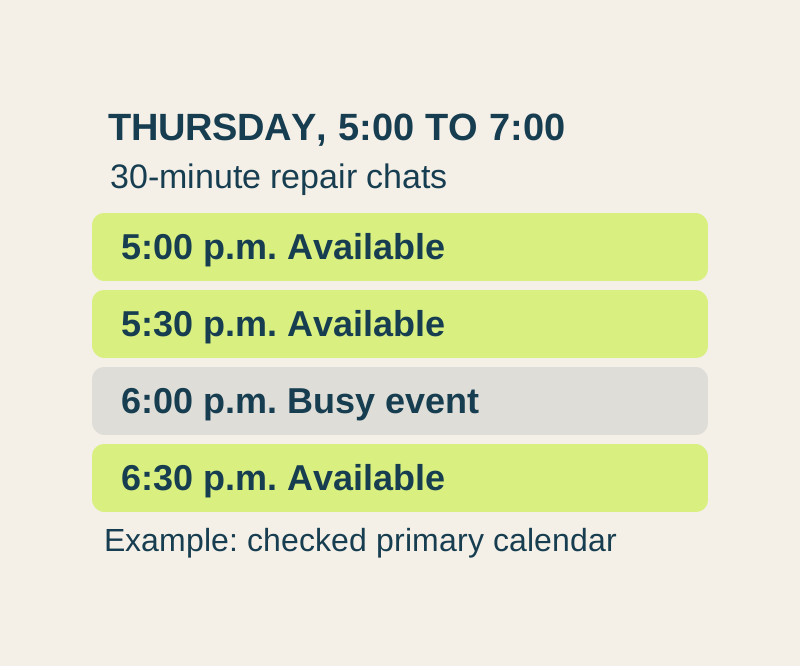
For example, a neighborhood repair volunteer could name a 30-minute appointment Repair chat and offer Thursdays from 5:00 to 7:00 p.m. and Saturdays from 10:00 to 11:30 a.m. in their chosen local time zone. Before calendar conflicts or other scheduling controls are applied, those hours allow four Thursday starts (5:00, 5:30, 6:00, and 6:30) and three Saturday starts (10:00, 10:30, and 11:00). These are arithmetic examples, not observed results from a booking page.
Use Adjusted availability for an absence that affects one Thursday or Saturday. That keeps a one-off change separate from the hours you normally offer.
Finish the booking page
Set how far ahead someone may book and the minimum lead time. Google’s documented default minimum lead time is four hours. Select Next to review the displayed identity, choose a meeting option, add a description, and review the booking form before saving. The meeting options include Google Meet, in person, phone, and a location to be specified later. The required form fields are first name, last name, and email.
For the repair example, this description sets a useful boundary:
Book a 30-minute chat about one small repair. Briefly describe the item and the problem. This booking is for a conversation; repair work and any materials will be agreed separately.
The appointment title is visible to anyone with the booking link. After saving, preview the page and check its dates, times, name, and photo. Under Booking pages, hover over the page and choose Copy link to share it. Sharing the booking page does not require making your full calendar public.
What the free page includes
One booking page is included with a personal Google Account. More schedules, automatic email reminders and checking availability across multiple calendars require an eligible subscription. A free page can cover a single purpose such as Repair chat; do not design several separate booking services around features your account does not include.
Check which events block time
A busy event on a calendar selected for conflict checking blocks overlapping appointments; an all-day busy event can block the day. In the example, if the primary calendar is checked, a busy event on Thursday from 6:00 to 6:30 p.m. would remove the illustrative 6:00 p.m. start. A booked slot is also removed so it cannot be booked twice.
A family event kept only on a secondary calendar needs special attention. Checking secondary calendars for conflicts requires an eligible subscription. If a family event lives only there, check that it has been excluded from the hours offered on your free booking page. Adjust that date’s booking availability manually if the family event makes you unavailable.
If a time seems to be missing, check the weekly hours, any date-specific change, the lead time, and busy events on checked calendars. For instance, someone viewing the example page at 4:00 p.m. Thursday would be past every Thursday start once the default four-hour lead time is applied: the earliest candidate would be 8:00 p.m., after the 7:00 p.m. closing time. That outcome alone would not mean the page is broken.
Source note: Google’s booking-page eligibility, setup instructions, sharing instructions, and availability guidance document these controls. The repair schedule and calculations are hypothetical; no booking was created or tested.
KEEP GOING
More to explore.
SOURCE-CHECKEDApps & the web
Move personal events onto a separate Google Calendar
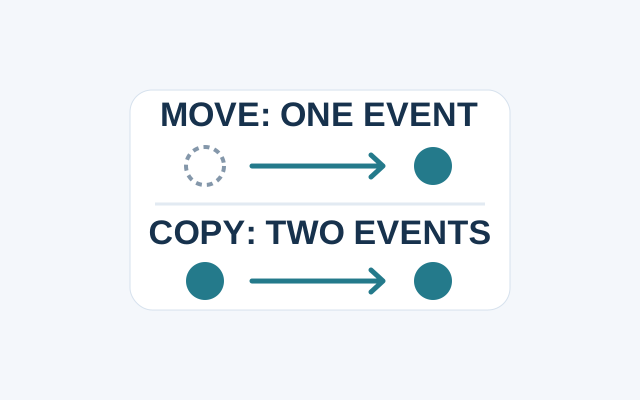
Google Calendar uses different flows to move an event and to copy one. Change the event’s Calendar field when you want it on the new calendar only.
SOURCE-CHECKEDApps & the web
Filter a shared Google Sheet without changing everyone’s view
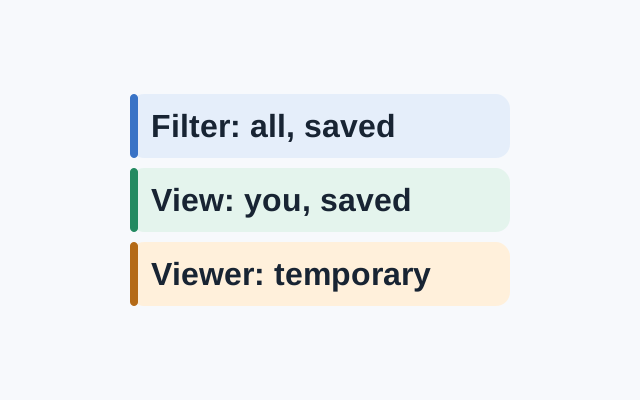
A standard filter is visible to everyone with access and its settings are saved. A saved filter view applies to your view. A viewer can make a temporary filter view, but cannot save it.