SOURCE-CHECKED · APPS & THE WEB
Move personal events onto a separate Google Calendar
Create a separate Google Calendar in a browser, then move an existing event to it without making a copy.
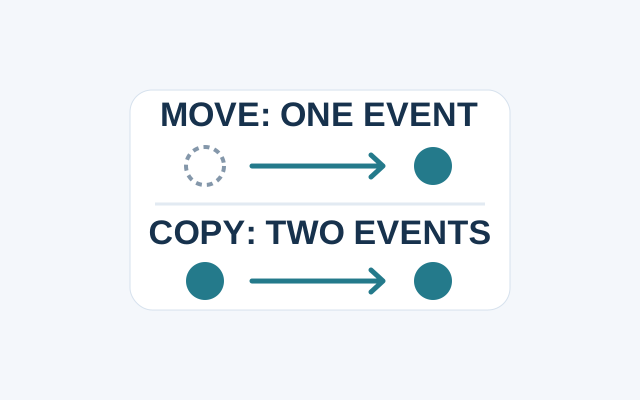
Create the new calendar on a computer in your browser. In Google Calendar, select the plus button beside “Other calendars,” choose “Create new calendar,” enter a name, and select “Create calendar.” The calendar will then appear in your browser and the Calendar app. On a computer, calendars you own are listed under “My calendars.”
To move an existing event, open it on a computer and select “Edit event.” Use the arrow beside “Calendar” to choose the new calendar, then select “Save.” The event moves to that calendar. Google’s separate “Copy an event to another calendar” flow creates a copy instead, leaving an event on each calendar. Changing the Calendar field does not transfer ownership to another person.
These are Google’s documented steps, captured October 22, 2026, and were not independently tested. See also Google’s event transfer instructions.
KEEP GOING
More to explore.
SOURCE-CHECKEDApps & the web
Google Calendar's free booking page: fit appointments into your week
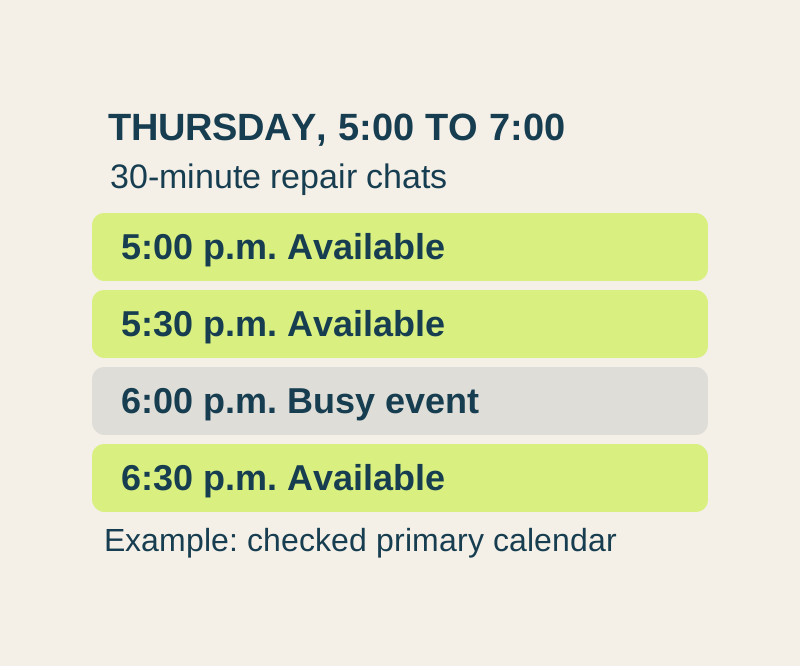
Offer appointment times from one free booking page. A worked weekly schedule explains lead time, busy events and the limits on checking family calendars.
SOURCE-CHECKEDBusiness documents
Google My Drive vs shared drives: move the files without breaking access
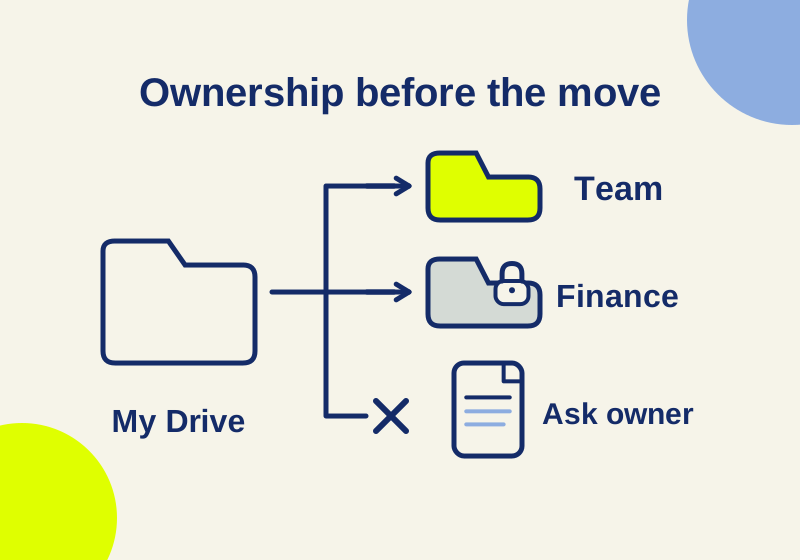
A departing colleague’s folder needs several different handoffs, including one file that cannot move.