TESTED · APPS & THE WEB
Make a room sketch you can change later in Excalidraw
Open an original editable room sketch, move its separate labels and shapes, compare chair positions, and preserve a native Excalidraw copy.
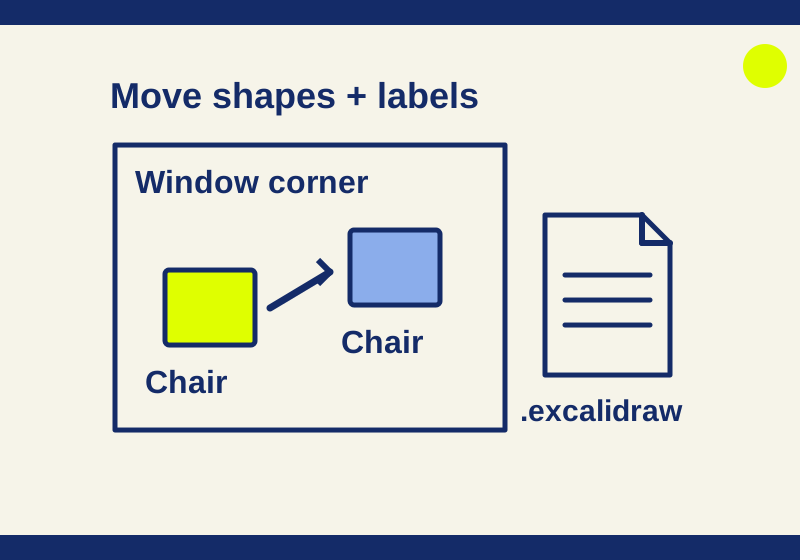
Download the editable reading-corner sketch to show where a chair might go. You can change its labels and move its pieces as the idea develops. It is a conceptual sketch: it has no scale, physical units, or measurements.
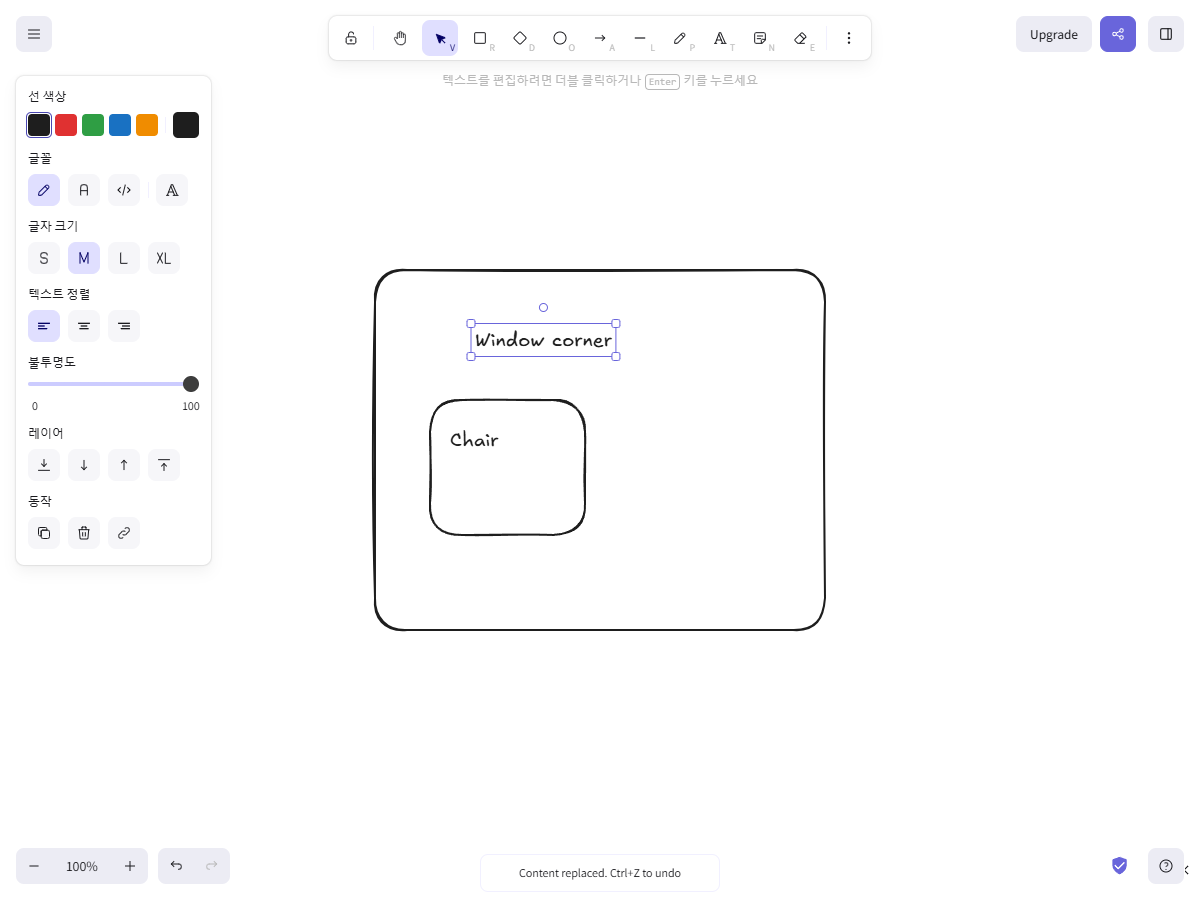
The sample imported into Excalidraw with “Reading corner” as its original label. This screenshot shows it after that label was changed to “Window corner.”
Open the sample
Open the Excalidraw editor and drop the downloaded .excalidraw file onto the canvas. Importing this file replaces the drawing already on the canvas. If you have work open, save it first. If you import over it by mistake, use Ctrl+Z immediately to undo the import.
The sample has four separate pieces: a large rectangle, the text “Reading corner,” a smaller rectangle, and the text “Chair.” The labels help explain the shapes, but they are not attached to them. Moving the small rectangle alone will leave “Chair” where it was.
Treat the large rectangle as a way to discuss an area and the smaller one as a proposed chair position. Neither rectangle tells you how wide the room or chair is. The sketch can communicate an idea about location; it cannot establish furniture fit, doorway clearance, or building rules.
Change the area label
Double-click “Reading corner,” replace it with “Window corner,” and press Escape to finish editing. The screenshot shows this edit: the title changed while the outer rectangle, chair rectangle, and chair label remained in place.
The original sample has no window symbol. If your proposal depends on a particular window, add a label for its intended side so the person reading it can follow the placement. If you edit the wrong label, undo the change, then select and double-click the intended text.
Try two chair positions
Use the Selection tool, marked V, to select the smaller rectangle and drag it toward the left side of the large rectangle for one possible arrangement. Select “Chair” separately and move the label beside it. Then consider a second arrangement with the chair nearer the side you intend to describe as the window side. Move the label again so it still identifies the chair.
These two arrangements are exercises for your own sketch. Move both independent pieces. A rectangle in one place with “Chair” left in another makes the proposal harder to read.
You can mark a proposal “Option A” or “Option B” with the Text tool, marked T. If the two positions would overlap or make the intended placement unclear, keep each option in a separate drawing. Suggested names are reading-corner-original.excalidraw and reading-corner-window-option.excalidraw; they are names for copies you make, not additional sample downloads.
Excalidraw also shows R for Rectangle, A for Arrow, and L for Line. Its hand tool, or Space while dragging, pans the canvas, and zoom controls change your view. Panning and zooming can help you work on the sketch without treating screen distance as a room measurement.
Label what is known
Short labels can keep a discussion focused: “Chair,” “window,” “doorway,” or “possible chair position.” “Possible chair position” makes an undecided location clear to the recipient.
For example, this note could accompany a proposed drawing:
Move the chair toward the window. Keep the doorway side clear. The sketch only shows the idea; measure the room before moving furniture.
For a real room, replace the proposed window side with its actual location. Add a small note for the measurements you still need:
Area: Reading corner near a proposed window side
What might move: Chair from the left side toward that side
What must be measured: Chair size, available space, and doorway clearance
Ask the recipient to comment on a named option. “Move the chair in Option B closer to the window” is easier to apply than “move it over there,” especially when the two versions look similar.
Keep a version you can revise
Use Save to… to keep an editable .excalidraw copy. The native format stores drawing elements separately, which is why the rectangles and text can be changed independently. You do not need to read or edit its JSON to use it.
After saving, reopen your own copy in Excalidraw and check that the intended label and chair position are there before relying on it. Excalidraw describes browser autosave as local-first; it is not a guarantee that someone else will receive an editable copy.
For a recipient who only needs to see the proposal, Excalidraw documents PNG export with the Export image… command. A plain visual image does not preserve the native drawing’s separate shapes for editing in Excalidraw. For someone who needs to move the chair or rewrite a label, send the .excalidraw file. Keep the supplied native file alongside any visual export so later edits can start from its four separate objects.
Fix a common snag
If double-clicking changes “Chair” when you meant to rename the area, press Escape, undo the mistaken edit, and double-click the larger label. If the sketch appears far away, pan or zoom to bring its pieces into view before dragging them. A close-up of one rectangle can hide its separate text label outside the current view.
When returning to an older proposal, open the saved native file and check its labels against the option name. A file called “window option” that still says “Reading corner” may simply be an earlier copy. Rename the label and save another version before sending it.
Source note: The Excalidraw editor, project documentation, and native-format documentation support the described tools and file options. An October 7 Windows Edge test confirmed file-drop import and the label edit; saving and exporting were documented, not successfully tested.
KEEP GOING
More to explore.
SOURCE-CHECKEDApps & the web
Make a Google Docs itinerary with places readers can open
On a computer, write each stop’s time and purpose in plain text, then add a place chip for the intended location.
SOURCE-CHECKEDSharing workflows
Google Docs Suggesting mode: review edits without losing the original
A complete wording exercise shows how four suggestions change a notice, with downloadable original and final text.