SOURCE-CHECKED · APPS & THE WEB
Google Docs Pages vs. Pageless: fix wide tables and printing surprises
Choose Google Docs Pages or Pageless for wide tables, change your viewing width, and prevent hidden headers or squeezed columns from surprising you in print.
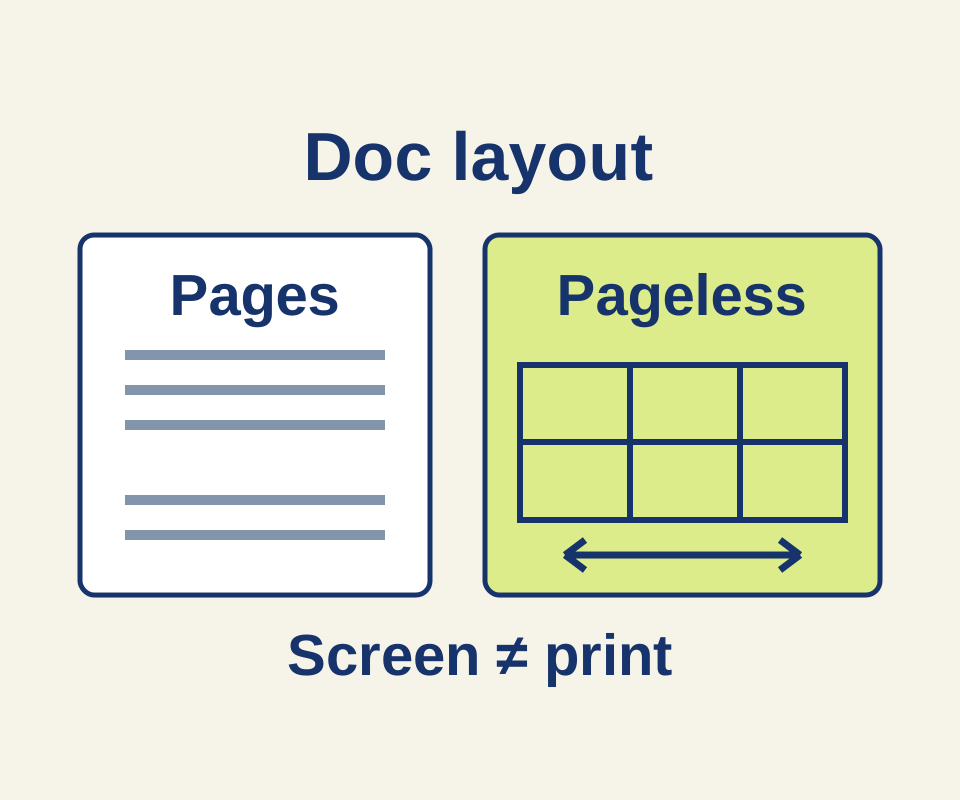
Pageless gives a wide plan room on screen: you can scroll horizontally through a table. When the plan needs to be printed, switch to Pages to control its page layout. In Google Docs, choose File > Page setup > Pageless > OK to change formats; use the same path and select Pages to switch back. Google’s page setup guide describes both formats.
Build the plan in Pageless
This example repair-cafe plan can be copied into a six-column table:
| Station ID | Repair | Tools | Volunteer note | Queue rule | Rain plan |
|---|---|---|---|---|---|
| S1 | Bicycle puncture | Tire levers, pump | Find the valve type | One bike per slot | Covered porch |
| S2 | Loose button | Needle, thread, scissors | Match thread before starting | Bring garment inside out | Community room |
| S3 | Wobbly chair | Screwdriver, clamps | Check loose screws first | No glue repair while waiting | Community room |
Pageless uses continuous scrolling, adjusts text to the screen or zoom level, and lets you scroll horizontally through wide tables. If you choose View > Text width > Narrow, Medium, or Wide, that width is specific to your view; it does not set a collaborator’s width. Google’s pageless guide explains these controls.
Make a print version
Before printing, switch to Pages through File > Page setup > Pages > OK. Pages displays page breaks and provides controls for margins and orientation, along with page numbers, headers, footers, and columns. Google’s page setup guide
For a less crowded print layout, divide the example into two tables:
- Table 1: Station ID | Repair | Tools
- Table 2: Station ID | Volunteer note | Queue rule | Rain plan
Keep S1, S2, and S3 in both tables so readers can connect each station’s repair and tools to its instructions. This is an illustrative layout plan, not a promise about how many pages the document will use. Google says wide tables can be squeezed to fit when printed from Pageless, and images can be resized. Google’s print guide
If a printout contains material you cannot see in Pageless, check the document in Pages. Existing headers, footers, and watermarks are hidden in Pageless and reappear when you switch back; Google says those elements and existing footnotes can still print while invisible in Pageless. Google’s print guide
Google help was checked October 10, 2026. The repair-cafe plan is an original illustrative example; no Google document was created or printed.
KEEP GOING
More to explore.
SOURCE-CHECKEDApps & the web
Google Calendar's free booking page: fit appointments into your week
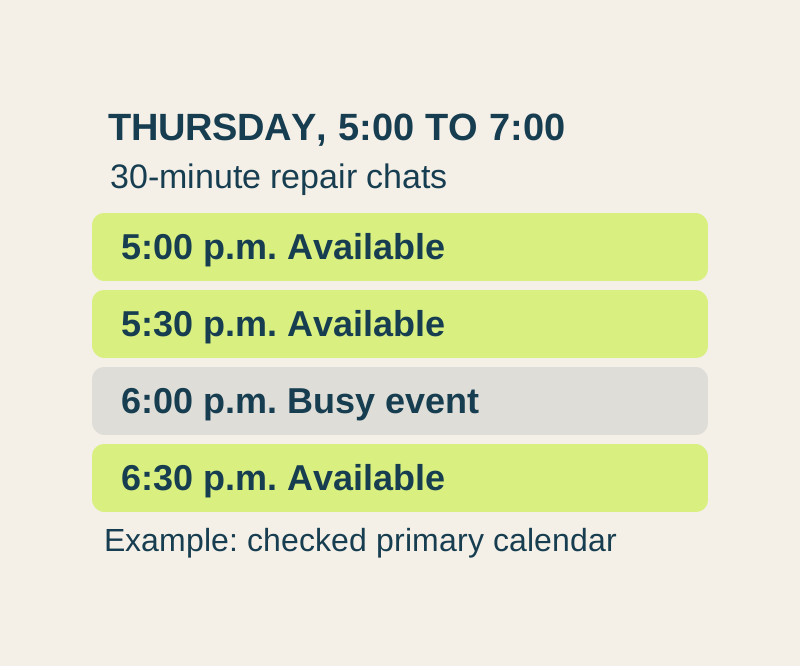
Offer appointment times from one free booking page. A worked weekly schedule explains lead time, busy events and the limits on checking family calendars.
SOURCE-CHECKEDApps & the web
Make a Google Docs itinerary with places readers can open
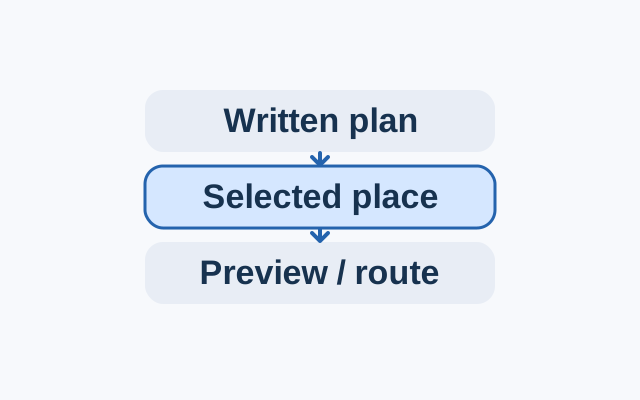
On a computer, write each stop’s time and purpose in plain text, then add a place chip for the intended location.