SOURCE-CHECKED · EVERYDAY TECH
Prepare Android theft locks before your phone goes missing
Check which Android theft locks your phone supports, enable the available controls, and understand their different triggers.
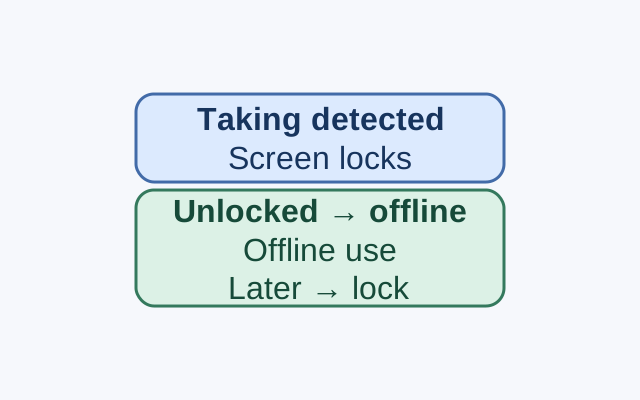
Android has two theft locks with different triggers. Theft Detection Lock can lock the screen if it detects someone taking an unlocked phone. If a phone is unlocked when it loses internet access, Offline Device Lock can lock it after a short period of offline use.
Check both settings
Set a screen lock. In Settings, tap Google, All services, then Theft protection. Check Theft Detection Lock and Offline Device Lock separately, and turn on each available switch that is off. Some theft protection features may already be on.
If Theft Detection Lock is grayed out, Google says your phone does not support that feature. Check Offline Device Lock’s own switch to see whether it is available and on.
What triggers each lock
If someone takes your unlocked phone and it stays online, Theft Detection Lock may lock the screen if it detects the taking. If an unlocked phone loses internet access and is then used offline, Offline Device Lock can lock it after a short period. It does not require detection of a taking.
Theft Detection Lock may not trigger when the phone has a stable Wi-Fi or Bluetooth connection. Offline Device Lock can lock the screen twice in a 24-hour period. Keep a screen lock set for either feature.
These steps come from Google’s Android Help guide; they have not been tested on a device for this article. Support varies by phone model. Some steps require Android 10 or later, and these features are unsupported on Android Go devices, tablets, and wearables.
KEEP GOING
More to explore.
SOURCE-CHECKEDEveryday tech
Prepare Find Hub to locate an Android phone when it goes offline
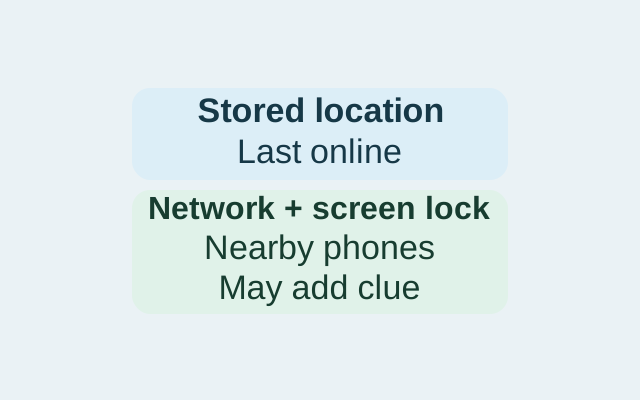
Find Hub can retain an encrypted recent location, use nearby Android devices to help find an offline phone, or do both. The setting controls which routes are available; power-off finding also depends on phone support and other conditions.
SOURCE-CHECKEDApps & the web
Prepare Google Translate languages before going offline
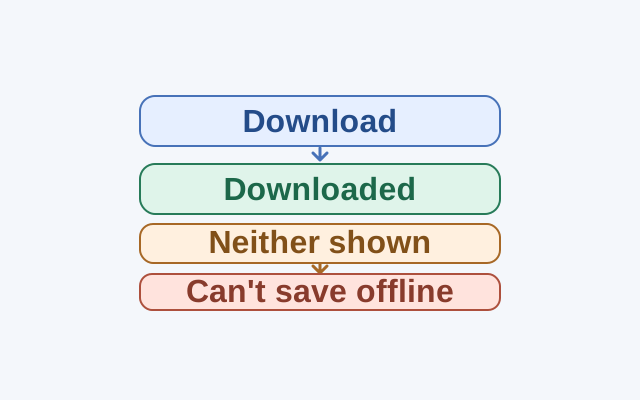
Check for Downloaded status before treating a missing Download button as a sign that a language cannot be saved.