SOURCE-CHECKED · EVERYDAY TECH
Snooze one Android notification so it returns later
Use Snooze on one Android alert, and know where to look if you dismissed it instead.
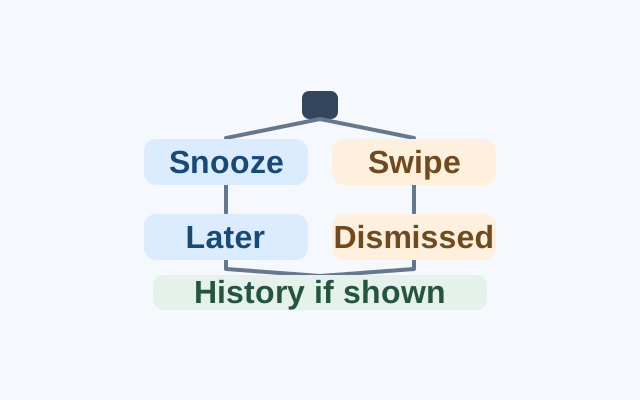
When you want to deal with an alert later, snooze it while it is still visible. Swiping it left or right dismisses it.
Snooze the alert
- Open Settings, tap Notifications, and turn on Allow notification snoozing.
- Swipe down from the top of the screen to find the alert.
- Tap its Down arrow, then tap Snooze. To change the snooze time, tap the Down arrow.
Find the alert afterward
If you are unsure which action you took, check Settings > Notifications for notification history. On devices that have it, look under Snoozed notifications for an alert you postponed or Recently dismissed notifications for one you swiped away. Some devices lack notification history, and settings can vary.
Source: Google’s Control notifications on Android guide.
KEEP GOING
More to explore.
SOURCE-CHECKEDEveryday tech
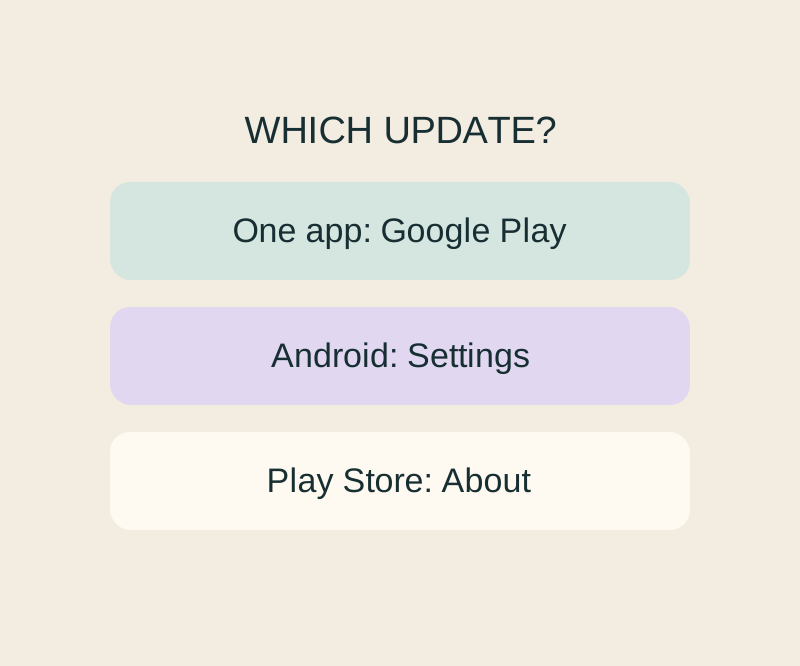
Android app updates and system updates: find the right screen when one says up to date
Update, Open and a stuck download lead to different next checks; an Android up-to-date message cannot settle all three.
SOURCE-CHECKEDEveryday tech
Change one Android app’s language without changing the phone
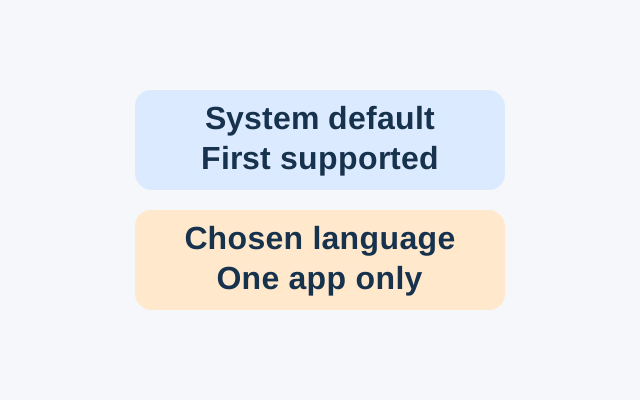
Android’s App Languages setting lets you choose a language for an individual app. An app following the system default instead uses the first language in the system list that it supports.