SOURCE-CHECKED · EVERYDAY TECH
Choose how Android Emergency SOS starts
Choose between a deliberate screen hold and an automatic countdown, then review the contacts and information Emergency SOS can share.
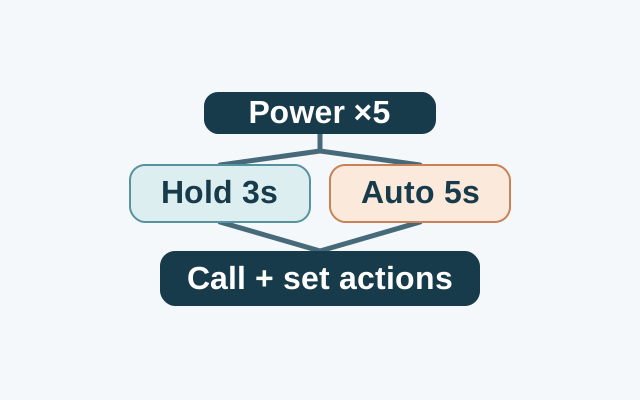
On Android 12 or later, pressing the power button five times or more can start Emergency SOS in one of two ways. You can require a three-second touch and hold inside the red circle, or have emergency actions start after a five-second countdown.
Pick a start method
Choose Touch & hold if you want a deliberate step between the button presses and the emergency call. Choose Automatic start if you might be able to press the button but struggle to use the screen afterward. Automatic start removes the extra touch.
Set up the actions
Open Settings > Safety & emergency > Emergency SOS > Start setup. Check the local emergency number and use Change number if needed. To send updates to emergency contacts, add the contacts, choose what SOS shares with them, and grant the requested location access.
Emergency recording is optional. If you turn it on, decide separately whether to select Share automatically after backup. Then choose Use touch & hold to start actions or Start actions immediately after countdown, and tap Done. You can change the start method later with the settings icon under How it works.
The start method controls when actions begin. Your contact and sharing choices control what else happens: Google says the emergency call starts first, while enabled sharing and recording can begin as the call is placed. Show when locked is a separate setting that can make emergency information visible to anyone holding your phone.
Emergency SOS does not work in airplane mode or while Battery Saver is on. Sharing your real-time location with emergency contacts requires an internet connection.
Source: Google Android Help, checked October 21, 2026 UTC. These are documented instructions; no device trial was performed.
KEEP GOING
More to explore.
SOURCE-CHECKEDEveryday tech
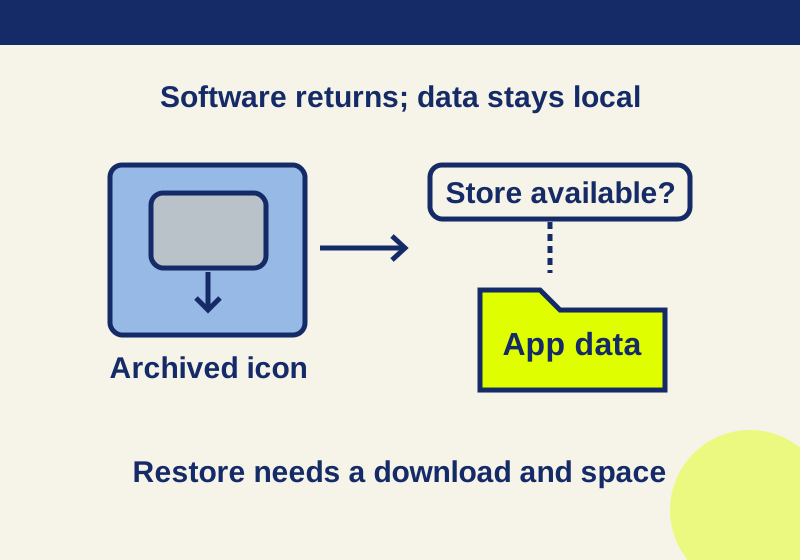
Android archived apps: restore faded icons and keep the data
A faded icon can preserve app data while the software needs downloading again. Follow the recovery branch that matches your phone.
SOURCE-CHECKEDEveryday tech
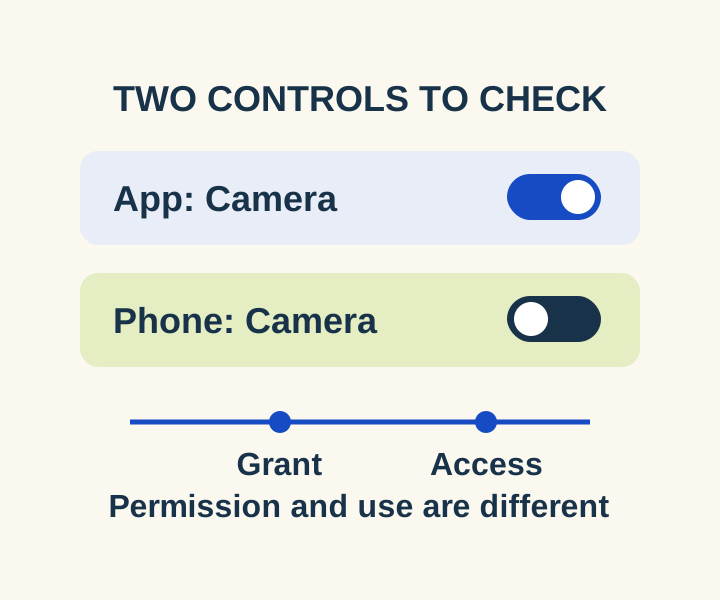
Android camera or microphone blocked? Check the app and the phone-wide switch
Check the two controls for a blocked camera or microphone, then distinguish an allowed permission from a recorded access.