SOURCE-CHECKED · EVERYDAY TECH
Safely eject the right USB drive in Windows 11
Match the drive name in the eject menu, then wait for Windows’ safe-removal confirmation before unplugging it.
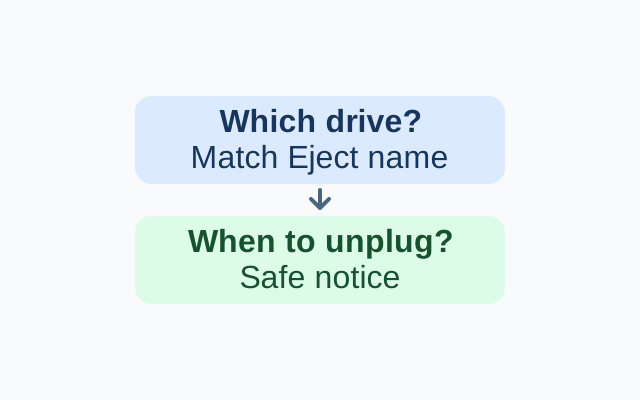
Right-click Safely Remove Hardware and Eject Media in the taskbar system tray. If the icon is hidden, select Show hidden icons first. In the menu, find the Eject entry with the name of the drive you want to unplug.
Suppose your drive is listed as Backup USB and another device is listed as Camera Card. Choose Eject Backup USB. The name tells you which device you selected. Wait for the Safe To Remove Hardware notification before unplugging it. Microsoft says the selected device also disappears from the eject menu.
If the icon is still missing, right-click the taskbar, open Taskbar settings, expand Other system tray icons, and turn on Safely Remove Hardware and Eject Media. The icon may remain absent if no removable device is connected or Windows does not recognize it.
Source: Microsoft Support’s Windows 11 instructions for safely removing hardware.
KEEP GOING
More to explore.
SOURCE-CHECKEDEveryday tech
Lock or hide one iPhone app before lending your phone
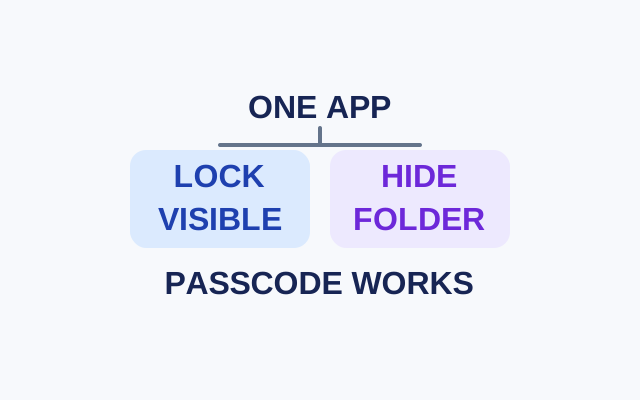
Locking requires authentication to open an app while leaving its icon visible. Hiding also moves an eligible App Store app to the authenticated Hidden folder. Both choices allow passcode authentication.
SOURCE-CHECKEDBusiness documents
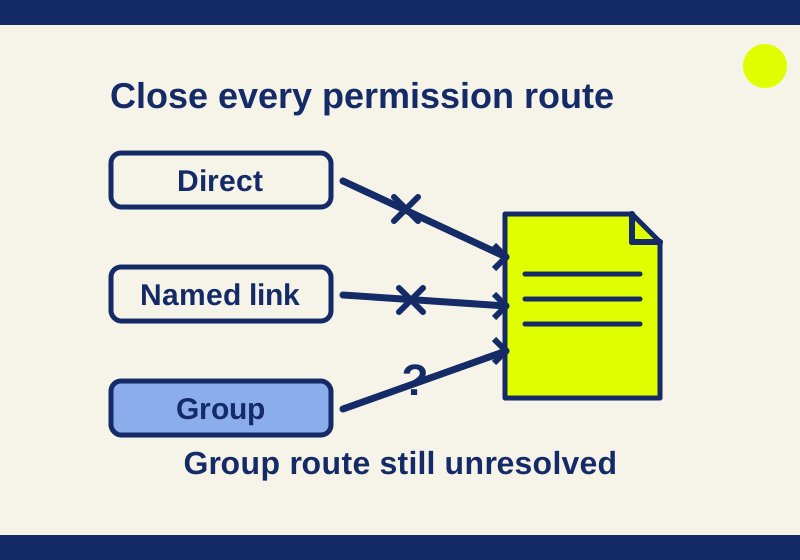
Remove someone's OneDrive or SharePoint access: trace every permission route
Find why someone can still open a shared file after you remove a link, and close the right permission routes.