SOURCE-CHECKED · WEB RESEARCH
How to organize Zotero collections without duplicate sources
Organize Zotero collections and subcollections for overlapping projects, reuse existing references, and follow a downloadable six-source collection plan.
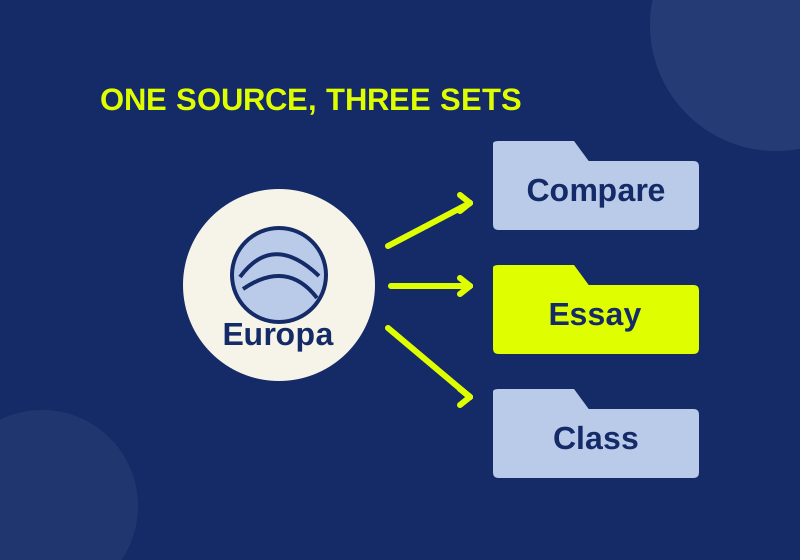
Keep one Zotero reference record and add it to each project that needs it. Collections can share an item within the same library without creating duplicate records. Zotero’s collections guide explains that the library root shows all items, including those placed in several collections.
Suppose you are writing an essay about moons and preparing a shorter class presentation. Six NASA pages give you enough material to practice overlapping collections with real sources. You can follow the downloadable plan, then substitute the references for your own project.
Start with the sets you need to reopen
The first assignment gathers pages for moon research. The second draws on some of the same pages for a class presentation.
01 Moon research
  01 Orientation
  02 Comparison sources
  03 Essay shortlist
02 Class presentation
Put Earth’s Moon in Orientation as the first page to open. Comparison sources holds that page plus Europa, Enceladus, Titan, Io, and Ganymede. The Essay shortlist contains Europa, Enceladus, and Titan. The Class presentation collection contains Earth’s Moon, Europa, and Io.
Orientation gives you one page to open when you need background. Comparison sources keeps the full set available while you decide what the essay will cover. The shortlist narrows the pages you plan to return to during drafting; leaving Io or Ganymede out of that set does not remove them from the comparison. These are editorial choices for this example, with no scientific rating implied.
The presentation has its own set because the talk will use fewer references. Earth’s Moon and Europa carry over from the essay, while Io gives the talk a different example. If the presentation changes, its collection can change without making the essay’s source list follow it. The number prefixes are optional names used to keep this example in order.
You can use the downloadable collection plan CSV and its reading notes while arranging your own library. Open the CSV as UTF-8 comma-separated data in a spreadsheet. Its columns give each page a source_id, label, URL, collection_path, and reason for that placement. Filter collection_path to see what belongs in one set. The slash separates a parent name from a child name; create those as separate Zotero collections.
The file has six distinct source IDs and 13 placement rows. A repeated ID calls for another collection membership for the same source. The CSV is a manual plan, not a Zotero import file or an automatic folder builder.
Save each source once, then place it
Before saving a page, check whether its URL is already represented in the library where you are building the collections. Zotero’s All Fields & Tags search mode searches fields beyond the title. Use that mode for a URL search in the library root, then inspect the candidate record’s URL. Reuse the matching reference when it is the source you need. For an absent page, the Zotero Connector can save a web page record. Check the captured title, URL, and date after saving because the resulting metadata depends on the page.
Right-click the library for New Collection, and a parent collection for New Subcollection. Drag an existing item from the center pane onto a collection to add it. Shift on Windows or Linux, or Command on Mac, changes the drag to a move. Follow these collection instructions for the names in the plan.
If you follow the plan without adding other references to these sets, Orientation should contain 1 item, Comparison sources 6, Essay shortlist 3, and Class presentation 3. These are target counts for the example, not results from a Zotero library. If all six pages were initially absent and you save each once, the library gains six top-level reference records. If some were already present, it gains fewer. Attachments and notes are outside those counts, and an existing library root need not total six.
Follow Europa across three collections
Europa has three rows in the CSV: Comparison sources, Essay shortlist, and Class presentation. Find or save its page once, then add that existing item to each of those collections. You can update its metadata in one record while retaining all three placements.
When checking a placement, inspect the item’s collection membership rather than relying on a matching title. Zotero’s membership instructions for Zotero 7 describe a collection list in the item pane. In that version, select an item and hold Control on Windows, Option on Mac, or Ctrl on Linux to highlight its collections.
Suppose the essay outline changes and Europa leaves the shortlist. Select it in Essay shortlist and use Remove Item(s) from Collection. That removes the selected membership while keeping the reference available in Comparison sources and Class presentation. Deleting the underlying item would have a wider effect than changing the outline requires.
Check a missing item before saving again
A source that seems absent may be outside the collection or search scope you are viewing. Zotero quick search is scoped to the selected library or collection. Check the selected location and any active search before saving the page again.
Also check the child collection itself. Parent collections do not show their children’s items by default. In desktop Zotero, View > Show Items from Subcollections changes that display; the option is unavailable in the online library. An empty-looking parent therefore does not tell you what its child collections contain.
If you find two actual records for what may be the same work, use Duplicate Items to inspect the possible match before merging. Duplicate detection works within one library. A merge retains collection and tag data; deleting one record loses that record’s collection and tag data. Similar titles alone do not establish that two versions or editions are identical. A Group Library is a different library, so placing an item in a collection within one library does not place that same record in the other.
Adjust the plan to your project
Name a collection for a set you will need to open again. If one source serves two sections of an existing outline, place its record in both section collections. If the outline is still changing, wait until a chapter set has a clear use before making a collection for it. A recurring topic set may be useful across assignments; a collection for every possible keyword or download format adds places to maintain without clarifying which sources belong to the current work.
You can use Advanced Search with a Collection criterion and the Search subcollections option when you need to find items across a hierarchy. A saved search updates from its criteria, which can suit a changing set better than daily manual placements. Zotero’s documentation gives Date Added in the last 7 days as one example. For a quick look at recent saves within a displayed set, column headers and their menu control sorting and available fields, including Date Added. Sorting changes the display order, not your collection names.
At the end of an assignment, a name such as 2026 Finished: moon essay can make its status clear to you; it is an editorial naming choice, not a Zotero archive feature. If you no longer need a collection, Delete Collection preserves its items but also removes its subcollections. Delete Collection and Items deletes the items too. Choose based on whether you are retiring the work set or removing the references themselves.
Source note: Zotero documentation was checked October 7, 2026. The linked CSV’s six distinct IDs, 13 rows, and collection counts were checked as CSV data. The plan has not been run in a live Zotero profile.
KEEP GOING
More to explore.
SOURCE-CHECKEDWeb research
Build Zotero saved searches that find the research you need
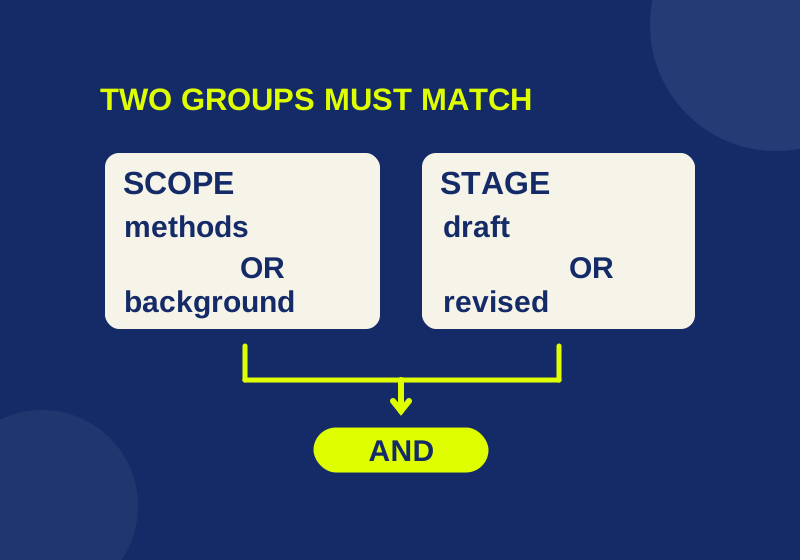
A populated query worksheet shows how collection and tag searches combine, which records qualify, and why results change.
SOURCE-CHECKEDWeb research
How to merge Zotero duplicates without keeping the wrong reference
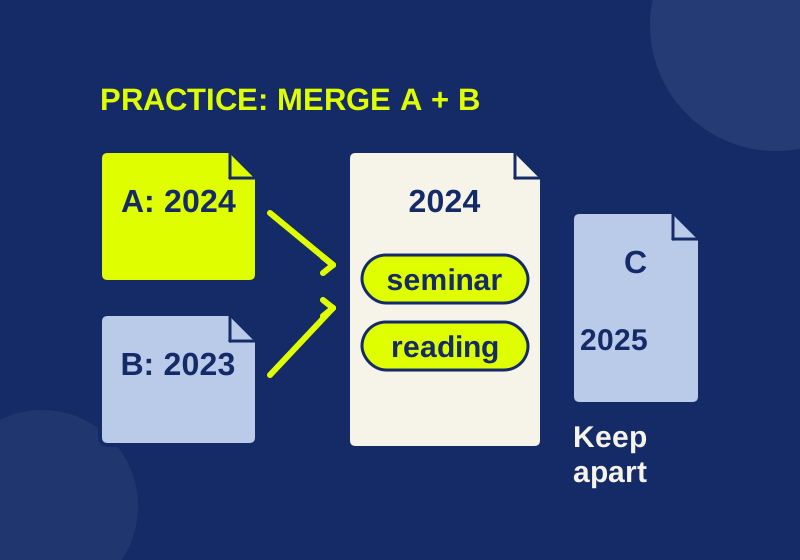
A deliberately flawed practice pair shows exactly which fields to preserve and which related work to leave separate.