SOURCE-CHECKED · EVERYDAY TECH
How to resize an image in Windows Paint without stretching it
Resize a Windows Paint image to a specified pixel width, preserve its proportions, and check the saved copy. Includes an original PNG and a dimension planner.
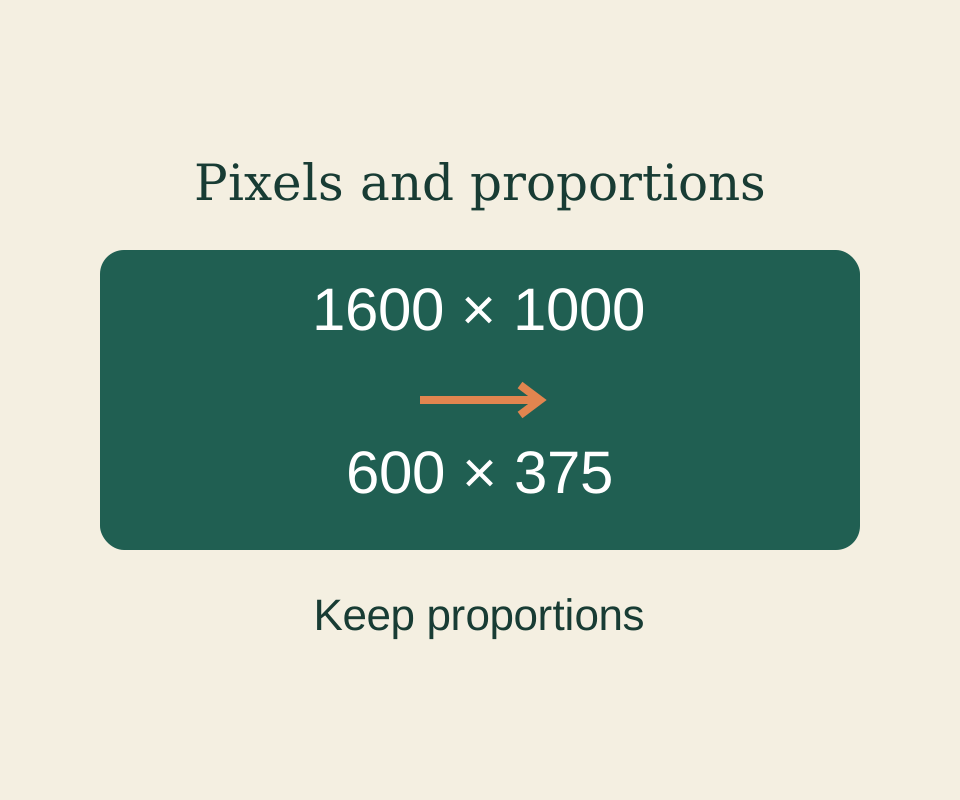
If an upload asks for an image that is 600 pixels wide, you can resize a 1600 × 1000 image to 600 × 375 pixels. The height changes with the width, so the image keeps its shape. Save the result under a new filename to keep the original.
Set a proportional size in Paint
- Find Paint through Windows Start or search, then open your existing PNG with File > Open.
- Look for Resize on the toolbar. In the version pictured in Microsoft’s Paint FAQ, it appears under Home; its location may differ in your version.
- Choose Pixels and enter your target width. If you see a Maintain aspect ratio option, keep it selected. If you need to enter both dimensions yourself, calculate the height as
target width × original height ÷ original width, rounded to a whole pixel. - Use Save As and give the resized image a new filename. Check that the original file is still there before using the copy for your upload.
For a 1600 × 1000 PNG, the calculation is 600 × 1000 ÷ 1600 = 375. Entering 600 × 600 instead changes the image from a 1.6:1 rectangle to a square. A circle in the original would appear taller relative to its width.
You can try the calculation with this 1600 × 1000 practice PNG, which contains a circle, rectangle, and line. The resize planner accepts a whole-number original width, original height, and target width, then shows the rounded target height, width percentage, and pixel count.

Check what the upload needs
Resizing from 1600 × 1000 to 600 × 375 makes the width 37.5% of its original size. The new image has 14.0625% as many pixels, but that percentage does not predict the saved file’s size in bytes. If the upload also has a file-size limit, check the saved copy’s actual size in Properties and confirm its dimensions separately.
Resizing changes dimensions; it does not select and remove part of the picture. If you need a different composition, see how to crop an image in Windows. If the upload specifies a file format, see JPEG versus PNG.
Source note: The Paint steps follow Microsoft’s FAQ. The practice PNG is original artwork, and the planner calculates its dimensions. Paint’s interface and export were not tested for this article.
KEEP GOING
More to explore.
SOURCE-CHECKEDImage workflows
How to batch resize images on a Mac without stretching them
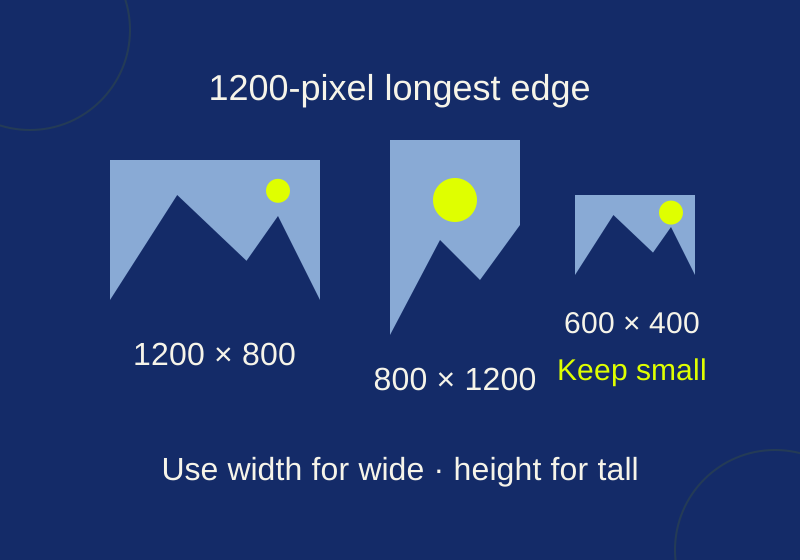
A portrait resized to 1,200 pixels wide is still 1,800 pixels tall. Work out the batch size before saving.
TESTEDEveryday tech
Make a labeled photo contact sheet on Windows with ImageMagick
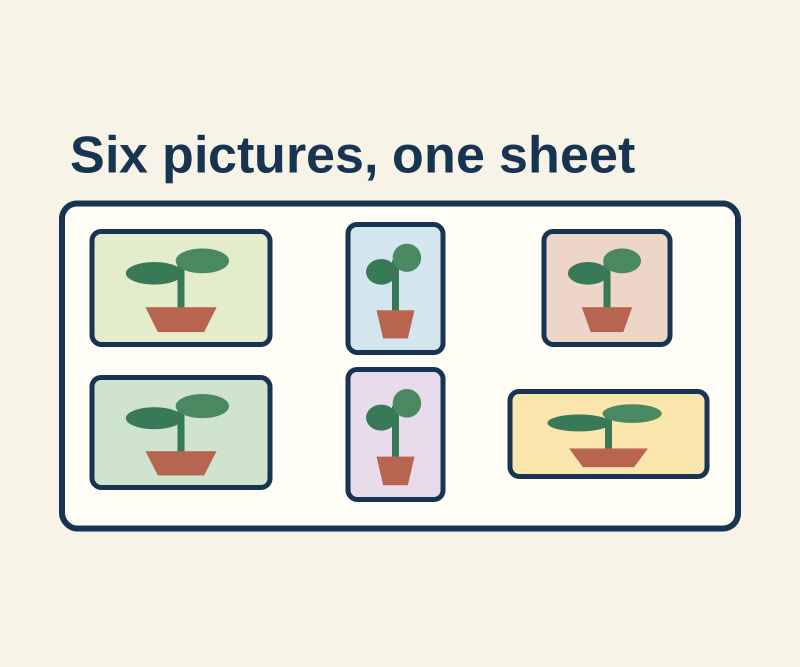
Six mixed portrait and landscape drawings become a labeled sheet. Use the finished example and the command that produced it.