SOURCE-CHECKED · SHARING WORKFLOWS
Google shared drive roles: why Contributor can edit in a browser but not on desktop
Choose a Google shared drive role by the task and app, troubleshoot Contributor desktop limits, and send a precise access request without granting unnecessary Manager control.
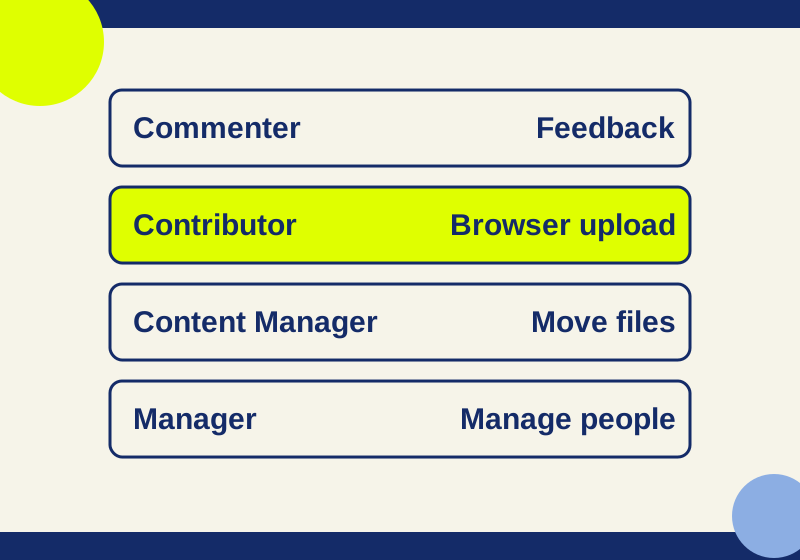
Choose a Google shared drive role by the action someone needs to perform and the app they use. A browser proofreader who needs to leave feedback can use Commenter. Someone who uploads and edits files in a computer browser can use Contributor. Moving files calls for Content Manager, while changing drive membership calls for Manager. For a desktop editing problem, check the app before changing the role. Google’s shared drive role descriptions and shared drive access guidance define those distinctions.
Match the role to the work
Imagine a colleague proofreading a project document in a browser. Viewer gives them viewing access; Commenter adds the ability to give feedback. If that colleague needs access to only one file, ask about sharing that item before requesting membership in the entire drive. Item access can differ from drive membership, subject to the drive’s sharing settings. Google’s role descriptions and membership guidance cover the two scopes.
For a colleague who must upload and edit project files in a computer browser, Contributor fits the stated tasks. It does not include moving or deleting files. That boundary is useful in a request: “I need to upload and edit in the browser; I do not need to reorganize or delete content” tells a Manager why Contributor is the suggested role. Google’s role descriptions list the actions.
A person maintaining a collection may need Content Manager to edit, upload, move, and delete content. A layout editor working through Drive for desktop also needs Content Manager or Manager to create, upload, or edit there. Content Manager is a broader role than the browser uploader needs because it includes moving and deleting content. A person responsible for drive membership needs Manager, which covers people and all content. Google’s role descriptions and desktop access guidance support these examples.
Check the app before raising a Contributor’s role
Contributor behaves differently across the named apps. In Drive for desktop and ChromeOS Files, a Contributor has read access; creating, uploading, or editing there requires Content Manager or Manager. If someone can do the work in a computer browser but cannot do the same work in the desktop app, include the app in the permission request. The role label alone does not describe that difference. Google’s shared drive access guidance specifies the app limitation.
A request such as “I edit layouts in Drive for desktop” therefore points to a different role than “I upload project files in a browser.” Ask the colleague whether moving to browser editing would satisfy the actual job. If it would, Contributor may cover the work they described. If their work requires opening and saving through Drive for desktop, ask for the appropriate role for that app and make the broader move/delete permissions explicit.
Decide whether access belongs at the drive or item
Membership at the top of a shared drive usually carries through to its contents. A limited-access folder is an exception to check when a member cannot use a particular folder. Drive settings can also override item sharing, and a Content Manager’s ability to share folders may be restricted. Before changing someone’s drive role, identify the exact drive, folder, or file involved and ask whether the person needs that access across the whole drive. Google’s shared drive access guidance explains these limits.
The organization’s setup can narrow the available choices. Administrators and Workspace edition controls affect who can create a shared drive. External members need a Google account when external membership is allowed. In a Workspace edition that does not support full shared drive membership, a person may be limited to Viewer as a drive member even when their access to an individual item differs. These are reasons to check the actual account and organization settings before treating a role change as the complete fix. Google’s membership guidance describes those conditions.
Change an existing member’s role
A Manager can open Manage members at the top of the shared drive, select the existing member’s role, choose the intended role from the dropdown, and select Done. Choose the role deliberately when adding someone: Google says newly added members receive Content Manager by default. If the requested work is limited to browser uploads and edits, that default grants move and delete abilities the request did not call for. Google’s membership instructions describe the controls and default.
If the person only needs to review one file, settle the requested scope before making them a drive member. If they need to change membership themselves, request Manager and name that task. “Organize files” and “manage members” lead to different roles under Google’s role descriptions.
Diagnose an unavailable action
An access report should name the first unavailable action: upload, edit, move, share, or change a member. Record the app, account, item location, current drive membership, and any separate item role shown. Confirm that the location is a shared drive rather than a folder in My Drive. Those details make it possible to compare the request with the applicable shared drive role and restrictions.
An Editor label on a file does not by itself identify the person’s shared drive membership. In Google’s Drive API role mapping, writer corresponds to Contributor in a shared drive and Editor in My Drive. The API also maps fileOrganizer to Content Manager and organizer to Manager. These labels help explain why a file role and a drive role can look different; they are not instructions for changing access through the API. Google’s role mapping documents the terms.
If the named role appears sufficient, check the particular item and action before requesting a broader role. A limited-access folder, drive sharing settings, or an organization restriction may affect the result. Google describes effective capabilities as depending on both roles and item settings, so a denied action calls for an action-specific check. Use a permitted test document to confirm the needed action in the named app. There is no reason to try deleting a production file to investigate an access problem. Google’s shared drive access guidance and Drive sharing guidance explain the scope and capability limits.
Send a request a Manager can act on
For example, “I can open the folder in Drive for desktop but cannot save my layout changes” is a different request from “I can edit a Google Doc in the browser but cannot move it to the archive folder.” The first points to the desktop role boundary; the second asks for an organizational action Contributor does not include. Describe the action and the app in the same sentence so a Manager can compare them with the current membership. These are illustrative reports, not observations from our account.
The shared drive role request template has fields for the drive, account, requested scope, current roles, app, exact work, unneeded actions, observed failure, and contact. Its example asks for Contributor to upload and edit project files in a computer browser while asking the recipient to check drive restrictions and any limited-access folder. Fill in your own facts and leave unknown results empty.
Source note: This guide uses the Google help and developer pages linked above, read October 7, 2026. The work examples are illustrative. No Google account or Drive client was tested for this article.
KEEP GOING
More to explore.
SOURCE-CHECKEDSharing workflows
Box or Google shared drives for an agency: keep the work when the project ends
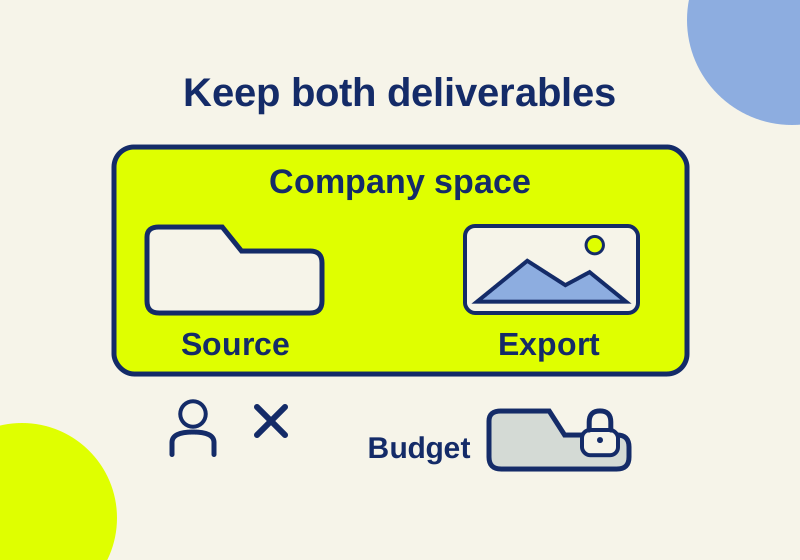
Keep editable agency work in company-controlled storage. Compare Box folder inheritance, Google shared-drive ownership and the desktop role that can block uploads.
SOURCE-CHECKEDSharing workflows
Google Drive Restricted vs Anyone with the link: who can open your file?
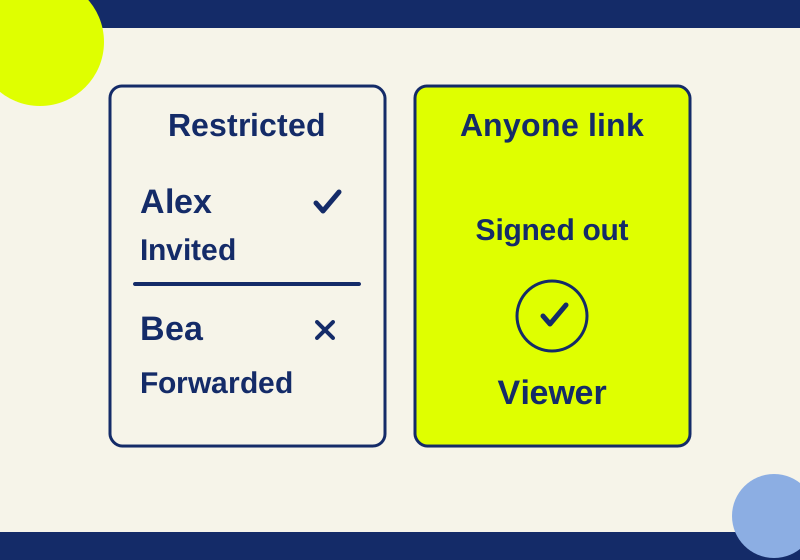
Restricted can still include folder and group members. Trace who can open your file before you send its link.