SOURCE-CHECKED GUIDE · SHARING WORKFLOWS
Share a Word document in review mode
Use Word for the web review mode for comments and tracked changes, then check the recipient's effective permissions.
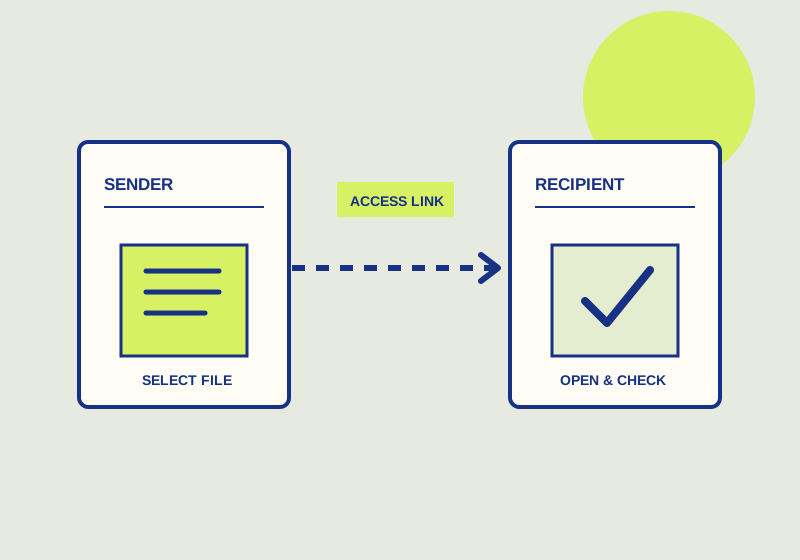
In Word for the web, share with Can review when you want a recipient to provide comments or tracked changes without making direct edits through review mode. The owner or an editor decides whether to incorporate those changes. Microsoft’s review mode guidance notes that the feature initially works on OneDrive for Business and that existing read/write permission on SharePoint may override a review link. Check the recipient’s effective rights as part of the handoff.
Prepare the review request
Identify the document section and the kind of feedback you need. Ask for comments when you want questions or reactions to a passage. Ask for tracked changes when you want proposed wording. If both are useful, assign each a purpose: for example, comments for unresolved policy questions and tracked changes for sentence-level revisions. Name the owner or editor who will decide which proposals enter the document.
Include a practical deadline and a clear stopping point. A request might ask a colleague to review the introduction by Thursday and flag any terms a new reader would not understand. Tell the recipient where to put substantive questions so they do not disappear into an unrelated message thread. The handoff should let the reviewer identify the text to review, the expected form of feedback, and who will act on it.
Before sharing, confirm where the document is stored. The Microsoft article describes an initial OneDrive for Business scope for review mode. If the document is elsewhere, check whether the intended review option is available for that document. Also identify any access the recipient already has, especially through a SharePoint location.
Send the review link
In Word for the web, use the Share pane and choose Can review when the option is available. Send the recipient the review request with the link. Explain that comments and tracked changes are the expected ways to respond, and ask them to raise access problems promptly. Keep the instruction focused on the specific review rather than giving a general request to improve the document.
Once feedback arrives, the owner or an editor should read each comment and tracked change in context. A proposed wording change may depend on an unanswered question elsewhere in the document. Resolve those questions before incorporating language that assumes an answer. Read the affected passage after the decisions so that accepted changes work together.
Verify the recipient’s rights
Ask the recipient to open the document through the intended link and confirm whether they can comment, propose tracked changes, or make direct edits. If direct editing is available when the handoff was meant to limit it, inspect their existing permissions before relying on the review link. On SharePoint, existing read/write permission may override that link. Coordinate any permission change with the document owner or administrator.
Check which Word app the recipient plans to use. The cited guidance describes Word for the web review mode and notes that desktop behavior differs. If the recipient will use Word desktop, have them confirm the actions available there before the review begins. The sharing choice, storage location, existing permissions, and app together determine whether the handoff matches the team’s intended review process.
This guide explains a workflow using the linked primary sources. We did not independently run every step or verify the result for your files; check the current service screen and your own output.
Primary sources:
KEEP GOING
Related checks.
SOURCE-CHECKED GUIDESharing workflows
Set and check a OneDrive link expiration
An eligible link can expire, but direct access and folder-sharing requirements need separate attention.
SOURCE-CHECKED GUIDESharing workflows
Share a Whimsical board for outside review
Choose the reviewer’s access, link position, and any password before sending the board.