SOURCE-CHECKED GUIDE · SHARING WORKFLOWS
Revoke a Proton Drive public link
End a Proton Drive sharing window while accounting for invited people who will also lose access.
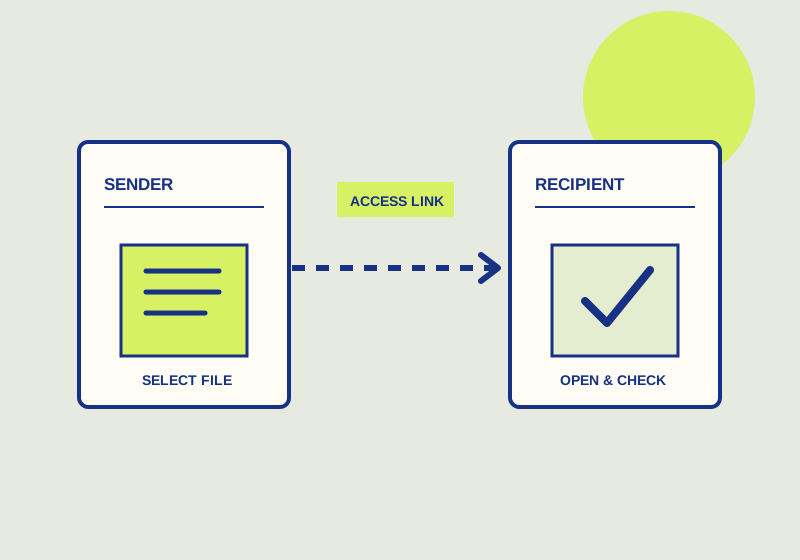
To revoke a Proton Drive public link, open Manage access and choose Stop sharing. Proton’s access-management guide says this deletes the public link and removes access for everyone, including invited people. Check the invitees’ remaining work before you end the sharing window. Anyone with the link can access the item while the link is active.
Prepare the handoff
Identify the item, the people who were invited, and the work that must be completed before access ends. If an editor is due to make a final change tomorrow, agree on that handoff before using Stop sharing today. Tell the people involved when the window will close and where they should send any outstanding feedback. This gives them a practical deadline without implying that their invitations will survive the revocation.
Review the current arrangement in Manage access. Proton lists controls for Viewer and Editor access, a password, expiration, and Stop sharing. Choose according to the decision you are making. Changing a role can address the level of access while work continues. Changing a password or expiration can address an active sharing window. Stop sharing is the action that ends the public link and removes access for invitees as well.
Revoke the link
- Confirm that you have selected the correct item. If the item has several invitees, compare them with your handoff list before proceeding.
- Resolve unfinished work. Collect the feedback or final change you need, then tell collaborators that access is ending. If someone needs continued access, settle that requirement before Stop sharing removes the current invitation.
- In Manage access, choose Stop sharing. Make this decision with its full effect in mind: the public link is deleted and invited people lose access too.
- Review the access arrangement after the change against your handoff list. Ask a former recipient to confirm that the old link no longer opens the item; a locally saved copy is a separate matter. If future work requires sharing the item again, plan that as a separate decision rather than relying on the old link or invitations.
Account for access outside the link
Stopping sharing cannot control a local copy made before revocation. If recipients had time to save material while access was active, consider that in your handling of the document and in any follow-up with them. Revoking the link closes the current sharing route; it cannot recover an earlier copy.
Editors may also be able to manage access, depending on settings and rollout. Where editors have been involved in coordinating the review, make the closing decision clear to them before ending the window. Confirm who is responsible for the final change and who will communicate the deadline. The decisive check is whether every invitee’s work is complete and you intend to remove everyone’s access. Once both are true, Stop sharing matches that outcome.
This guide explains a workflow using the linked primary sources. We did not independently run every step or verify the result for your files; check the current service screen and your own output.
Primary sources:
KEEP GOING
Related checks.
SOURCE-CHECKED GUIDESharing workflows
Protect a Proton Drive link with a password
Require a password for the link, then give the recipient the link and password.
SOURCE-CHECKED GUIDESharing workflows
Choose restricted or link access in Google Drive
Use restricted access for named recipients and link access for a broader audience.