SOURCE-CHECKED GUIDE · SHARING WORKFLOWS
Choose a Miro visitor or guest for a board
Choose the right Miro access type for an external workshop by considering account needs, board privacy, and permissions.
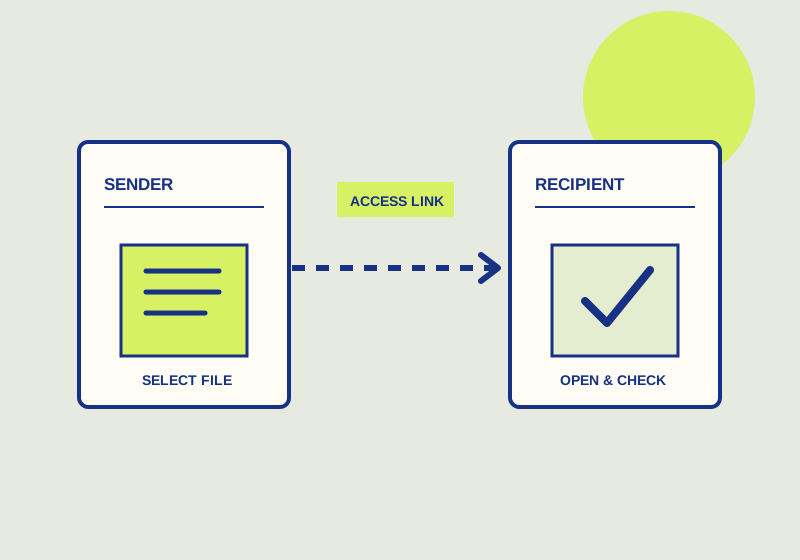
For an external workshop, use a Miro visitor when a forwardable public board link is acceptable and attendees should be able to join without accounts. Use a guest for occasional access to a private board when your paid plan supports it. A member is the category for someone who participates in the team on an ongoing basis. Miro explains these distinctions in its guide to visitors, guests, and members. Visitors are available on any plan; guests are available on paid plans.
Sort the workshop audience
Make a short list of everyone who needs the board: facilitators, attendees, observers, and anyone reviewing the work afterward. Beside each name or group, write what they need to do and whether they need access beyond this session. A regular facilitator may belong in the member category, while a one-time outside attendee may fit the visitor or guest category. Duration alone does not settle the choice. The privacy required for the board matters too.
Review the board’s contents before choosing a public link. Workshop boards can contain participant names, unfinished proposals, customer details, or internal notes alongside material intended for discussion. If those contents should be limited to invited people, plan for private access and check whether guests are available. If public-link access is appropriate, a visitor can enter without creating an account. Anyone who receives a public link can forward it, so write the invitation with that exposure in mind.
Match permissions to the activity
Choose the board role or permissions separately from the person’s visitor, guest, or member category. Miro board permissions control whether someone can view, comment, or edit. An observer may only need to view the board. A reviewer asked to leave feedback may need to comment. An attendee expected to add material during the workshop may need to edit. Miro’s visitor collaboration guide says public-board visitor editing is available on paid and Education plans, not the Free plan. Confirm that capability before planning an account-free editing session.
Consider a session where outside attendees will add ideas and a sponsor will review the result the next day. The attendees and sponsor have different tasks even if both are outside the team. Prepare the workshop invitation around participation, and prepare the review invitation around the sponsor’s requested response. A public Can edit setting applies to anyone holding the link, including people who receive it later. Set a start view so attendees reach the area intended for the workshop.
Check the invitation before sending
- Confirm whether the board’s contents are suitable for access through a public link.
- Identify one-time attendees, occasional private-board collaborators, and ongoing team participants.
- If private access is required, confirm that the guest option is available on your plan.
- Check each audience’s board permissions against its view, comment, or edit task and the plan’s visitor limits.
- State the workshop date, the expected activity, and which board the recipient should open.
- Ask an attendee to open the link and confirm they can perform the intended view, comment, or edit action before the workshop begins.
After the workshop, review the access choice before using the same board for a new purpose. If public access is no longer needed, Miro says to choose No access beside Anyone with the link in the board’s Share menu. A recurring collaborator may need a different category from a one-time attendee. Make that decision from the board’s current contents and the person’s continuing role.
This guide explains a workflow using the linked primary sources. We did not independently run every step or verify the result for your files; check the current service screen and your own output.
Primary sources:
KEEP GOING
Related checks.

SOURCE-CHECKED GUIDESharing workflows
Box Folder Insights or SharePoint sharing reports for external-access review
Pick a report an administrator can use to inspect guests and links.
SOURCE-CHECKED GUIDESharing workflows
OneDrive or SharePoint for controlled client guest access
Design a client access boundary that does not open unrelated files.