SOURCE-CHECKED GUIDE · SHARING WORKFLOWS
Collect files from people without Dropbox accounts
Use a Dropbox file request to collect client or event submissions in a chosen folder while planning for storage limits and a clear closing point.
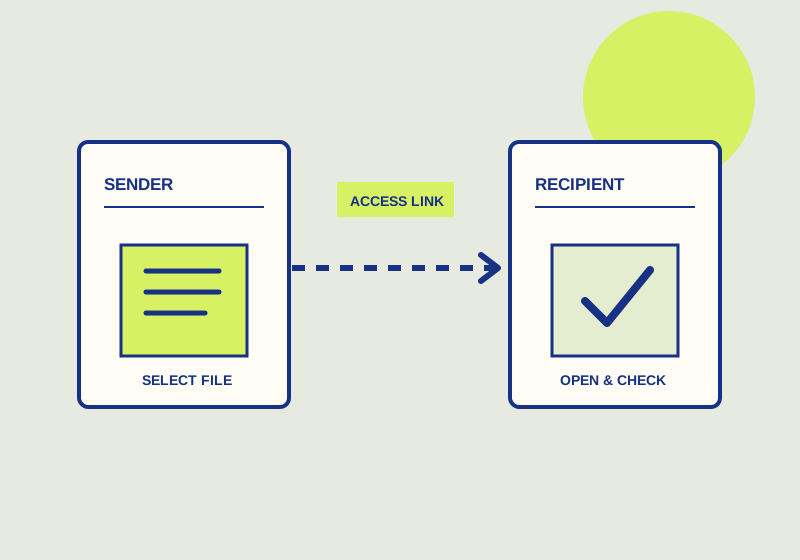
A Dropbox file request lets anyone upload files to a folder you choose without a Dropbox account. Create a request for the collection, send the request to your submitters, and close it when submissions end. Uploads use the request owner’s storage, and account and administrator limits apply. Dropbox explains how to create and manage a request in its file request guide.
Plan the intake
List the files you expect before creating the request. For a client project, that might be a signed agreement and two reference images. For an event, it might be a presentation and a speaker photo from each participant. Put the submitter’s name, expected files, and due date in a tracking list. This gives you a way to spot omissions when files arrive, especially if several people use the same request.
Choose a destination folder that fits the collection. Dropbox says the destination is private by default; selecting a shared folder or later sharing collected files changes who can see them. Separate requests and folders may make sense when submissions belong to different clients or events. Send people the file request, not a link granting access to the destination folder. If the files are sensitive, confirm the selected folder is still private before inviting submissions.
Write a short message to accompany the request. State the requested files and how to identify each submission. Dropbox also offers a naming-convention setting when creating a request. Check its configured pattern against the names your team will use to reconcile submissions. A deadline setting is available only on the paid plans Dropbox lists, so put the due date in your message if your account lacks that control. Tell submitters whom to contact if they need to correct a file or miss the date.
Check before sending
- Does the request point to the intended folder?
- Is the owner’s available storage sufficient for the expected files?
- Do any account or administrator limits affect the collection?
- Does the message identify the files, deadline, and contact person?
- Are you sharing the request without sharing folder access?
- Is someone assigned to review submissions and follow up?
Storage is worth checking early for large media files or a long recipient list. Each upload consumes the request owner’s storage. Dropbox says an uploader receives an error when the owner has insufficient space. If an administrator manages the account, confirm applicable limits before promising that everyone can submit files of a particular size. Leave room for corrected versions if your intake process permits them.
Review and close the request
Ask a submitter to confirm that their upload finished, then compare the files in the chosen folder with your tracking list. If a sender reports an upload error, check owner storage and applicable file-request limits before asking them to try again. Open each file and check that it matches the requested deliverable before marking it complete. A filename alone may be unclear, and a received file may be incomplete or the wrong version. Contact the expected sender through your usual channel when you cannot confidently match a file to a person.
Once the collection period ends, close the file request to stop new uploads. Send late submitters an alternate contact instruction if you still need their material. Keep your own record of completed and outstanding items. Closing a request controls new submissions; it does not replace reviewing the files already received or deciding how your organization will retain them.
This guide explains a workflow using the linked primary sources. We did not independently run every step or verify the result for your files; check the current service screen and your own output.
Primary sources:
KEEP GOING
Related checks.

SOURCE-CHECKED GUIDEBusiness documents
Remind a pending Dropbox Sign signer
Send a fresh signing link to a recipient who has not completed a request.
SOURCE-CHECKED GUIDESharing workflows
Dropbox or OneDrive links for client deliverables
Choose a delivery link for a client who needs view access and a clear expiry.