TESTED · SHARING WORKFLOWS
Stop sending click here: write accessible shared-file links
Write shared-file links that name the document, version, and action. Try a working HTML example with keyboard navigation and clear link labels.
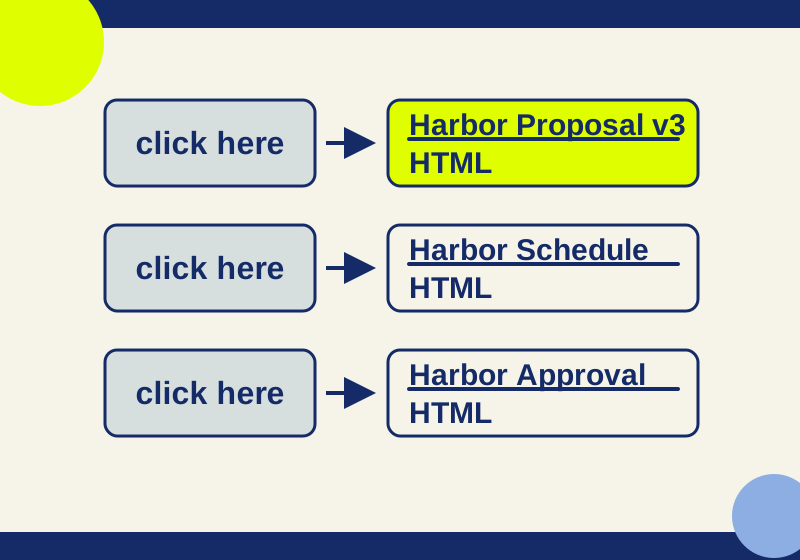
Put the destination and any distinguishing version or format inside the clickable words. “Review Harbor proposal, version 3 (HTML)” tells someone what will open even if they skim the message, move between links with a keyboard, or hear the link apart from its surrounding sentence. “Click here” makes them look elsewhere for that information.
A practice page with three file requests shows the difference. Its first set of links all say “click here.” Its revised set names a proposal, a schedule, and an approval form. Each opens a separate HTML document.
Make each link carry its request
Suppose a message says: “Please confirm scope and review the schedule. Return approval after the correction.” The reader has three actions to sort out. Link the words that identify each action:
- Review Harbor proposal, version 3 (HTML) to check the four-page event site scope and the question about its accessibility information page.
- Check Harbor project schedule (HTML) to find the illustrative October 12 outline, October 15 correction, and October 20 revised pages.
- Return Harbor scope approval (HTML) for the fictional reply approving the four-page scope with a correction.
The proposal’s “version 3” matters because it distinguishes the draft being reviewed. The schedule needs a date in its link text only if a date distinguishes it from another schedule the recipient might receive. “HTML” accurately describes these three destinations; none is a PDF. Add a file size only when you have measured it and the size would help the reader.
The practice page’s original HTML keeps the subject outside each anchor:
<p>Proposal: <a href="harbor-proposal.html">click here</a></p>
<p>Schedule: <a href="harbor-schedule.html">click here</a></p>
<p>Approval form: <a href="harbor-approval.html">click here</a></p>
Its revision puts the useful words inside the anchors:
<p><a href="harbor-proposal.html">Review Harbor proposal, version 3 (HTML)</a></p>
<p><a href="harbor-schedule.html">Check Harbor project schedule (HTML)</a></p>
<p><a href="harbor-approval.html">Return Harbor scope approval (HTML)</a></p>
Those relative addresses work together because the sample and its three destination files are in the same folder. Each link opens an ordinary HTML page. If you save the practice page for offline use, save the three destination pages alongside it; saving the sample alone does not bundle them.
Why the words matter out of context
A reader scanning a file request can pick out “proposal, version 3” faster than a series of identical “click here” links. Keyboard users can press Tab to move through links and Enter to open one, then use the browser’s Back command to return. The practice page lets you compare the two sets in that order.
Some screen readers also offer a list of links separate from the surrounding paragraphs. Freedom Scientific documents Insert+F7 for opening the JAWS links list. In such a list, three entries called “click here” do not say which is the proposal, schedule, or approval form. The revised labels do.
“Click here” does not automatically fail an accessibility standard. WCAG 2.4.4, Link Purpose (In Context), at Level A, allows a link’s purpose to be determined from its text or its programmatically determined context. The practice page places “Proposal,” “Schedule,” and “Approval form” in the surrounding paragraphs. Descriptive anchor text is still a better choice here because each request remains clear when the links are encountered alone. WCAG 2.4.9, Link Purpose (Link Only) sets a stricter Level AAA expectation for identifying purpose from link text alone.
Context changes the judgment. A “Read more” link in an article list may have an identifiable purpose through appropriate programmatic context; its visual position next to a heading alone is not enough to establish that. Repeating “click here” across different shared-file requests asks the recipient to reconstruct which action belongs to which link. Write the file name or task into the visible link when you can.
Match the label to the destination
A precise label becomes misleading if it describes a different file. “Download proposal (PDF)” would be wrong for the Harbor proposal: the linked page is HTML, and the link opens it in the browser. Label it “Review Harbor proposal, version 3 (HTML).” If you intend to offer a PDF, provide an actual PDF and point the link to that file.
Keep the visible words aligned with the link’s accessible name. WCAG’s Label in Name guidance explains why the visible label should be included in that name. Do not leave a visible “click here” and rely on a hidden aria-label or title to supply “Harbor proposal, version 3.” Put the description where readers can see it.
In a document or email editor, select the descriptive words, choose the editor’s Link command, and paste the destination address. Then inspect the finished message: confirm that the intended words are clickable and that each link points to the intended file. If the editor or sending format changes the message, check what the recipient will actually get rather than assuming the draft’s link formatting survived.
A descriptive label cannot fix access to a restricted file. If a recipient reports a permission denial, check the file’s sharing access separately. A useful reply identifies the problem plainly: “The schedule link says ‘Check Harbor project schedule (HTML),’ but I get an access denied message,” or “The proposal link opens the wrong version.” That tells the sender whether to investigate access or the target address.
Showing a raw URL may help someone inspect the destination address, but it does not replace a useful file label or establish that a link is safe. The Harbor practice files require no account and use no tracking, scripts, or external resources. Real shared-file links can have different access requirements.
The working example was checked in Edge at 390 × 844: its six visible link names appeared in the browser’s accessibility tree and in the same Tab order, and the three destinations had matching headings. This was a browser check; no screen-reader or speech-control trial or full WCAG conformance audit was performed.
KEEP GOING
More to explore.
SOURCE-CHECKEDSharing workflows
Box shared links vs collaborator invites: reading, comments and revised files
Choose Box link audiences and reviewer roles for reading, comments or uploads. Includes ready-to-use review requests and fixes for common access mistakes.
SOURCE-CHECKEDSharing workflows
Box vs SharePoint sharing reports: find the access a CSV misses
Read Box and SharePoint sharing CSVs without mistaking rows for people or missing links for no access. Download and reproduce a six-row worked audit.