SOURCE-CHECKED · SHARING WORKFLOWS
Box shared links vs collaborator invites: reading, comments and revised files
Choose Box link audiences and reviewer roles for reading, comments or uploads. Includes ready-to-use review requests and fixes for common access mistakes.
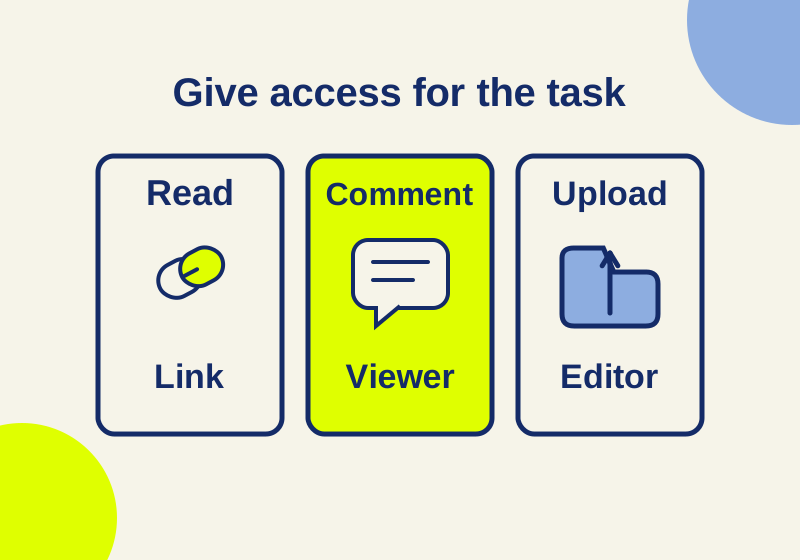
Use a Box shared link when one reviewer only needs to read a proof and respond elsewhere. Invite the reviewer as a collaborator when they need to comment inside Box or work with files over time. Box’s collaboration overview explains the two access routes.
Match access to the request
Use these synthetic request examples to define the assignment before sharing. Download their wording in review-requests.txt.
Example A: read a proof and reply outside Box
“Please read proof-v3.pdf and reply by email with page numbers and corrections by October 14. The source file should stay unchanged.” A link to that file can serve this one-time reading task. Choose the action from the link settings described below. Keep the link on the file rather than sharing a larger folder.
Example B: add comments inside Box
“Please add comments to proof-v3.pdf by October 14. Use your invited reviewer account. Please do not upload a replacement file.” Invite the reviewer to a review-only folder as a Viewer. That role allows previewing, downloading and comments while preventing uploads and file edits. The reviewer can still retain a downloaded copy. Do not substitute the Previewer role merely because its name sounds narrower: its annotation limits differ from Viewer’s. Box’s collaborator role guide describes those permissions.
Example C: upload revised source files
“Please upload each revised source into the production folder and retain the agreed file name. The project lead will review the final source and export on October 21.” Viewer cannot do this upload task. An Editor can upload and edit, but also has broader powers involving deletion, links, and collaborators. Before assigning Editor for the two-week work period, choose the folder that contains the files the reviewer actually needs and assess those broader permissions. Box’s role guide provides the role details.
Set a link’s audience and actions
Copy the link using the file row’s link icon, then inspect its audience and actions before sending it.
- People with the link: opens without a Box account; the URL can circulate beyond your intended reviewer.
- People in your company: company account and domain requirements apply; existing collaborators can also access the content.
- Invited people only: existing invitees; it does not invite a new reviewer.
Can view only permits previewing. Can view and download adds downloads without in-Box editing. Can edit permits edit, comments, annotation, download and copy. Administrators can cap available choices. Turning the Shared Link slider off disables that URL. Box’s link instructions.
For Example A, send the proof’s filename, revision and reply address with the URL. Ask for page numbers in the feedback, so the project lead can apply each correction to the right place. If an audience or action is missing from the menu, ask the administrator about that specific choice before sending the proof.
Invite someone who needs to comment
A collaborator invitation grants continuing access. Address it to the reviewer’s exact registered Box account email. Someone without an account will need to sign up. For Example B, invite that account to the review-only folder and assign Viewer for the comment task. Sending an Invited people only URL afterward can help them reach the item, but the invitation is what grants access. Box’s invitation instructions and shared link instructions describe the separate steps.
A single-file invitation needs extra attention. Box’s invitation instructions initially offer Editor for a file; the role can be changed to Viewer through Manage Collaborators. Box supports only Editor and Viewer collaborator roles on a single file. Folder invitations provide the more direct Viewer route for the review-only folder in Example B. Check the assigned role before asking the reviewer to comment. Box’s invitation instructions and role guide cover these differences.
Check access already in place
A narrow invitation does not necessarily narrow every route to the item. Box applies the least restrictive permission when someone has multiple permission sets. For example, a person assigned Viewer could gain editing access to an item through an edit-enabled shared link. Before sending a proof for comments only, review existing links and collaborator access to that item, especially any link set to Can edit. This is a practical check based on Box’s multiple-permission rule.
Password protection and automatic link expiration are paid features, not features of a free Individual account. Do not write a reviewer instruction that depends on either control until you know it is available for the account in use. Box’s role and permission guide notes those plan limits.
Fix a reviewer’s access problem
Find the original invitation or message before changing permissions. Was the reviewer sent a URL, or invited into the folder? Compare the address on the invitation with their registered account. An unaccepted invitation and an invitation to the wrong address need different corrections: complete the first, correct the second. Box’s link and invitation instructions explain which route grants access.
For a previously working URL, ask whether the owner disabled it or a configured expiry ended access. If the proof opens but work is blocked, compare the assigned action with the requested task.
End the review without changing the proof
When feedback arrives, keep the reviewed version identifiable while the project lead applies corrections to the working document. For Example B, finish with a dated review note naming proof-v3.pdf and the comments accepted. That tells the next person which proof was reviewed; the reviewer’s access level alone cannot record acceptance.
If the reviewer no longer needs ongoing access, the authorized owner can open the folder’s Sharing list, select the collaborator and choose Remove from the Permissions menu. An inherited invitation must be managed at its originating scope. Box’s collaborator management instructions. Inspect any remaining link routes separately.
For the upload assignment in Example C, accept the revised source and the export before ending access. A reviewer’s successful login only proves they reached the workspace; it does not establish that the required files were delivered.
Box documentation checked October 7, 2026. The downloadable requests are synthetic examples; no Box tenant or reviewer workflow was tested.
KEEP GOING
More to explore.
SOURCE-CHECKEDSharing workflows
Share a Whimsical board for review: guests and object links
Use file guests or comment links, then route reviewers to actual decisions with board positions and object links.
SOURCE-CHECKEDSharing workflows
Box or Google shared drives for an agency: keep the work when the project ends
Keep editable agency work in company-controlled storage. Compare Box folder inheritance, Google shared-drive ownership and the desktop role that can block uploads.