SOURCE-CHECKED · WEB RESEARCH
Export Zotero as RIS or BibTeX: inspect the fields before importing
Export selected Zotero records and inspect RIS and BibTeX fields using downloadable examples. Spot a page-range difference and verify the destination import.
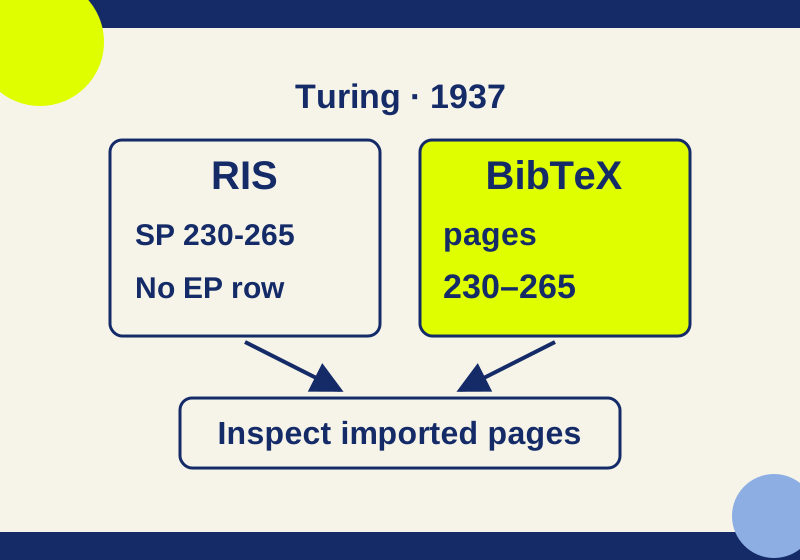
You can export selected Zotero items, a collection, or a whole library as RIS or BibTeX. Before importing the file elsewhere, open it as plain text and check a few fields against the records you meant to move. A file can contain the right DOI while encoding pages in a way the destination interprets differently.
Choose the export and its scope
-
In Zotero, select the items or collection you want to move. Right-click and choose Export Items or Export Collection. To export the library, use File → Export Library. Check the selection before saving: exporting a collection and exporting a library produce different scopes. Zotero’s export instructions
-
Choose RIS when the destination asks for RIS or accepts it as a reference-manager import format. Choose BibTeX when your next step calls for BibTeX, such as a LaTeX bibliography workflow. If a destination specifically requests BibLaTeX, use that named format rather than assuming BibTeX is equivalent. Zotero’s export instructions
-
Save the file somewhere you can find it, then open it in a plain-text editor before importing it. Zotero’s Quick Copy can produce a formatted bibliography or metadata in selected formats, but copying a citation for a document is a different task from exporting records for another reference manager. Zotero’s Quick Copy and bibliography instructions
Inspect the actual record
An October 7, 2026 check downloaded RIS and BibTeX metadata for the same DOI, 10.1112/plms/s2-42.1.230, through Crossref’s content-negotiation method. Both responses returned HTTP 200. These are Crossref records, provided here to practice reading the formats; they are not Zotero exports.
The RIS sample starts with a journal-article type and includes the DOI:
TY  - JOUR
DO  - 10.1112/plms/s2-42.1.230
Later in that file, the author is Turing, A. M., the publication year is 1937, the volume is s2-42, and the issue is 1. Its page row is:
SP - 230-265That row deserves attention. The entire page range is in SP; this record has no separate EP end-page row. After importing, inspect the destination’s pages field. Seeing a record in the destination does not establish that it split or displayed the range as intended. Zotero also notes that RIS data can have nonstandard variations, so the destination’s fields are the useful check. Zotero’s data-format notes
Download the BibTeX sample beside the RIS file. The BibTeX response expresses the same document as an @article entry with the key Turing_1937. Its relevant text includes author={Turing, A. M.}, year={1937}, volume={s2-42}, number={1}, DOI={10.1112/plms/s2-42.1.230}, and:
pages={230–265}The RIS sample uses a hyphen in 230-265; the BibTeX sample uses an en dash in 230–265. That is a visible difference between these downloaded files, not evidence that every exporter or importer will make the same choice. The BibTeX key Turing_1937 is a label for that entry; use the DOI to match the underlying work across the two files.
The checked files each contain one record: one RIS record beginning with TY and one BibTeX entry beginning with @article. That count confirms what is present in these text files. It says nothing about how a particular destination will import them.
Try one import and review the fields
For a transfer of your own Zotero records, first choose one item you recognize and export it in the format your destination requests. Import that file into an empty temporary collection in the destination, then compare the imported record with the Zotero item and the saved text file:
- Author: Are the family name and initials in the right fields?
- Title and DOI: Do they identify the intended work?
- Item type and year: Did the destination recognize the article type and publication year?
- Pages, volume, and issue: Are
230-265,s2-42, and1where you expect them?
The Turing files give you a concrete page-field case to practice with: find SP - 230-265 in RIS and pages={230–265} in BibTeX, then look for the complete range in the destination’s pages field. If it is missing or split incorrectly, correct that record before relying on a citation made from it. Repeat the check with representative records from your own library before a larger import.
For a larger collection, sample the item types you actually have. A journal article does not exercise the same fields as a book chapter or a report. Then inspect any notes, tags, collections, or attachments you need in the resulting destination records. An attachment path in metadata would not, by itself, prove that the attachment’s bytes transferred. No attachment bytes are encoded in the text excerpts above. Zotero’s export instructions
Diagnose a field that moved incorrectly
Keep the source item, the exported text and the imported item open while investigating a discrepancy. They identify three different places where information can change. If the page range is already incomplete in Zotero, repair the source record and export again. If Zotero has the full range but the file omits it, examine the chosen format and export. If the file contains the complete range but the destination shows only 230, investigate the destination’s interpretation of that field.
Record the exact difference before trying another format. For this sample, a useful note would be “RIS contains SP - 230-265; the imported pages field displays [what your destination actually shows].” That observation is more actionable than “the import failed.” A successful one-record test also gives you a known reference to compare after a larger transfer.
Keep an export separate from a backup
RIS and BibTeX are useful for moving reference metadata; they are not a complete Zotero backup. Zotero warns that exporting and reimporting can reset dates, lose some fields, and break links to citations in Word documents. For a backup of Zotero data, its instructions call for closing Zotero and copying the entire data directory. Zotero’s export guidance, Zotero data-directory instructions
Source scope: The two Crossref response files were independently checked as text on October 7, 2026 KST. Zotero’s export and backup steps above come from its documentation; no Zotero GUI export, destination import, or backup procedure was executed for this article.
KEEP GOING
More to explore.
TESTEDWeb research
Export Chrome bookmarks: check the HTML before moving browsers
A real eight-link export shows what the HTML preserves, how to inspect it, and what a browser move still needs.
SOURCE-CHECKEDBusiness documents
Asana CSV subtasks: fix duplicate parent names before import
See exactly how repeated parent names and CSV row order change subtask relationships, then try the local checker.