SOURCE-CHECKED · WEB RESEARCH
Zotero will not cite your PDF? Create the missing parent item correctly
Repair a standalone Zotero PDF with the right bibliographic parent. Use a real practice document to distinguish file metadata, publication records and identifiers.
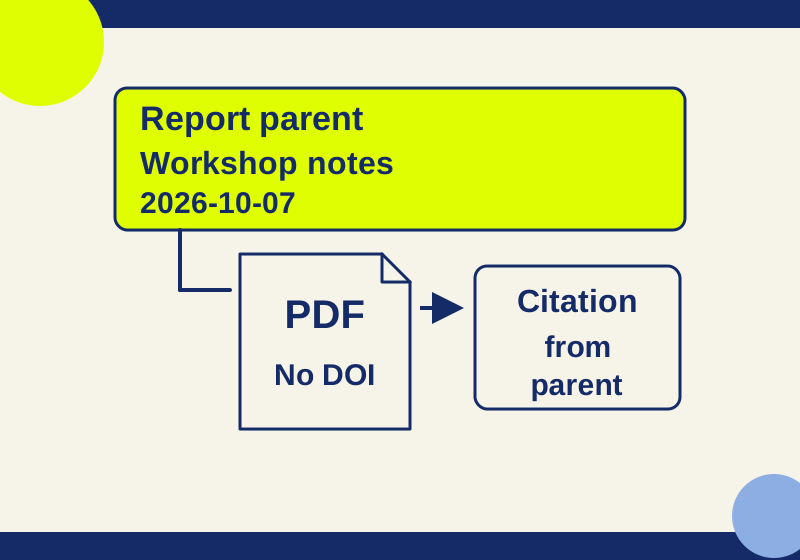
If a PDF appears in Zotero as a standalone attachment, give it a parent item before using it in a citation. The parent holds the bibliographic details, such as title, creator, date, and item type. The PDF is the file attached to that record. A standalone attachment lacks the bibliographic data and citation features of a regular item. Zotero’s guide to adding items
The right way to create that parent depends on what the PDF actually is. A published article may have a publisher record or an identifier Zotero can match. A report or workshop handout may need a manually entered parent. A DOI printed somewhere in a PDF is not necessarily the DOI of the PDF you are holding.
First, identify the document
Read the PDF’s title page or opening text before entering metadata. Look for its own title, creator, and date, then decide whether it is a journal article, report, book chapter, or another kind of work. Do not classify every PDF as an article merely because it is in PDF format.
For a published article, Zotero recommends saving the item from its publisher page when possible. You can then attach the PDF to that item. Zotero can also attempt to retrieve metadata for an academic PDF; when retrieval succeeds, it creates a parent item. If it does not, the standalone attachment’s Create Parent Item option allows an identifier lookup or manual entry. Adding items to Zotero · Retrieving PDF metadata
Check an identifier against the document’s own title. A DOI in the references may identify an article the author cited, not the document you are trying to cite. If a proposed match has a different title, do not accept it as the parent simply because Zotero found a DOI.
Practice with a PDF that has no DOI
The one-page practice PDF gives you a case where an identifier lookup is the wrong tool. Its text identifies the document as “Neighborhood reading workshop notes,” credits HowCurio practice materials, and dates it October 7, 2026. It is a synthetic training document, not a journal article. No DOI, ISBN, journal, volume, issue, or article page range has been assigned.
Use those details to build a parent item manually:
- Add the practice PDF to Zotero as a standalone attachment. Select it and use Create Parent Item, then choose manual entry rather than supplying an unrelated identifier. Retrieving PDF metadata
- Set the parent’s item type to Report. Enter the full title, the organization as a single-field creator, the date 2026-10-07, and Practice document as the report type.
- Check that the PDF is attached beneath that parent. If you instead created the report item first, attach the original PDF to it. Zotero documents both adding files and associating attachments with items. Attaching files
- Select the report parent, then use Create Bibliography from Item(s)… to inspect a citation in your chosen style. Look for the right title, creator, and date. The exact punctuation and ordering depend on the style; no Zotero bibliography output is supplied for this exercise. Creating bibliographies
The companion practice metadata JSON shows the intended fields, including a note that the document is synthetic and has no assigned identifiers. It is an illustration for checking your entries, not a claimed Zotero import file. Leave journal fields and imaginary identifiers empty. Although the PDF file has its own Title and Author metadata, that alone cannot establish that it is a published journal article.
If Zotero finds the wrong parent
Compare the proposed parent’s title and creator with the document itself before relying on it. If Retrieve Metadata attached an incorrect parent, Zotero documents Undo Retrieve Metadata in the parent item’s context menu; that returns the PDF to a standalone attachment so you can correct the match. Retrieving PDF metadata
For a real published article, use the publisher’s record or verify that an identifier resolves to the article whose title you have. Then create or save the corresponding parent and attach the PDF. For a document with no suitable identifier, enter the bibliographic details manually as in the practice example. The parent’s title, creator and item type should describe the document you will cite. Adding items to Zotero
If a correct parent already exists elsewhere in your library, check for duplicates before making another one. Zotero’s duplicate-merge process is designed to retain information such as collection membership and tags and to preserve links from word-processor citations; deleting an apparently redundant item at random can lose that relationship. Duplicate detection and merging
Know where the PDF goes
Creating a bibliographic parent and storing a PDF are separate decisions. Zotero normally copies attached files into its data directory, where file syncing can apply. A linked file points to a path outside that directory; Zotero does not sync linked files, and linked files are not supported in group libraries. Check which attachment method you are using before assuming that adding a parent has moved or synced the original file. Attaching files
There is also a privacy distinction between manual entry and automatic metadata retrieval. Zotero’s PDF retrieval process sends text from the PDF’s first few pages to its web service for matching, using services including Crossref for identifier-based metadata. If a private PDF’s contents cannot be shared that way, use manual metadata entry instead. Zotero also documents a General preference for disabling automatic retrieval. Retrieving PDF metadata
Source and test scope: The original practice PDF’s text and file metadata were inspected on October 7, 2026. The Zotero steps above are based on Zotero’s documentation; no Zotero interface, citation output, or sync behavior was independently tested for this example.
KEEP GOING
More to explore.
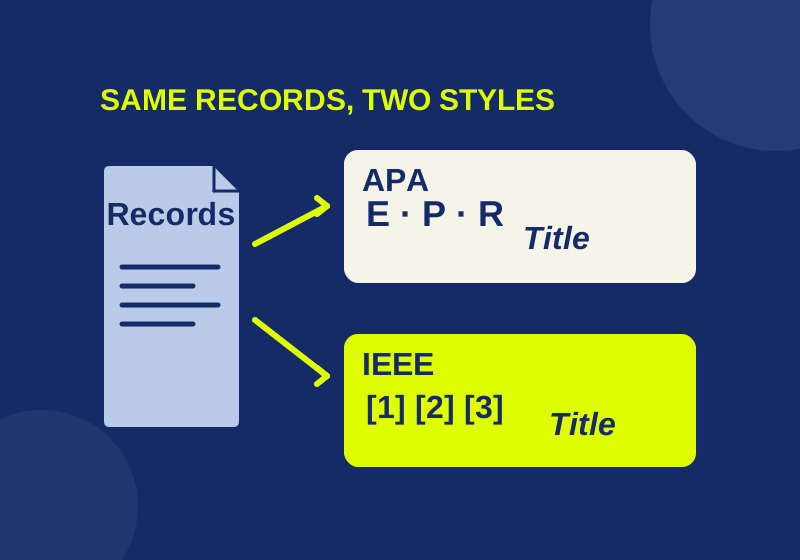
SOURCE-CHECKEDWeb research
Make a Zotero bibliography that survives copying into your document
Download actual reference outputs and see why a polished bibliography can still contain a wrong year.
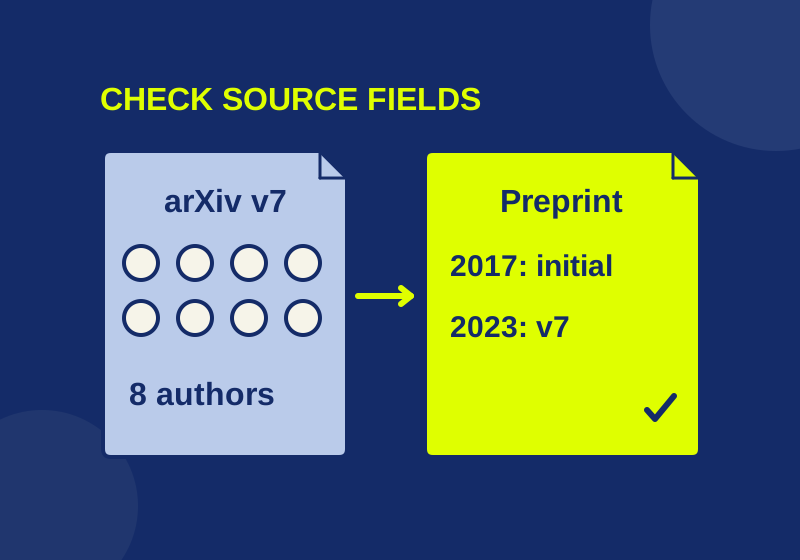
SOURCE-CHECKEDWeb research
Fix Zotero Connector metadata with a real eight-author example
A real eight-author source shows how site names, revision dates and homepage links can distort a reference.