SOURCE-CHECKED · WEB RESEARCH
Add a publication to ORCID by DOI: check attribution and source
Add your own work to ORCID by DOI and check metadata, date precision, contribution, source and visibility. Read a real public DOI example before saving your record.
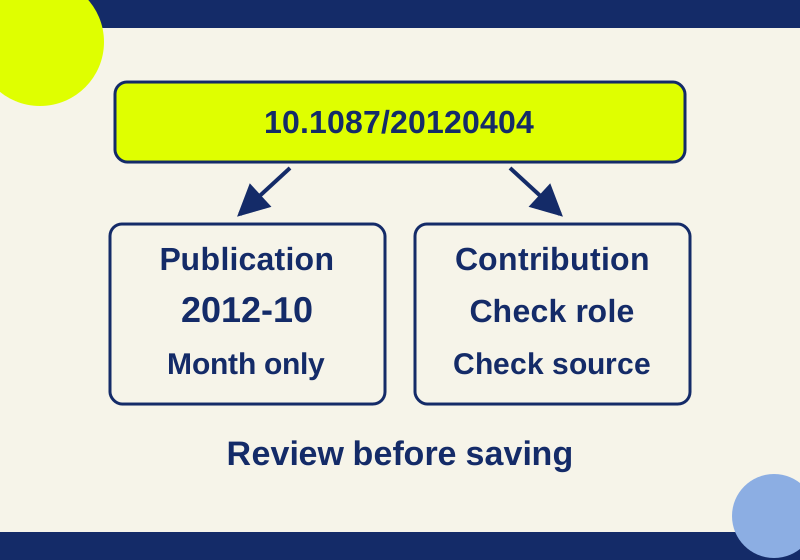
You can use a DOI to pull publication details into the Works section of your ORCID record. Before saving, check that the publication is one you actually contributed to, that its details match the publication, and that your displayed role is accurate. A DOI identifies a work; it does not establish your contribution or what each person did. ORCID’s identifier instructions describe the DOI route.
Check the DOI before opening ORCID
Start with the publication itself and its DOI. A DOI can appear as a link, such as https://doi.org/10.1087/20120404, or as the bare identifier 10.1087/20120404. If an ORCID field asks for the identifier, use the bare DOI. Keep its characters as supplied rather than changing its spelling or case.
For a concrete field check, the public Crossref record for 10.1087/20120404 contains these details:
| Field | Public record |
|---|---|
| Title | ORCID: a system to uniquely identify researchers |
| Publication | Learned Publishing |
| Item type | Journal article |
| Publication date | October 2012 |
| Authors | Laurel L. HAAK; Martin FENNER; Laura PAGLIONE; Ed PENTZ; Howard RATNER |
This is a metadata-reading example, not a work to add unless you contributed to it. The date in the checked record has year and month precision, 2012-10; it supplies no day. Do not turn it into October 1 when filling a date field. A reduced JSON field-reading example contains the same selected public fields, with simplified field names. It is not a raw Crossref response.
Make two separate checks before adding any DOI. First, does the title, publication, item type, date, and edition describe the intended work? Second, what supports your contribution to it? An author list can help you check attribution, but a different name form or missing name in retrieved metadata does not, by itself, settle whether you contributed. Compare against the publication and the contribution you can substantiate.
Add the work and review the draft
The DOI workflow documented by ORCID is short, but the review before saving matters. In your record:
- Open Works, choose Add, then Add work with DOI.
- Enter the DOI and use the control to retrieve the work details.
- Compare the retrieved title, publication or container, item type, year, and DOI with the publication you intended to add. Fill missing fields using information you can support. ORCID requires a work type and title; its Works metadata guidance allows dates at year or year-and-month precision. For identifier relationships, the work’s DOI uses Self; a journal ISSN uses Part of. An ISSN alone identifies the journal, so it cannot distinguish this article from every other article in that journal. ORCID’s identifier guide; Works metadata fields
- Review the displayed contributor attribution and role. Check the work’s visibility, then select Add this work when the draft is accurate. ORCID’s contributor guide; identifier guide
Do not treat a retrieved title as proof that the right person is being credited. For the example DOI above, a draft showing the correct title and journal would pass the publication check. It would still fail the contribution check for someone who did not work on that article.
ORCID recommends import tools when adding many works. That is a separate route from entering one DOI, and each resulting record still needs an attribution check. Add works to your ORCID record
Understand what the source and contributors mean
A work entered through the manual or DOI route lists you as its source; an institutional import can list the organization instead. The source tells you who supplied that record entry. It is not, on its own, verification of authorship or of a contributor role. ORCID’s works guide
ORCID’s dedicated contributor guide describes adding you automatically in the DOI, PMID, and manual routes, and describes controls for entering other contributors’ names and roles. Manually entered contributor information is unverified, and that guide says you cannot add another person’s ORCID iD through those controls. Review what your current draft displays and use any available name or role controls only for information you can support. The general identifier help describes other-contributor entry differently. Follow the controls actually shown in your draft; these conflicting help descriptions do not establish that every account presents the same form.
Check the saved record
After Add this work, return to Works and open the saved entry. Read back its title, DOI, year, source, visibility, and displayed contributor details. Compare them with the draft you meant to save. This check answers a different question from the DOI lookup: it shows what is in your ORCID record after saving.
Before adding a DOI, also look for it in your existing Works. ORCID can group records with the same identifier or related versions. A preferred source can be shown while other versions remain in the group, so inspect the details before deciding an entry is missing or adding another copy. ORCID says Part of and Funded by relationships are not keys for grouping the same work. Group multiple versions of the same work together
For visibility, ORCID lists Everyone, Trusted parties, and Only me. If you chose Everyone, a logged-out public view offers an additional way to check what others can see. If you chose a restricted setting, absence from that public view is expected; check the saved entry while signed in instead. Trusted individual delegates can view Only me information, and an organization can view information it added regardless of that item’s visibility. ORCID visibility settings
If the retrieved details describe the wrong publication, or a field you need cannot be supported, resolve that mismatch before saving. If the entry is saved but does not show the DOI, year, source, visibility, or attribution you intended, use the saved Works details as the place to identify the specific field that needs correction.
Scope note: The example fields above were independently read from a public DOI record. The ORCID steps describe its published help; no ORCID account, save action, or saved-record readback was tested for this article. ORCID’s dedicated and general contributor help pages differ on other-contributor entry, so check the controls shown in your account.
KEEP GOING
More to explore.
SOURCE-CHECKEDWeb research
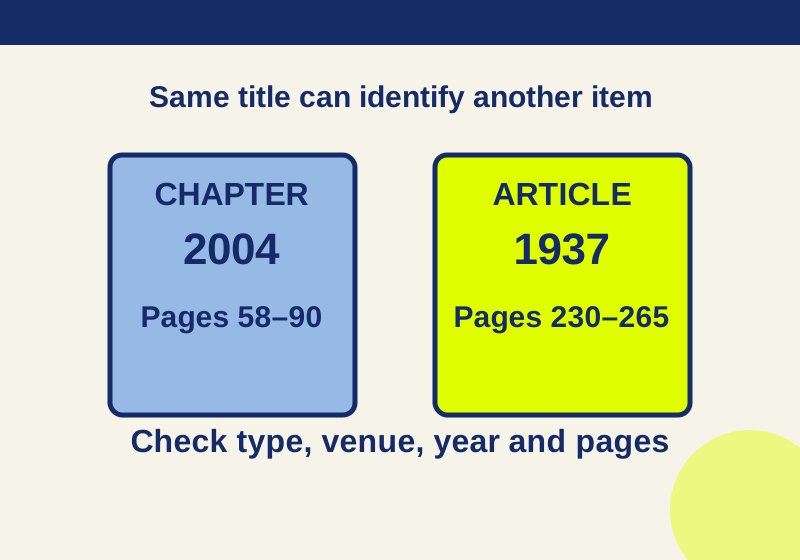
Find a DOI from a citation: when Crossref returns a different edition
The first DOI can identify a book chapter. Two recorded searches show how the journal and pages recover the intended article.
TESTEDWeb research
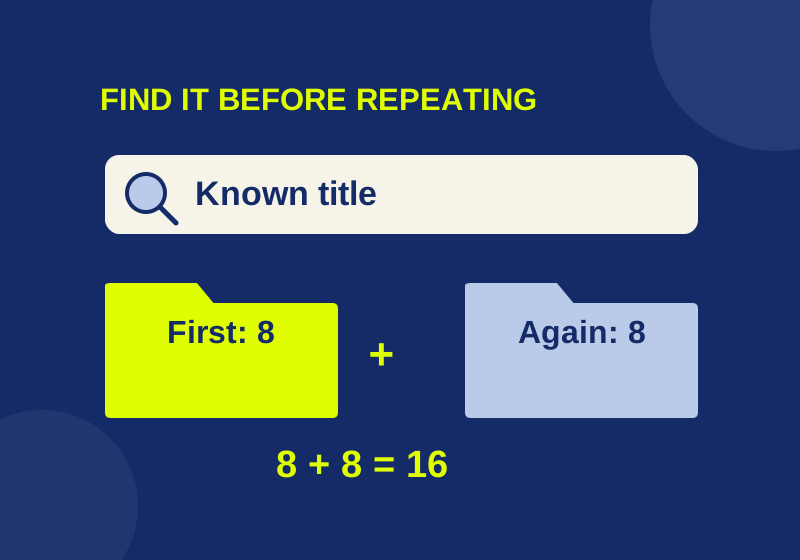
Chrome bookmarks imported but missing? Find the folder and avoid duplicates
An eight-link import became sixteen when repeated. Find the first collection before importing again.