TESTED · EVERYDAY TECH
Find what changed between two text files with free WinMerge
Compare two text versions with WinMerge, read changed and added lines, and use an actual comparison report without accidentally merging over your original.
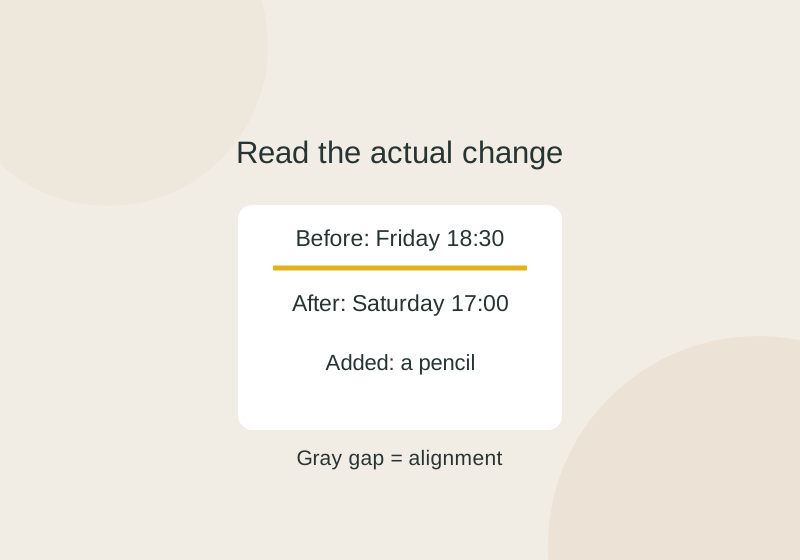
WinMerge shows where two plain-text files differ, including lines added to one file. To compare a before and after version, open both files in WinMerge and read the changes side by side. The Windows app is free and open source; its downloads page includes a portable version.
Open the files in the right order
Choose File > Open or press Ctrl+O. Select the before file as the first file and the after file as the second, then choose Compare. WinMerge does not decide which version is older for you, so read the file name above each pane before interpreting a change.
You can try this with the original before text file and after text file. The HTML comparison report lets you inspect the result in a browser without opening WinMerge. This phone-readable copy keeps the native comparison cells and colors, with adjusted margins and text wrapping. Reading notes are also available.
Read changes and alignment gaps
In the example, the meeting date changes from Friday to Saturday, and the time changes from 18:30 to 17:00. Those adjacent changes form one block. A second block adds “Bring: a pencil” after “Bring: one question.” The room, existing reminder, and snacks lines stay the same.
WinMerge leaves unchanged text on the same background and normally highlights differences in gold. Opposite the added pencil line, the left pane shows a gray blank area. That area is an alignment placeholder, not an empty line in the before file. The before file has six lines; the after file has seven. Highlight colors can vary by theme.
If a change you expect is missing, check the Compare options. Settings that ignore case or whitespace can hide differences of those types. The example used no such ignore setting.
For inspection, open the originals and avoid the merge commands. If you later copy a difference from the left pane to the right and save, that can replace content in the right file. Make working copies first if you intend to merge changes. For a DOCX file, use Word’s review tools or compare plain-text exports; a DOCX is not a plain-text file.
Source note: The opening steps and display conventions come from the WinMerge quick start, file comparison, and differences guides. A native WinMerge command-line comparison of the linked text files produced the linked HTML report, with both inputs unchanged. That record does not cover GUI editing, merging, or saving.
KEEP GOING
More to explore.
SOURCE-CHECKEDEveryday tech
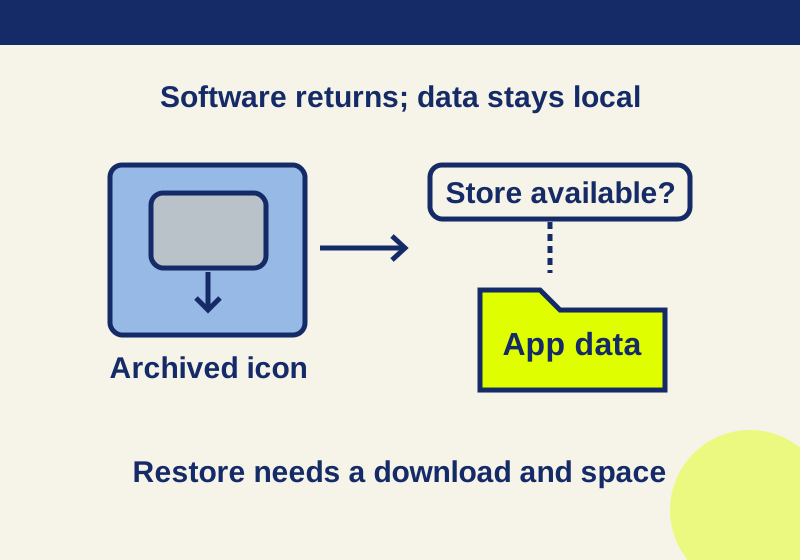
Android archived apps: restore faded icons and keep the data
A faded icon can preserve app data while the software needs downloading again. Follow the recovery branch that matches your phone.
TESTEDPDF workflows
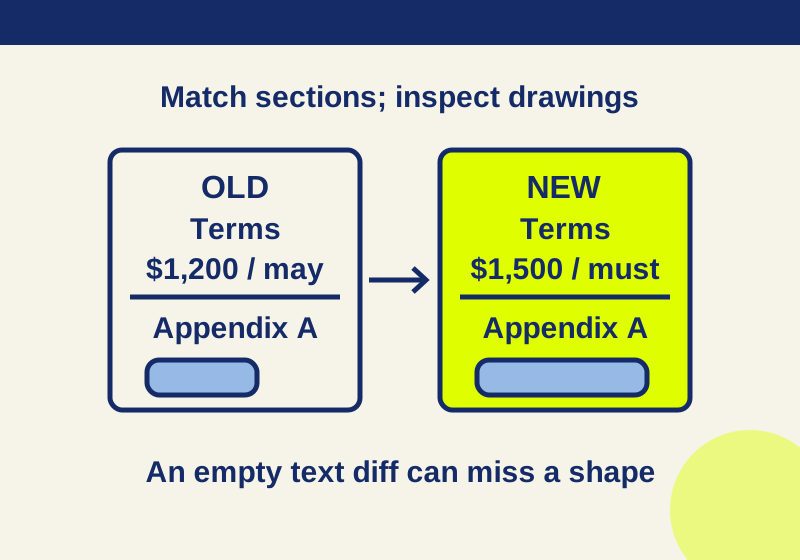
Compare two PDF versions without missing changed diagrams
Compare the older and newer PDF revisions, match moved sections by heading, and inspect drawings separately: identical extracted text can hide a changed diagram.