SOURCE-CHECKED · EVERYDAY TECH
Google Photos Locked Folder: copies, privacy and backup
Move an Android Google Photos item into Locked Folder, account for separately saved copies, and choose backup before replacing your phone.
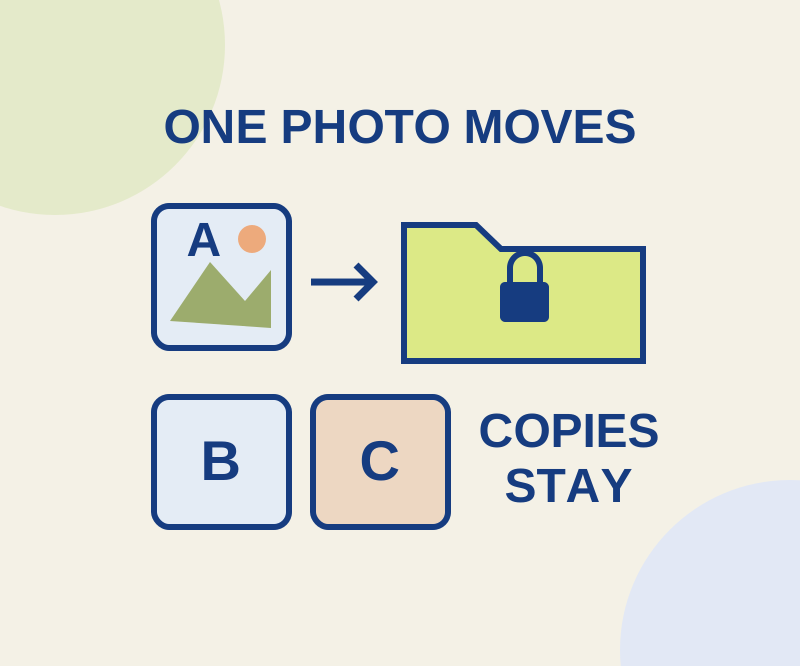
Moving a photo to Google Photos Locked Folder removes that item from the photo grid, search, albums, and memories. Other apps also cannot access it through Google Photos. The move applies to the selected item, so check separately saved versions before assuming the image is gone from browsing.
Locked Folder is available on Android 6 and later, though it is unavailable on fully managed devices and for certain accounts. It opens with your device screen lock: anyone who knows that lock can open the folder, and there is no separate Locked Folder password.
Move one photo
In Google Photos, select the photo, then tap Add to > Move to Locked Folder > Move. If you have not set up the folder, go to Collections > Locked > Set up Locked Folder first. To edit or share an item later, you must move it out of Locked Folder.
Consider a fictional photo of a blue ticket. The original is A, a separately saved crop is B, and a screenshot is C. A recipient has saved D. Moving A hides A in your Locked Folder; B and C need their own review. Moving your copy cannot recall D from the recipient. You can review the copies in your own library; you cannot use Locked Folder to remove a copy from someone else’s library.
For a harmless image you make yourself, you can rehearse the process: identify its separately saved versions, move one into Locked Folder, then check the folder and your grid and search for the other versions. Do this with a practice image rather than a sensitive or irreplaceable original.
Choose backup before replacing your phone
Locked Folder backup has its own setting: Profile > Photos settings > Backup > Back up Locked Folder. Unlock the folder and turn it on if you want automatic Locked Folder backup; general Google Photos Backup must also be on. You can instead long-press an item inside Locked Folder and choose Back up for that item, even when automatic folder backup is off.
Check this before moving a photo that is already backed up in ordinary Google Photos. Moving it into Locked Folder while Locked Folder backup is off deletes that ordinary Photos backup. An unbacked Locked Folder item is local to the phone and can be lost if you uninstall the app, clear its data, or lose or damage the phone. It is not included in USB or cloud device transfers.
Backed-up Locked Folder items count against account storage and are accessible on devices signed into the account. Before wiping an old phone, choose how you will keep the item. Local-only content on a phone you erase is lost. If you need it on a replacement device, confirm the item is available on another device signed into your account; an enabled backup toggle alone does not establish that the item has finished backing up.
Source: Google Photos Help for Android, checked October 10, 2026. The steps and behavior above are source-based; no device test was performed for this article.
KEEP GOING
More to explore.

SOURCE-CHECKEDEveryday tech
Google Photos stacks: find the other shots and share the right ones
A cover photo can hide other useful frames. Open the stack before choosing what to send.
SOURCE-CHECKEDApps & the web
Move personal events onto a separate Google Calendar
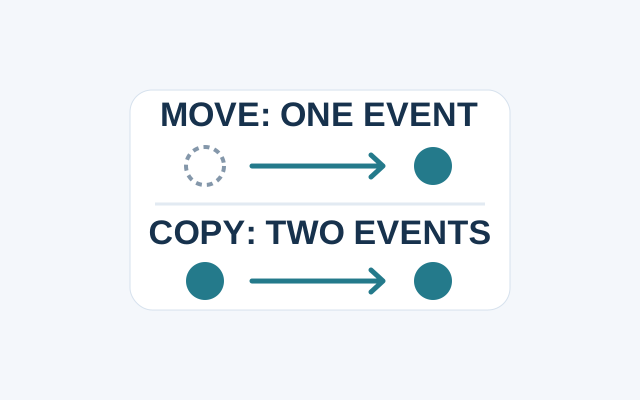
Google Calendar uses different flows to move an event and to copy one. Change the event’s Calendar field when you want it on the new calendar only.