SOURCE-CHECKED · BUSINESS DOCUMENTS
Dropbox Sign vs Docusign: collect required files while signing
Configure required signer uploads in Dropbox Sign and Docusign, retrieve the completed files, and understand PDF conversion, recipient access, and plan limits.
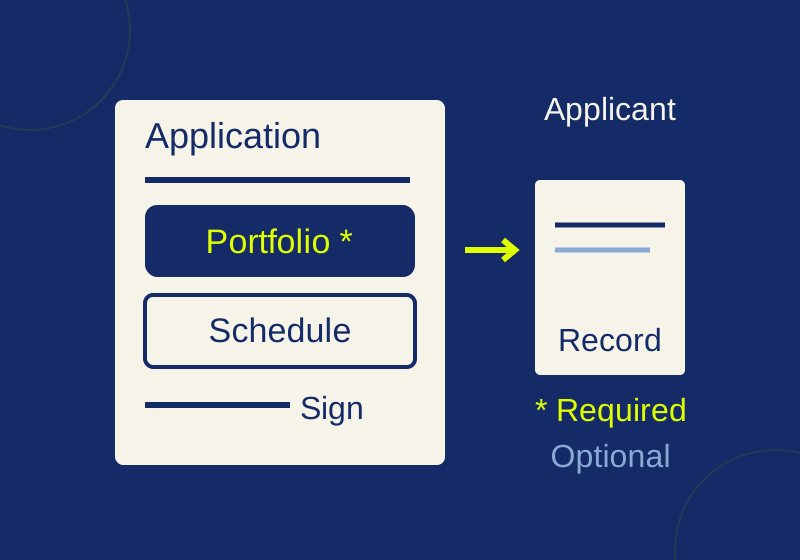
Dropbox Sign Standard and Premium can ask a signer for a required file. Docusign includes signer attachments on Business Pro; its US Personal and Standard plans omit them. Both can collect supporting documents during signing. For an application that needs a portfolio, attach the upload request to the applicant, make it required, and keep genuinely optional material separate. Dropbox Sign attachment plans, Docusign US plan comparison.
Design the application before adding upload fields
Suppose you organize a workshop and need a signed participant application, a portfolio, and an optional availability schedule.
The applicant owes the portfolio. The organizer may countersign the application but does not owe a second portfolio. Keep that distinction visible while assigning fields: a required upload attached to the organizer would ask the wrong person to supply it.
Use a specific label that makes sense after the request leaves your inbox:
Portfolio for this application
Upload a PDF containing the work samples for this application. Include every page you want the organizer to review.
Give the other upload its own wording:
Availability schedule (optional)
Attach a schedule only if your available dates need more room than the form provides.
The first instruction asks for the actual material the organizer needs to read. The second lets an applicant use the existing form when that is enough. Making both uploads required would force people with simple schedules to invent a second document.
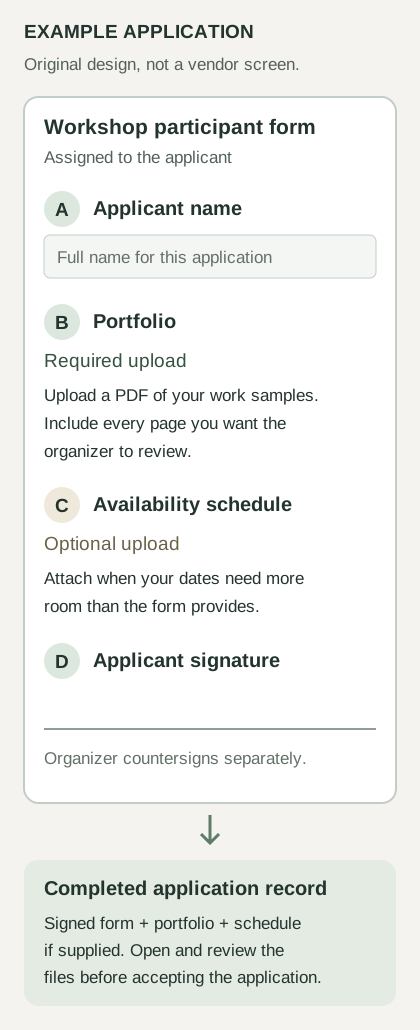
Example application layout drawn for this guide. This is an original design, not a vendor screen or a completed signing result.
Put the portfolio instruction near the application signature so applicants know which file to prepare. Include the same requirement in the invitation message. Someone opening the request on a phone should be able to find the portfolio without discovering halfway through signing that it is saved on a different computer.
Add required and optional requests in Dropbox Sign
Upload the agreement in a one-off request or standard template, continue with Next, and add the applicant signer or role. Use the attachment control next to that signer or role. Enter the portfolio label and description, then select Required. Add the schedule request and leave its Required setting unselected. Finish with Done.
Dropbox prompts for the files at the end of signing. Its training guidance describes up to five attachment requests per signer and lets a required upload block completion until supplied. Find the uploaded files beside the completed request on Documents. Attachment setup, Dropbox Sign training.
If you reuse a template, read the request labels again before sending it to another program. A portfolio label copied from a photography workshop could be wrong for a writing workshop even though the upload field still works. Change the instruction to describe the work you actually need.
Assign Docusign attachment fields to the applicant
In the envelope editor, add separate Attachment fields for the portfolio and schedule, assigned to the applicant. Open their properties and set the portfolio to required and the schedule to optional. Docusign’s native field-properties documentation describes required/optional settings and recipient assignment. Select each field individually so you do not change both requirements together.
For a flow built in Power Automate, the current connector reference exposes Optional on Signer Attachment tabs: Yes makes the field optional, and its documented default is required. These are connector properties, not names of buttons in the web editor.
The signer selects the attachment field, chooses the upload action and file, then finishes that attachment step and the other required fields. Docusign’s signer instructions specify files under 50 MB and exclude ZIP or compressed uploads. Supported attachments become PDFs. Multiple uploads in one field depend on an enabled option; two separately named requests keep the portfolio and schedule instructions distinct.
With the option that appends attachments to the document, uploads cannot be removed and follow a copied envelope. Start from a blank application instead of an earlier applicant’s envelope.
Decide who should receive the supporting file
Attachments reach the sender and any other signer or reader. Choose the envelope recipients accordingly. A second organizer should receive applicants’ unpublished work only when that is part of the person’s job.
The US plan table lists document visibility as a contact-sales feature. Ordinary user permissions and shared folders do not establish that a Business Pro upload is hidden from particular envelope recipients. If a file must reach only one reviewer, use a collection arrangement that actually provides that separation.
An upload also does not verify the submitter’s identity or approve the portfolio’s contents. Asking for a supporting file and authenticating a signer are separate jobs. Keep the form’s wording precise: ask for work samples without claiming the upload proves qualifications, ownership, or eligibility.
Retrieve the completed application and inspect its files
In Dropbox Sign, open Documents and find the uploads alongside the completed signature request. In Docusign, locate the envelope on Agreements, open its Details view, and use Download. If you need the Certificate of Completion, select it explicitly. Docusign notes that the combined-PDF option can omit the certificate because of an account setting. Docusign’s record and certificate instructions.
For the workshop example, the expected record consists of the signed application, the portfolio, and a schedule only when supplied. An empty optional slot is an acceptable outcome; an absent portfolio needs attention.
Open the portfolio before marking the application accepted. A required field can establish that the applicant supplied an upload, while a PDF titled portfolio.pdf can still contain a cover page and nothing else. Check that the work samples are readable and that the application and portfolio belong together. If someone submitted another person’s application by mistake, a completed signature status will not resolve that mismatch.
Save the material under your own application identifier. For example, a local folder named workshop-application-014 can hold an application PDF and its supporting files without relying on every applicant choosing a unique filename.
If an integration retrieves the attachments
Docusign’s official developer guide explains why a filename alone is a poor identifier. Read the recipient’s attachment tabs and their tabId values, list the envelope documents, and match each document’s attachmentTabId to the appropriate tab. Use that document’s documentId to retrieve it.
This mapping lets an integration distinguish the portfolio request from the schedule request even when uploads have unhelpful names such as scan.pdf.
Resolve the problems that change the outcome
If an applicant completes signing without the portfolio, inspect the portfolio field’s required setting and recipient assignment. A request merely named “required portfolio” needs the actual required setting too. Leave the schedule optional while fixing the portfolio.
For an upload error, apply the file requirements above to the actual file. Renaming a ZIP to .pdf will not convert its contents into a PDF.
If a portfolio opens but shows only a title page, request the missing samples and decide how your organization records the correction.
If you need an editable design file or a video, Docusign’s PDF attachment output does not provide that original working material. A separate file-request workflow can collect those files, but completion of the signature request will no longer enforce completion of that separate upload. Explain both tasks to the applicant instead of implying that a signed form confirms receipt of a video elsewhere.
Compare sending volume before choosing a plan
Dropbox’s plan guidance describes unlimited signature documents on Standard and the other paid web plans. API plans have separate limits. This is a web-plan sending allowance, not a promise of unlimited file sizes or API requests.
Docusign’s US terms list up to 100 envelopes per user per year on annual Standard and Business Pro, or up to 10 per user per month on monthly plans, with overage charges. Sending counts against the allowance even if the request is never completed. An envelope counts once regardless of its documents, fields, or signers.
For a hypothetical 20 applications a month, one envelope per application produces 240 sends over 12 months. That exceeds the stated annual allowance for one Docusign user. Adding the portfolio field and an organizer’s signature to the same envelope does not make three sends.
The vendor instructions were checked October 7, 2026, KST. This is a document-based comparison. No paid account, signing session, recipient upload, export, or API integration was independently tested.
KEEP GOING
More to explore.
SOURCE-CHECKEDBusiness documents
Dropbox Sign attachments: collect the right file when someone signs
Collect the equipment list you need, keep a helpful photo optional, and give the signer instructions they can act on.
SOURCE-CHECKEDBusiness documents
Download Dropbox Sign documents and find the audit trail
Find the completed agreement and audit record without archiving an old draft.