SOURCE-CHECKED · BUSINESS DOCUMENTS
Adobe Acrobat Sign limits: why a 16 MB agreement can still fit
Adobe limits each uploaded file to 10 MB, while pages add across the agreement. Work through nine examples, signer limits and annual transaction counting.
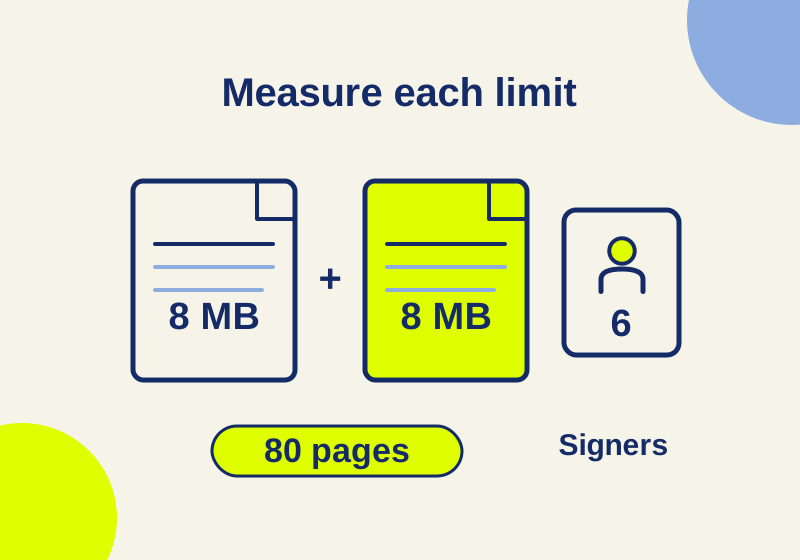
A 16 MB agreement can fit Adobe Acrobat Sign’s published upload rule when it consists of separate files below 10 MB each. Adobe applies that size cap to each uploaded file. Its page cap applies to all the files in the transaction combined. The sender’s service level also determines how many signers the agreement can include.
For an error, separate the measurements: the largest individual file, the combined page count and the number of signers. Buying a higher tier will not fix a problem when the relevant limit stays the same.
| Sender’s service level | Maximum per uploaded file | Combined pages | Signers |
|---|---|---|---|
| Acrobat Standard, except ETLA | 10 MB | 100 | 10 |
| Acrobat Pro, except ETLA | 10 MB | 100 | 25 |
| Acrobat Sign for Enterprise, ETLA/VIP | 10 MB | 500 | 25 |
Adobe’s transaction-limit documentation supplies these figures. They screen the listed dimensions; account conditions and workload throttling can still affect a send.
Two 8 MB files differ from one 16 MB file
Suppose an agreement contains two 8 MB files, each with 40 pages, and six signers. Its files total 16 MB, but its largest file is 8 MB. Its 80 combined pages and six signers also fit Standard’s listed limits.
Now suppose the same 80 pages are in one 16 MB file. The page and signer counts still fit. That individual file exceeds the 10 MB upload cap for every service level shown above. Pro’s higher signer allowance does not solve the file-size problem.
Combining attachments can change which size Adobe checks. Two separate 8 MB uploads meet the per-file condition. If a merge produces a single 16 MB file, that resulting upload fails the stated size condition. Measure the saved output; a merger or compression operation can produce a size different from the sum of its inputs.
If a particular file is too large, work on that file’s size while preserving the required agreement content. Reordering the other attachments or reducing the number of signers does not bring the oversized file below its cap. Do not split a legally required agreement into separate signature requests solely to make the numbers fit without confirming that the changed signing process is acceptable.
A small agreement can still have too many pages
Consider two 5 MB files, each with 60 pages, and 12 signers. Every file is below 10 MB. The agreement totals 120 pages, however, which exceeds the 100-page cap for both Standard and Pro. Standard also falls short on signers; Pro covers the 12 signers but still has the page problem. Enterprise’s listed dimensions cover all three measurements in this hypothetical example.
A useful calculation is:
File-size screen: largest individual upload
Page-count screen: sum of the pages in every uploaded document
Signer screen: number of signers in that agreement
Include the final appendices in the page count. An agreement with 96 pages and a 5-page attachment totals 101. Checking the main document by itself would miss the problem, even when both individual files are small.
Where one more page or signer changes the result
Two 6 MB files with 50 pages each and 10 signers reach Standard’s page and signer boundaries. All three listed dimensions fit. Add one page, and 101 pages exceed both Standard and Pro’s page caps. Keep the 100 pages and add an eleventh signer, and Pro covers the signer count while Standard does not.
With 26 signers, none of the three rows shown here covers the signer count. Reducing file size does not alter that result. The signer limit also does not count annual requests: a single agreement can have several signers while consuming one transaction.
Enterprise’s page boundary works the same way. Two 4 MB files with 250 pages each and 25 signers reach its 500-page cap. At 501 combined pages, the agreement exceeds that page cap even if each file remains below 10 MB.
The downloadable example CSV contains nine worked cases, including these boundaries. Its largestFileMB column drives the file-size check, while allPages and signers drive their separate checks. The allFilesMB column is included to show the total; it is not the number to compare with the per-upload 10 MB cap. The fit columns describe these arithmetic screens, not an observed Adobe acceptance result.
Inspect the 100-page boundary yourself
These small synthetic PDFs give you real files to count:
Open each in a PDF viewer and look at its page counter. Part A plus Part B totals 100; replacing Part B with the extra-page version totals 101. An extra appendix page can therefore change the page-limit calculation without creating a file-size problem.
The actual files contain 17,948, 17,955 and 19,264 bytes, respectively. These are intentionally small page-count resources, not the hypothetical 8 MB files discussed earlier. Their PDF page counts were checked by reopening the saved files locally. No agreement was uploaded or sent through Adobe for this example.
Use the error’s stage to find the right measurement
If an upload error identifies one file, inspect that file’s individual size. Adobe documents the message “Upload limit exceeded” for a file outside the upload boundary. Adding up all the attachments can send you toward the wrong fix.
For a page-limit error during agreement creation, add the pages across the complete final set of documents. If the main agreement is 90 pages and an appendix adds 15, your measurement is 105. Separately checking each document against 100 would produce the wrong conclusion.
Near the size boundary, keep the measured byte count. Adobe’s cited page uses MB without defining a decimal or binary byte conversion, so this article does not supply an exact guaranteed byte threshold. The actual sender’s upload validation resolves a near-edge file.
Record the sender’s service level along with the measurements and the error. The larger allowance of another employee’s account is not the service level governing your request. The table also labels Standard and Pro as excluding ETLA; use the applicable agreement terms instead of silently applying those rows to a different license arrangement.
Annual volume does not explain every temporary block
Adobe separately describes per-user throttling over minute, hour and day periods. Its workload measures include file size, pages and participants, and concurrent web and API requests count together. The documentation does not give a universal numerical throttle to calculate from these examples.
A time-related send limit therefore needs a different diagnosis from an oversized file. Reducing a PDF’s pages might fix a page-cap error; an annual transaction allowance does not guarantee that a burst of requests will be accepted. Keep the timing and the actual error with your measurements when seeking help for a temporary block. A workload’s participants are also broader than a table that specifically counts signers.
Count agreements sent, not files or signatures
Adobe’s transaction-consumption guidance is written for business and enterprise customers. Sending one agreement consumes a transaction even when it contains several files and recipients.
For example, 500 normally sent agreements with three files and four signers each count as 500 transactions. They contain 1,500 files and 2,000 signer positions, but neither figure is the transaction total. One agreement with 10 signers still counts as one transaction.
Send in Bulk counts the individual agreements it sends: a batch producing 100 agreements counts as 100. Web form submissions count too. Creating a library template, creating a web form template or keeping an agreement as an unsent draft is excluded at that stage. Five template creations and 50 unsent drafts do not become 55 sent agreements; sending those 50 drafts later produces 50 transactions.
Adobe also distinguishes Fill & Sign in local Acrobat from Fill & Sign in the Acrobat Sign web service. The former does not consume an Acrobat Sign transaction; the latter does. The shared feature name alone does not tell you which counter is affected.
Treat 150 per year as an annual planning figure
Adobe lists 150 transactions per user per year for Sign user licenses unless the contract specifies otherwise. Its Standard and Pro rows use different transaction wording, so do not transfer the 150 figure to every product named Acrobat.
At 20 agreements a month, annual demand is 20 × 12 = 240: 90 above a 150-transaction allowance. Dividing 150 by 12 gives an average of 12.5 for comparison. That arithmetic does not establish a monthly quota or monthly reset.
Eight allowances of 150 total 1,200 mathematically. That sum does not establish that one sender can consume another user’s unused allowance. For instance, a sender needing 300 transactions can still need a different allocation even when the other seven users send nothing. Check how the purchased entitlement applies to users and accounts.
At 300 agreements a month, demand is 3,600 a year, equivalent to 24 blocks of 150. This is a volume calculation, not a recommendation to buy 24 unused sender licenses. Adobe documents user-license and negotiated volume arrangements; the applicable contract determines allocation and renewal terms.
KEEP GOING
More to explore.
SOURCE-CHECKEDBusiness documents
Acrobat Pro vs Sign Solutions: which signer checks can you require?
Match the exact signer check to its plan and administrator controls, including Pro’s identity-provider support and Sign’s certificate requirement.
SOURCE-CHECKEDBusiness documents
Box Shield confidential links: why an invited agency can still open the file
An invited agency can retain folder access after a public link closes. Trace the label, enforcement action, and collaboration origin.