SOURCE-CHECKED · APPS & THE WEB
Send a Chrome tab from your computer to your phone
Send a Chrome tab to your phone and know where to look if no notification appears.
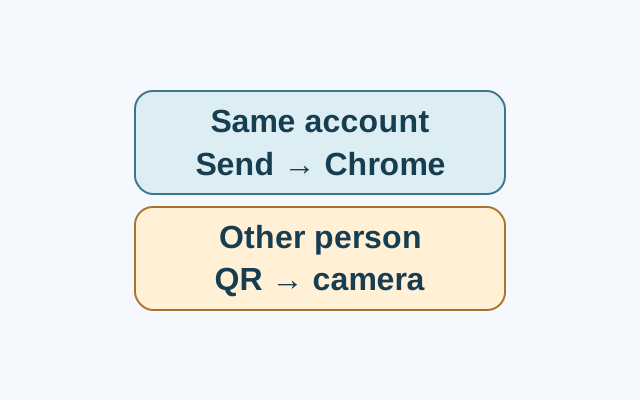
Sign in to Chrome with the same Google Account on your computer and phone. On the computer, open the tab, select More, then Cast, save and share, then Send to your devices. Choose your phone. You can also right-click the tab or page and select Send to your devices.
Where to look if there is no alert
Chrome opens the tab automatically on the device you choose. If no alert appears, look in Chrome on the selected phone. Google says the phone notification appears when notifications are turned on, so a missing alert alone does not tell you whether the tab arrived. Google’s computer instructions give no further recovery steps if you cannot find it there.
Share by QR code
To let someone else scan the page, select More, then Cast, save and share, then Create QR code. They can scan it with another device’s camera.
Source: Google Chrome Help, “Share tabs in Chrome”, computer instructions.
KEEP GOING
More to explore.
TESTEDWeb research
Chrome bookmarks imported but missing? Find the folder and avoid duplicates
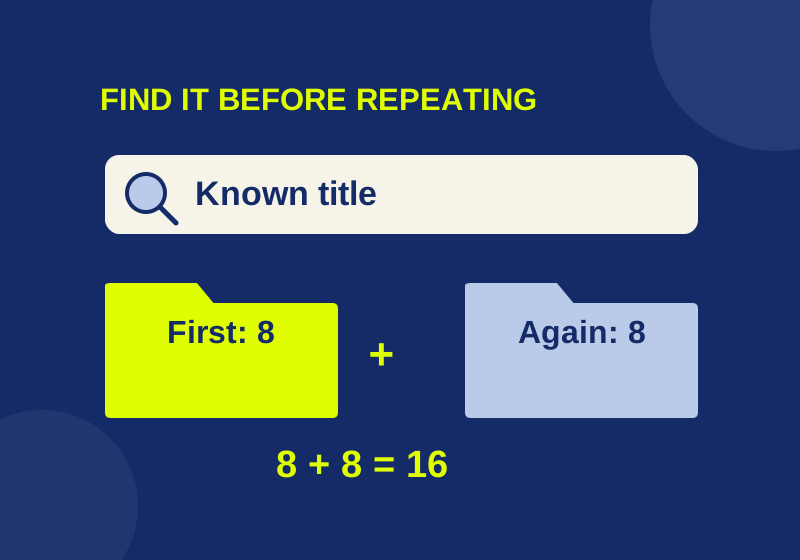
An eight-link import became sixteen when repeated. Find the first collection before importing again.
SOURCE-CHECKEDWeb research
Chrome Reading list: save pages for later without losing your place
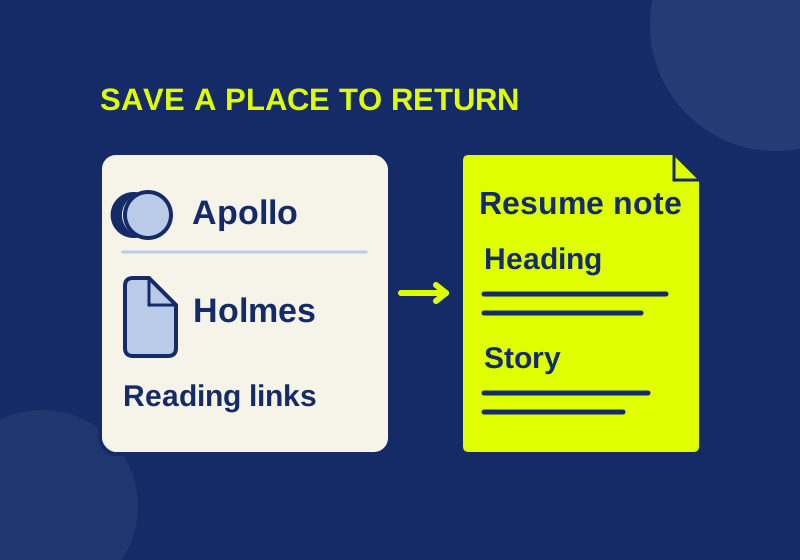
A four-link starter queue shows how to save a destination, keep your reason for reading, and avoid confusing a list entry with an offline copy.